Experience Lifecycle
This guide covers how to manage experiences through their complete lifecycle, from creation to completion. Understanding the lifecycle helps you effectively control access and respond to changing conditions.
Lifecycle Overview
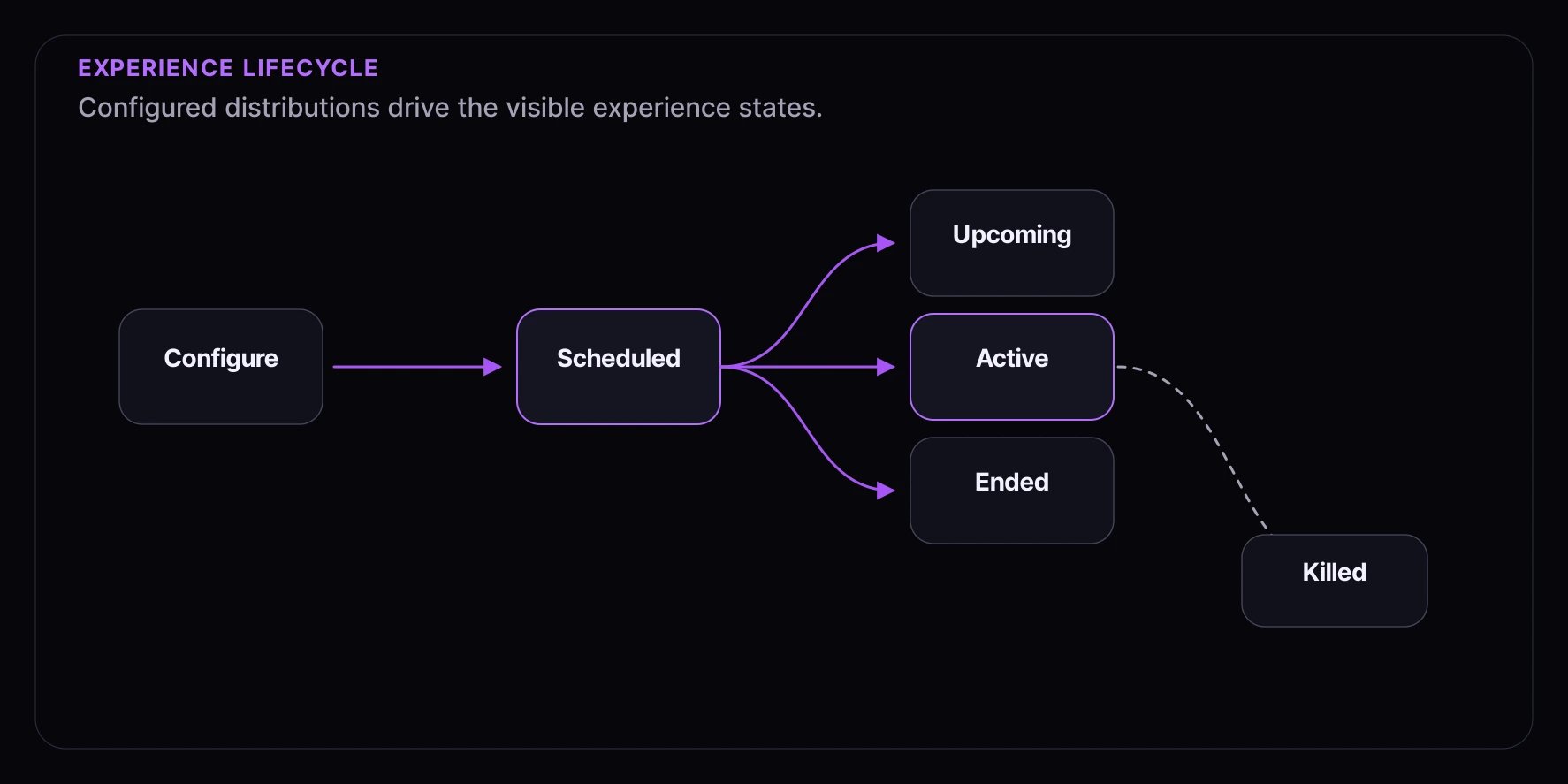
All experiences progress through a standard lifecycle:
Creation → Draft → Published/Scheduled → Active → Processing → Completed
↓ ↓ ↓
Paused Cancelled Failed
Caption: Experiences progress through defined stages from creation to completion
Experience States
Draft
The initial state after creation. The experience is not visible to consumers.
Available Actions:
- Edit all settings
- Preview experience
- Publish to make active
- Delete experience
Caption: Draft experiences can be fully edited before publishing
Scheduled
Published but waiting for the start date. Consumers can see the experience but cannot interact yet.
Available Actions:
- Edit most settings
- Pause before start
- Cancel experience
- Update schedule
Active
The experience is live and accepting consumer participation.
Available Actions:
- Monitor analytics
- Pause experience
- End early
- View entries
- Limited editing
Caption: Active experiences show real-time participation metrics
Paused
Temporarily stopped. Consumers see a paused message.
Available Actions:
- Resume experience
- End experience
- View current entries
- Investigate issues
Processing
For draws and auctions, this state indicates winner selection or auction settlement is in progress.
Available Actions:
- View progress
- Wait for completion
- Cancel (with caution)
Completed
The experience has finished successfully.
Available Actions:
- View final results
- Export data
- Archive experience
- Delete experience
Cancelled
Manually cancelled before completion.
Available Actions:
- View what was collected
- Delete experience
Failed
Processing failed (e.g., draw couldn’t complete, payment failed).
Available Actions:
- Investigate error
- Retry processing
- Contact support
- Cancel experience
Publishing an Experience
Pre-Publish Checklist
Before publishing, verify:
Publishing Steps
- Navigate to the experience detail page
- Review all settings in the summary
- Click Publish button
- Confirm the action in the dialog
- Experience moves to Scheduled or Active state
Caption: Confirm before publishing your experience
After Publishing
- Experience appears in consumer-facing channels
- Countdown shows if not yet started
- You’ll receive confirmation notification
- Limited editing available
Pausing and Resuming
When to Pause
Pause an experience when:
- Technical issues occur
- Inventory needs adjustment
- External factors require a hold
- Investigation is needed
How to Pause
- Navigate to the active experience
- Click Pause in the actions
- Confirm the pause action
- Experience immediately stops accepting entries
Caption: Pausing immediately stops consumer participation
Consumer Experience When Paused
- New entries are blocked
- Existing entries are preserved
- Message displays: “This experience is temporarily paused”
- Position in queue/draw is maintained
Resuming
To resume a paused experience:
- Navigate to the paused experience
- Click Resume in the actions
- Confirm resumption
- Experience immediately accepts entries again
Long pauses may frustrate consumers. Communicate the reason if possible and resume promptly.
Ending Experiences
Automatic Ending
Experiences end automatically when:
- End date/time is reached
- Inventory is exhausted
- All slots are filled (appointments)
Manual Early Ending
To end an experience before its scheduled end:
- Navigate to the experience
- Click End Experience or End Early
- Select end option:
- End Now - Immediate stop
- Process Now - Stop entries and begin processing
- Confirm the action
Caption: Choose how to end your experience
Post-Ending Behavior
| Experience Type | What Happens |
|---|
| Queue | Remaining entries can complete checkout (if configured) |
| Draw | Winner selection begins |
| Auction | Settlement process starts |
| Appointment | No new bookings; existing appointments continue |
Cancelling Experiences
When to Cancel
Cancel when:
- The experience should not continue
- A critical error requires stopping
- Business decision to not proceed
Cancellation vs. Ending
| Action | Use When | Consumer Impact |
|---|
| End | Normal completion | Graceful conclusion, processing occurs |
| Cancel | Abnormal stop | No processing, all entries void |
How to Cancel
- Navigate to the experience
- Click Cancel Experience
- Optionally enter a cancellation reason
- Confirm cancellation
- Consumers are notified (if configured)
Caption: Provide a reason when cancelling for record-keeping
Editing During Lifecycle
What Can Be Edited
Editing capabilities depend on the current state:
| Setting | Draft | Scheduled | Active | Paused |
|---|
| Name/Description | Yes | Yes | Yes | Yes |
| Product | Yes | Yes | No | No |
| Audience | Yes | Yes | Limited | Limited |
| Schedule | Yes | Yes | Limited | Limited |
| Inventory | Yes | Yes | Yes | Yes |
| Notifications | Yes | Yes | Yes | Yes |
| Design/Theme | Yes | Yes | Yes | Yes |
Inventory Adjustments
You can adjust inventory during active experiences:
- Increase inventory to serve more consumers
- Decrease inventory (with caution)
- Release reserved inventory
Caption: Adjust inventory even during active experiences
Timeline Visualization
Experience Timeline
The experience detail page shows a visual timeline of:
- Key dates (start, end, draw time, etc.)
- Sequences and their schedules
- Upcoming events
- Completed milestones
Caption: The timeline shows all scheduled events for your experience
Upcoming Events
The system displays upcoming events:
- Entry window opens
- Entry window closes
- Draw time
- Settlement deadline
- Checkout deadline
Notifications During Lifecycle
Admin Notifications
Receive notifications for:
- Experience published
- Experience started
- Reaching milestones (50%, 75%, 100% of inventory)
- Experience paused
- Experience ended
- Processing completed
- Errors or failures
Consumer Notifications
Consumers receive notifications based on your settings:
- Entry confirmed
- Experience starting/ending
- Position updates
- Results (win/lose)
Best Practices
Before Publishing
- Test thoroughly - Use preview and test entries
- Check all dates - Verify time zones
- Confirm inventory - Match actual availability
- Review notifications - Ensure messages are ready
During Active Period
- Monitor regularly - Check dashboard frequently
- Respond quickly - Address issues immediately
- Communicate changes - Notify consumers of any modifications
- Document decisions - Record why changes were made
After Completion
- Review results - Analyze what worked
- Export data - Save important information
- Follow up - Handle any pending issues
- Plan improvements - Apply learnings to future experiences
Troubleshooting
Experience Won’t Publish
- Check all required fields are complete
- Verify dates are in the future
- Ensure product/audience exist
- Look for validation errors
Experience Stuck Processing
- Allow adequate time (varies by type)
- Check for processing errors
- Contact support if extended delay
Unexpected State Change
- Review audit log for actions
- Check automated triggers
- Verify no conflicting schedules