

Before you start
- Where to find it: Open the user menu at the bottom of the sidebar and select Billing or Usage.
- Permissions: Everyone in your organization can view both pages, but only organization admins can change or cancel plans, reactivate a subscription, update the payment method, open the billing portal, or contact sales.
- Compare features, monthly prices, and take rates across every tier in Plans and what they unlock.
Check your current plan
The Current plan card at the top of Billing displays your active plan, subscription status, monthly price (or Custom pricing on Enterprise), and upcoming renewal or end date.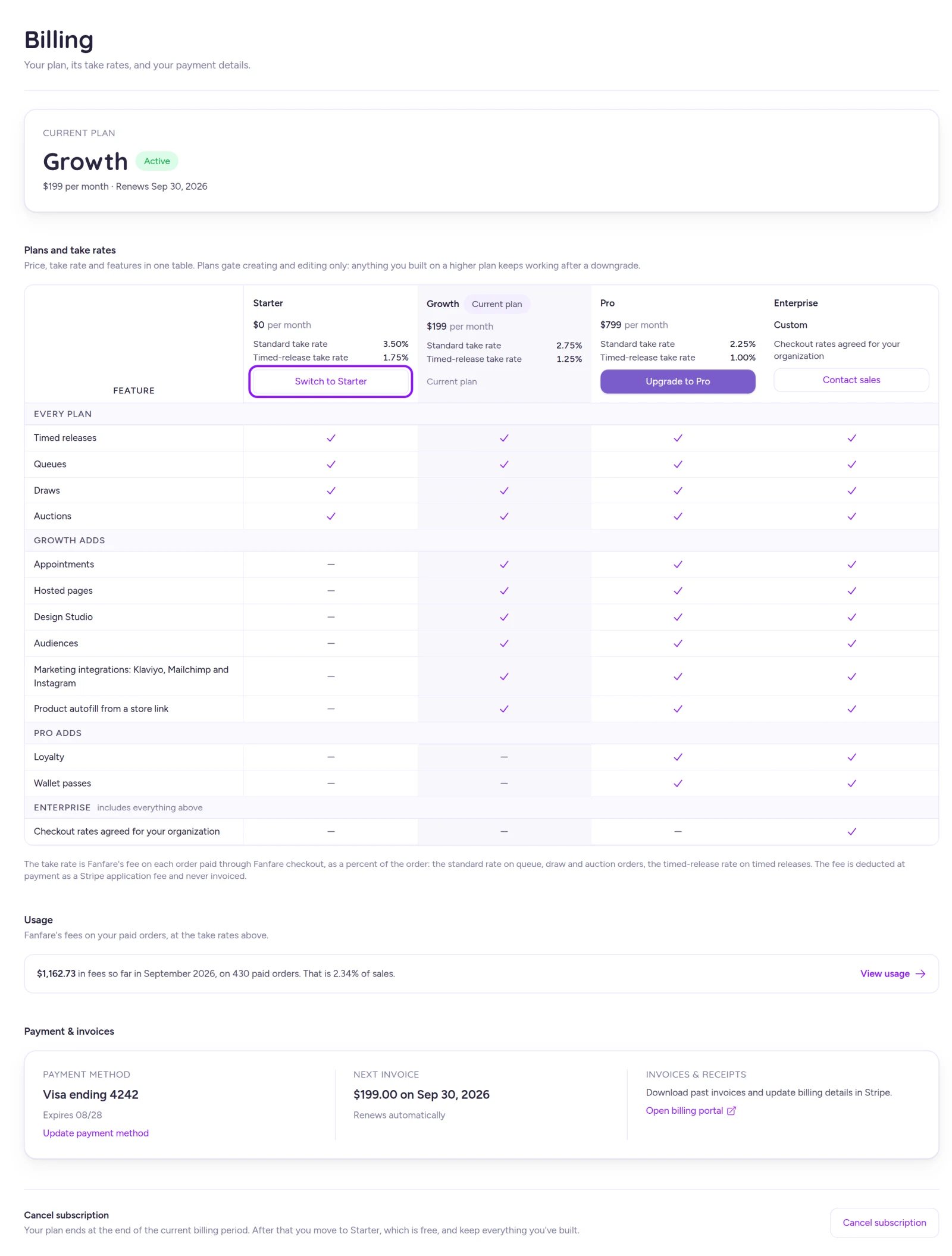
Review your current plan, compare tiers, and jump to your usage summary from Billing.
Manage your free trial
New organizations created at admin.fanfare.io automatically start with a 5-day free trial of Growth—no credit card required. To add a payment method during your trial:- On the Current plan card, select Add payment method.
- Enter your card in Stripe. Stripe returns you to Billing.

Add a payment method before your trial ends to stay on your paid plan without interruption.
Change between paid plans
Compare all plans side by side under Plans and take rates (your active tier is marked Current plan).- Select Upgrade to Pro (or another higher tier), or Switch to Growth (or another lower paid tier).
- In Change Plan, review Proration Details to see your credit for unused time, the charge for the new plan, and the net difference on your next invoice.
- Select Confirm Change.
To change plans, you need to be an organization admin, have a payment method on file (if you’re in a trial), and select a plan with confirmed pricing. For Enterprise, select Contact sales to book a call. Right after a plan change, other open admin pages may briefly show your previous plan’s locks—refresh if needed.
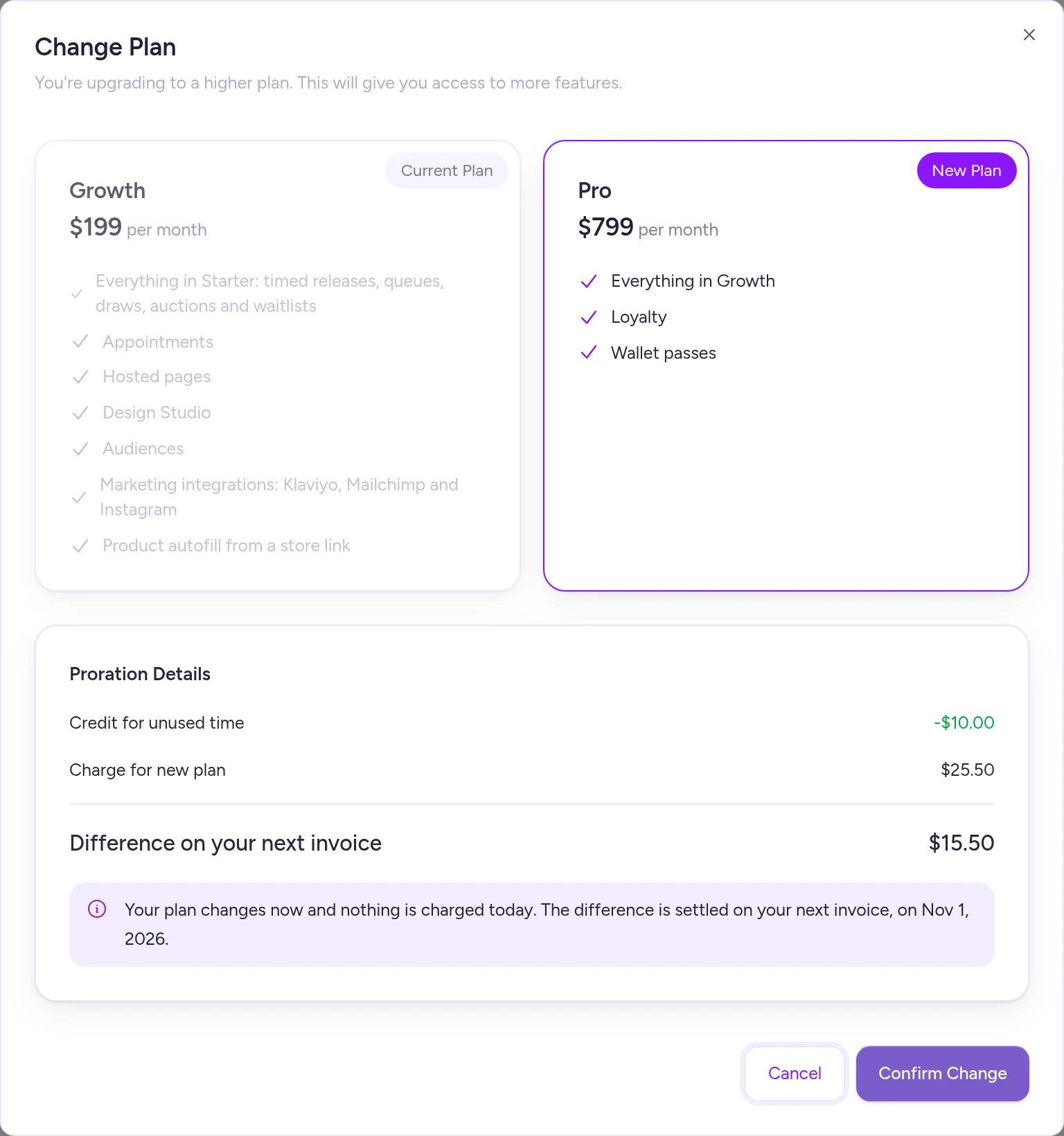
Plan changes take effect right away, with the prorated difference settled on your next invoice.
Move to Starter or cancel
Starter is free, so moving to Starter cancels your paid subscription. Both Switch to Starter (in the Starter column) and Cancel subscription (at the bottom of Billing) open the same cancellation flow.- Select Switch to Starter or Cancel subscription.
- Choose a reason and select Continue.
- Optionally share feedback, choose Cancel at end of period (default) or Cancel immediately, and select Continue.
- Review what happens on Starter, then select Confirm Cancellation.
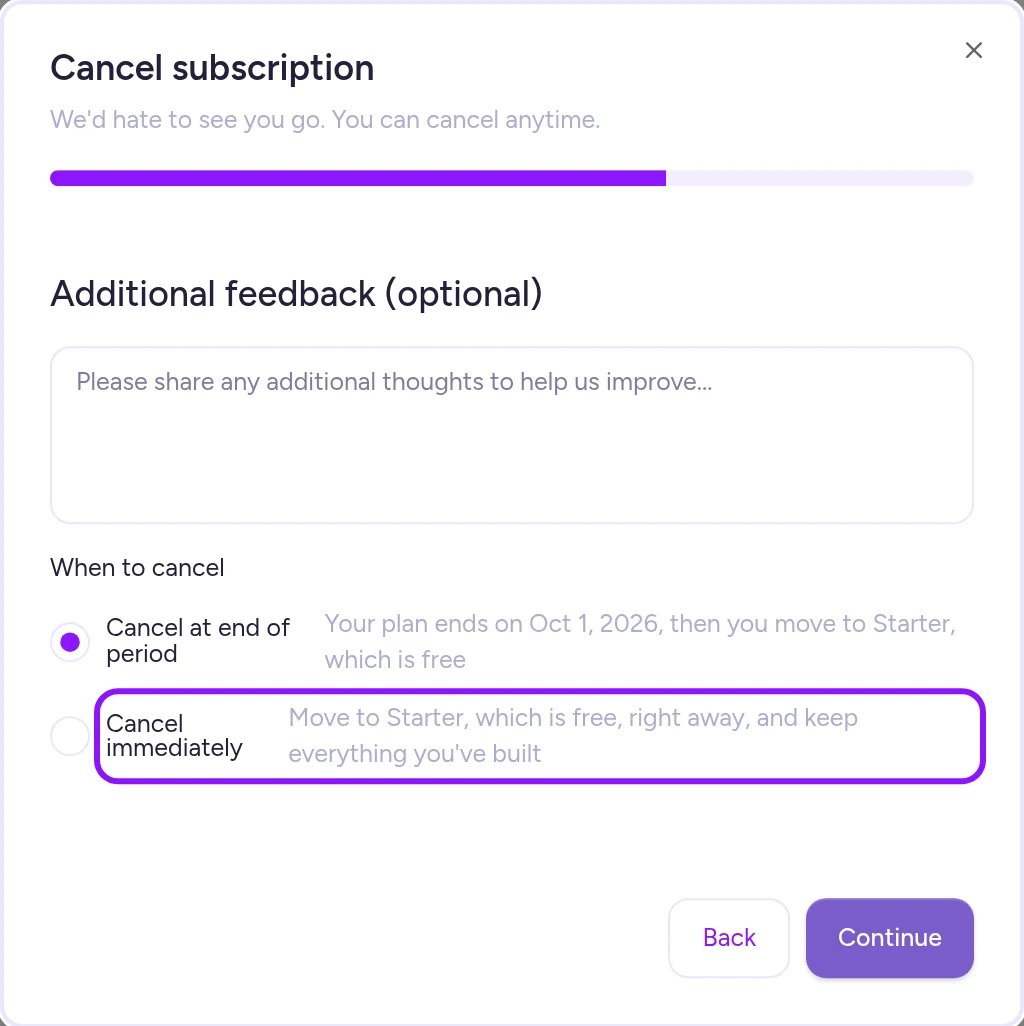
Cancel at end of period is selected by default so you keep paid access through the end of your billing cycle.
Keep a subscription scheduled to cancel
You can undo a scheduled cancellation anytime before the end date:- On the Current plan card, select Keep subscription.
- Select Reactivate to confirm.
Reactivate after your subscription has ended
Once a paid plan has ended, you can restart it in two ways:- Select Reactivate on the Current plan card to restart your previous plan.
- Select any plan in Plans and take rates and confirm in Reactivate Subscription.
Fix a failed payment
When a renewal charge fails, your status changes to Past due and a Payment Failed banner appears across the admin. Your paid features stay active while you resolve it.- Select Update payment method on the Current plan card (or Update Payment on the banner).
- Update your card in Stripe. You’ll return to Billing and your status refreshes automatically.
Payment method and invoices
Manage your billing details under Payment & invoices (hosted securely in Stripe):Billing banners
When your subscription needs attention, Fanfare shows one banner at a time across the admin (prioritizing the most urgent):Track your usage and fees
Usage summarizes Fanfare’s per-order fees by billing period. The Usage line on Billing gives you a quick snapshot of the current period; select View usage for the full breakdown. Fees on Fanfare checkout orders are deducted automatically in Stripe when each order is paid—they never appear on your subscription invoice, and each order keeps the take rate active at payment time (Payments and fees).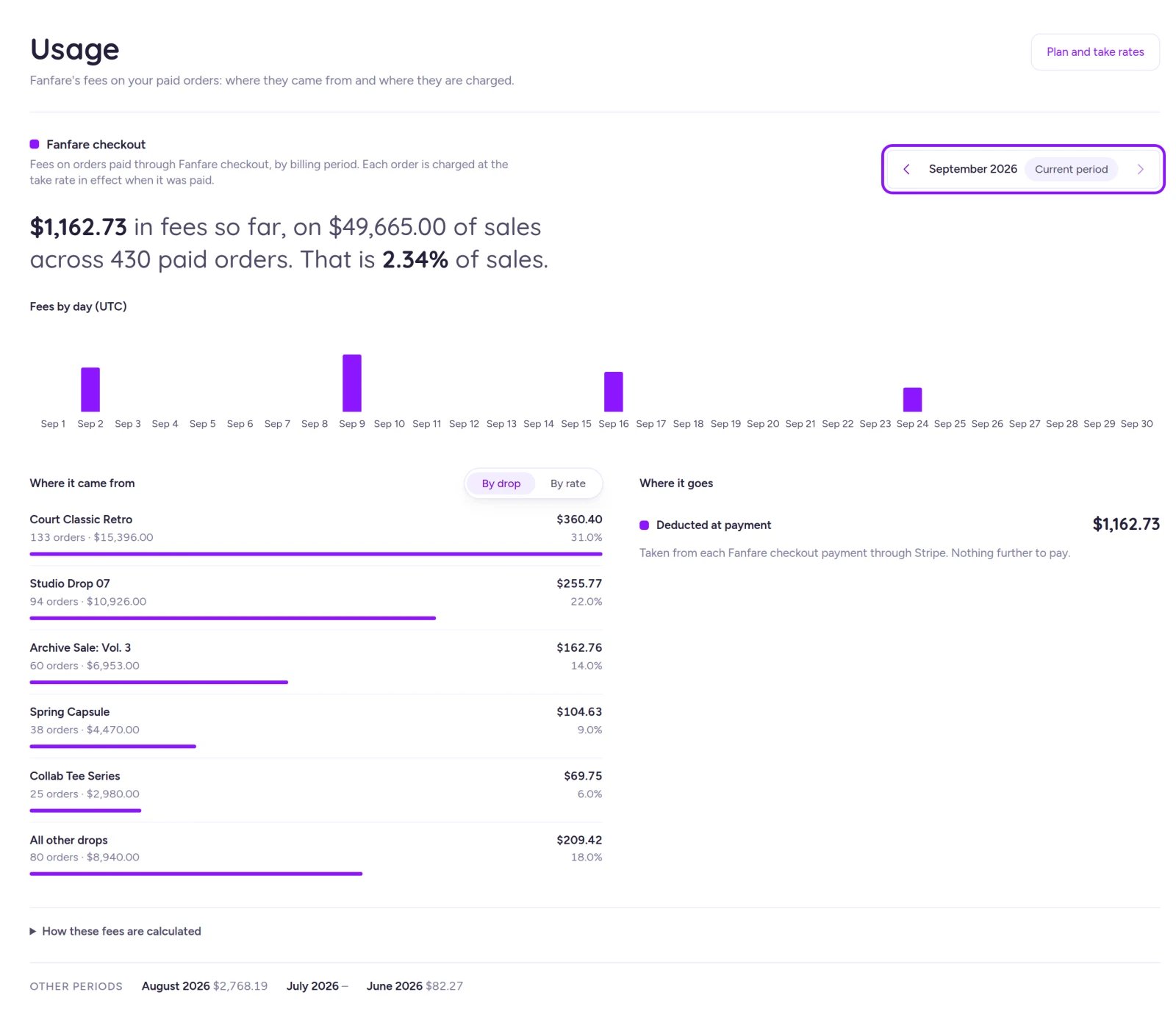
Usage breaks down your per-order Fanfare fees one billing period at a time.
Dates on Usage are calculated in UTC, while Billing uses your organization’s time zone and dialogs or banners use your browser’s time zone—so dates near midnight may occasionally appear a day apart.
On Shopify
Organizations billed through Shopify manage their subscription directly in Shopify:- In the Shopify app: Selecting Billing opens Shopify’s plan selection page directly. (Stores on a complimentary Fanfare plan see a notice that no paid plan is required.) See Install and choose a plan.
- In the standalone Fanfare admin: Your Current plan card shows Billed through Shopify, and plan changes are managed from Shopify rather than the standalone Billing page.
- Usage on Shopify: Usage tracks fees on Shopify checkout orders grouped by Shopify billing cycle. Fees are added to your Shopify bill in USD (converted from your store’s currency at the daily reference rate on each order’s paid date). Where it goes separates charges On your Shopify bill from Not billed items with reasons. Orders on hold aren’t counted until Fanfare releases them. If you cancel or uninstall mid-cycle, fees already accrued in that open cycle are still billed when the cycle closes; fees afterward aren’t billed.
Troubleshooting
I'm prompted to add a payment method to change plans during my trial
I'm prompted to add a payment method to change plans during my trial
You’ll need a valid card on file before switching plans during a trial—especially if cancellation is scheduled. Select Add payment method, add your card in Stripe, and choose your new plan again.
My bank requires additional approval during a plan change
My bank requires additional approval during a plan change
“Your bank needs to approve this payment, which a plan change can’t ask for.” means your card requires interactive bank verification that mid-cycle plan changes can’t prompt for. Add a different payment method in the billing portal and try again, or contact [email protected].
Another plan change is in progress or didn't complete
Another plan change is in progress or didn't complete
Refresh Billing and check your Current plan card before trying again. If the message persists, contact [email protected].
Related
Plans and what they unlock
Compare features, monthly pricing, take rates, and downgrade rules.
Payments and fees
Connect Stripe for payouts and see how per-order fees are calculated.
Install and choose a plan
Choose and approve a Fanfare plan inside Shopify.
Team members
See which team members have admin billing permissions.