Walk through the Create Experience wizard, understand what gets created, and edit the name, time zone, or products later.
An experience is the drop you’re running—its products, time zone, and every way customers can enter. The Create Experience wizard sets it all up in one pass, creating the experience, its first sequence, and its first distribution together.
Before you start
Create the products you want to sell. See Add products. (Products are optional for appointments.)
Appointments require the Growth plan or above. In-person appointments also need a location—see Locations and opening hours. Online appointments don’t need one.
Auctions require a checkout configuration that can charge the winning bid.
Create the experience
1
Start the wizard and pick an experience type
Open Experiences and select Create Experience. (If you don’t have any experiences yet, you can also select Create Queue, Create Draw, Create Auction, or Create Appointment to jump straight in with that type selected.)On Experience type, choose Queue, Draw, Auction, Appointment, or Timed Release. Types outside your plan appear grayed out with an upgrade prompt—for example, Appointment requires Growth or above. If Auction shows “Needs a checkout that charges the winning bid”, that depends on your checkout setup rather than your plan.
2
Select products, name, and schedule
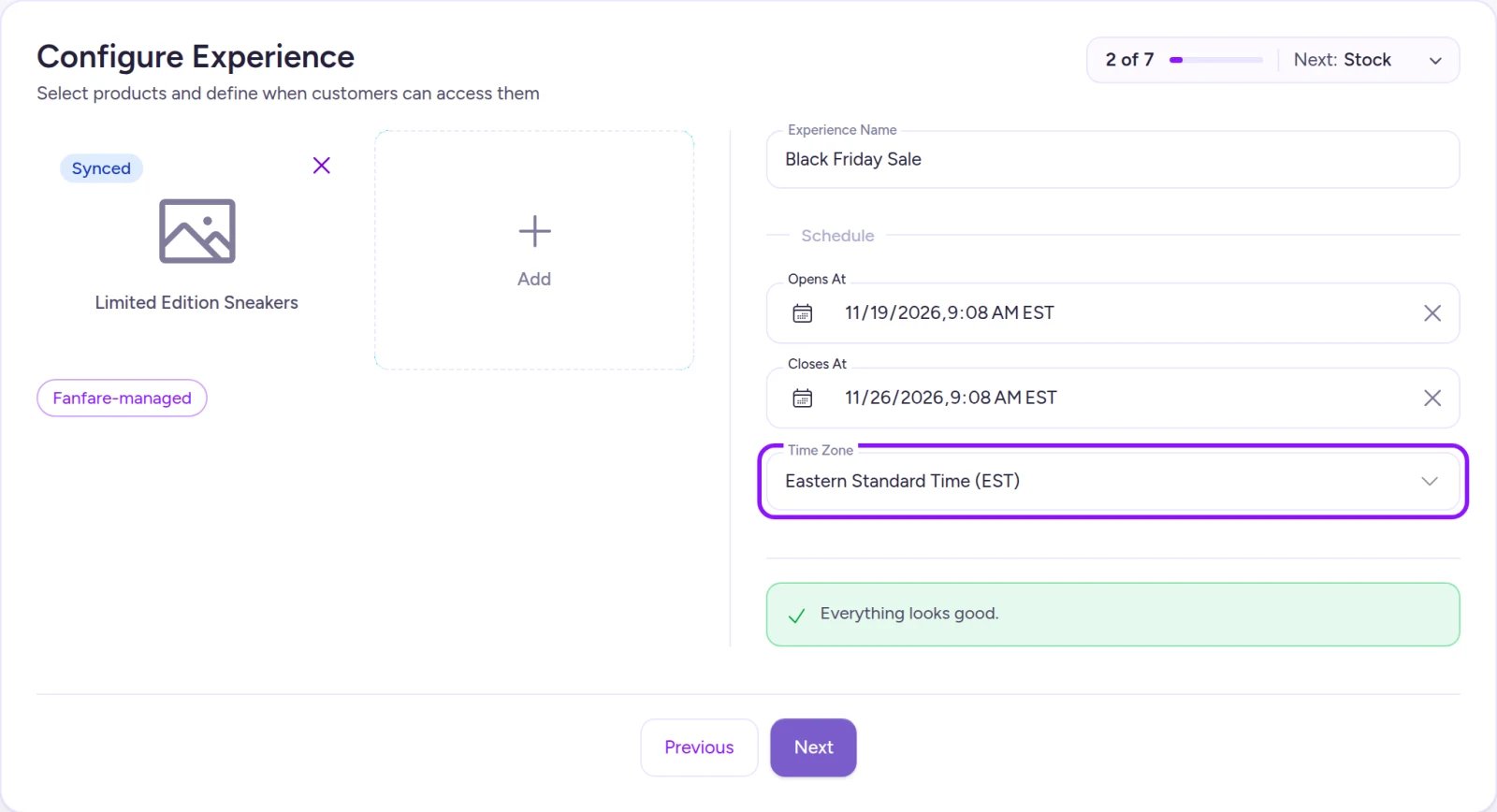
On Configure Experience, pick up to 10 products. You can’t mix Fanfare-managed and Shopify-managed products in the same experience—see Manage stock.Enter an Experience Name. You’ll use it in the admin, and customers see it in Fanfare emails and SMS messages such as waitlist confirmations and payment-window alerts.Set Time Zone first, then set Opens At and Closes At:
Draws also ask for a Draw date.
Auctions also ask for Settles.
Appointments ask for First bookable slot instead of Opens At, plus whether the Location is online or in person.
Opens At defaults to the next minute and Closes At defaults to 7 days later (opening times up to 5 minutes in the past are accepted). There’s no separate publish step—if you finish the wizard without updating Opens At, your drop opens almost immediately.
Changing Time Zone after picking your times keeps the exact same moment in time and shifts the displayed clock times (for example, 10:00 AM in New York becomes 7:00 AM in Los Angeles). Always pick your time zone first.
Set your time zone before choosing opening and closing times.
3
Complete the remaining drop steps
Select Next and work through the steps that apply to your drop type:
Stock (all types except Appointment, once a product is selected): Set how many units of each size this drop can sell. See Allocate stock to a drop.
Product assignment (draws with 2+ products): Choose whether winners pick their product or receive an assigned one. See Add and gate sequences.
Access: Choose who can enter—Anyone, after signing in, Anyone, as a guest (queues, draws, and timed releases only), or an audience—and optionally enable a Shared access code. See Add and gate sequences.
4
Review and create
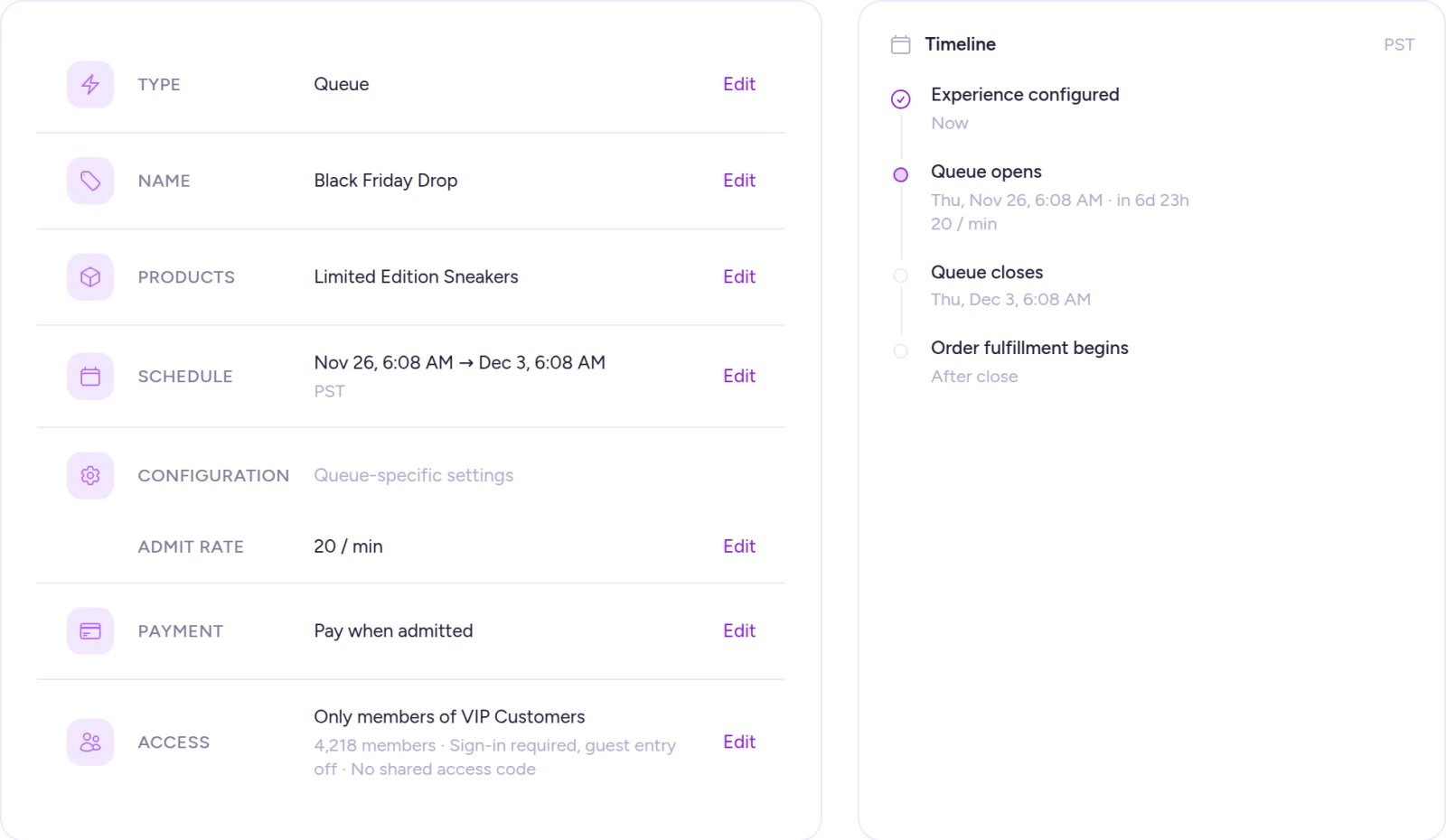
On Review & launch, review each row—select Edit on any row to jump back to that step. When everything looks right, select Create experience.
Select Edit on any row to jump back and adjust a step before creating.
Most settings can still be adjusted after creating the experience, but a few things lock once a drop starts running:
Products lock while any sequence is live, has had entrants, or still has open payment windows (even after closing).
Stock allocations lock once the drop goes live.
Opening time can only move earlier once a distribution has opened.
Selecting Create experience creates three things together and opens the experience’s Overview:
One experience
One priority P1 sequence with the same name
One distribution of the type you chose
There is no separate publish step—your experience starts as Scheduled, or Live if its opening time has already passed. See Experiences for what each status means.Any sequences you add later rank behind this first one (P2, P3, and so on) in creation order, and priority can’t be reordered in the admin. See Sequences and routing.
If you leave the wizard partway
Your wizard progress saves automatically in your current browser tab. It isn’t synced to your account, so other tabs and devices won’t see it, and closing the tab discards it.
Returning to the wizard in the same tab restores your draft—select Start over to clear it, or Dismiss to continue.
Opening a link for a different drop type while you have a draft in progress lets you Continue your draft or Start new.
Selecting Cancel clears the draft and returns you to Experiences.
Going back to Experience type and choosing a different format discards the configuration from the previous type.
Check your experience after creating
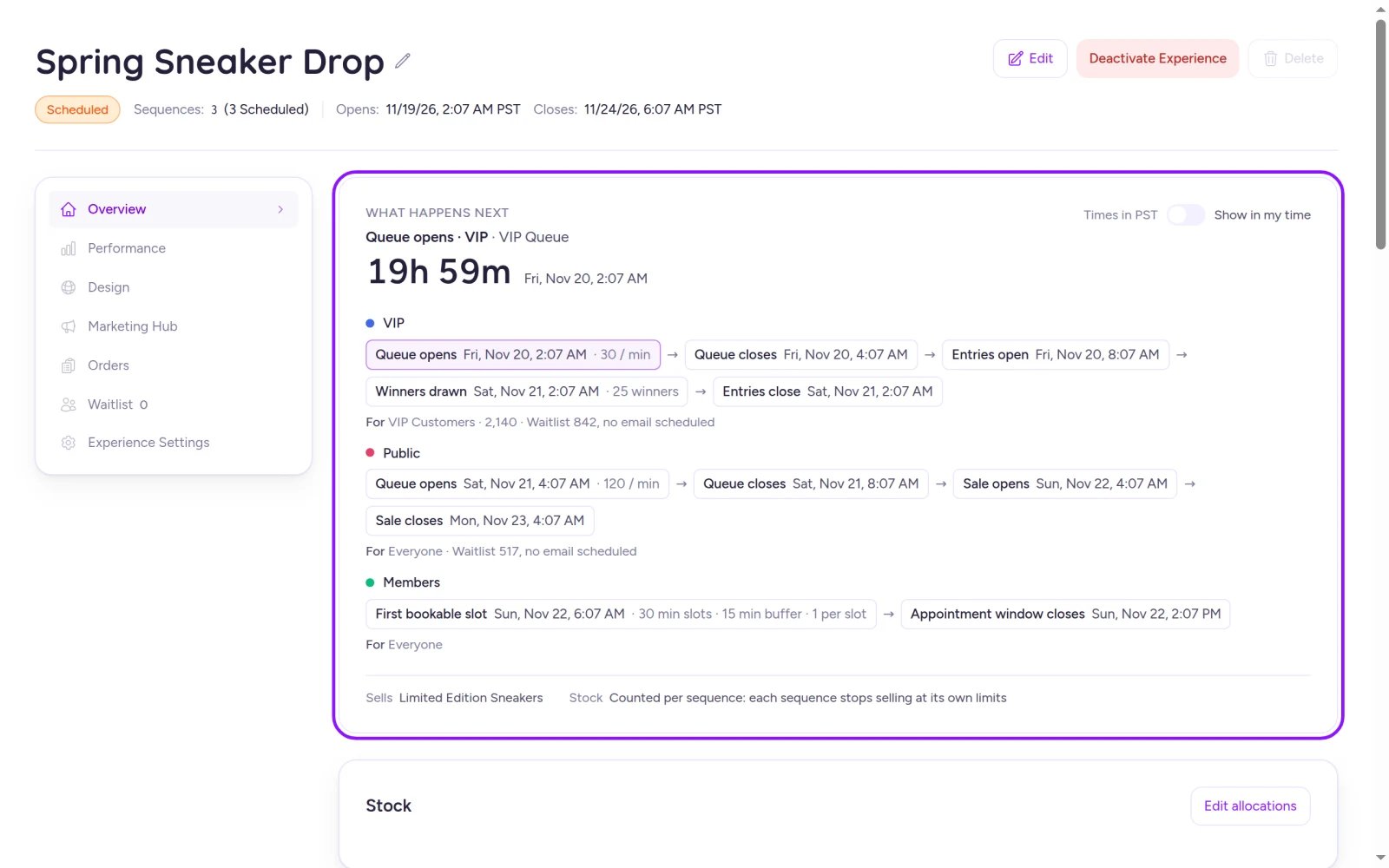
The experience header shows its status chip, a sequence summary, and its Opens and Closes times in the experience’s time zone. Fanfare calculates Opens and Closes automatically from your distributions—the earliest opening through the latest close. See Experiences.On Overview, the What happens next card shows a countdown to the next milestone and a timeline for each sequence in the experience’s time zone. If your local time zone is different, select Show in my time to convert the times.
What happens next shows a countdown and upcoming milestones for each sequence.
Change it later
Select Edit in the experience header, or Experience Settings in the left navigation, to update Details, Products, and Stock (for non-appointment experiences with products).
Name and time zone
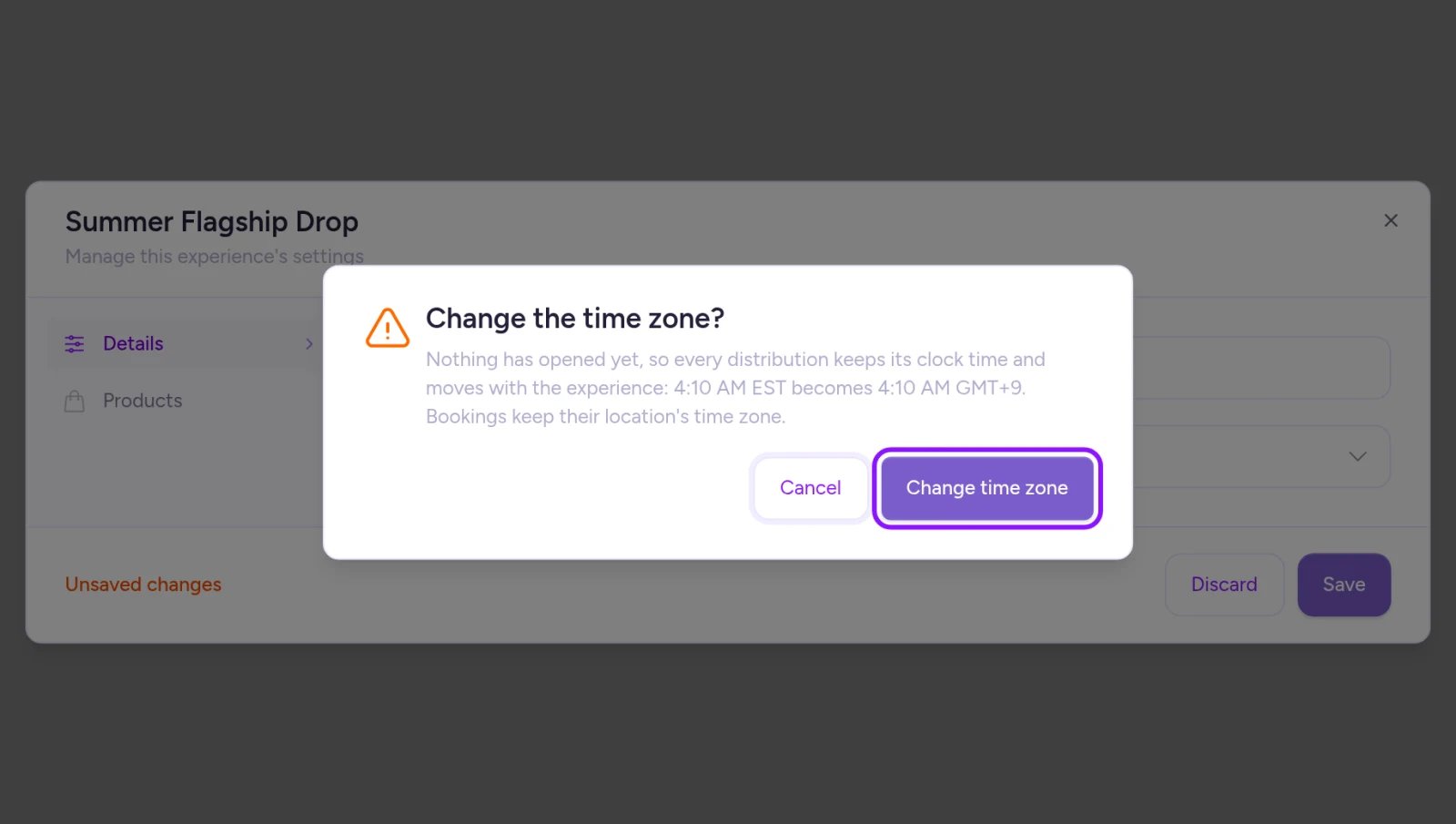
Under Details, update Name (you can also click the name directly in the header to edit inline) or Time Zone. When you change the time zone, Fanfare asks you to confirm how existing schedules should behave:
Before anything opens: Queues, draws, auctions, and timed releases keep their clock times in the new zone, which moves the actual launch moment (so the drop now opens at a different real time—for example, 10:00 AM New York time becomes 10:00 AM Los Angeles time). If shifting clock times would place an opening in the past, Fanfare won’t save and offers Keep the same moment instead.
After anything has opened: Actual start and end moments stay fixed—only the displayed clock times update.
Appointments and deactivated distributions: Never move.
Before any distribution opens, changing the time zone keeps your clock times in the new zone.
Products and stock
Under Products, you can add or remove products (up to 10 total) as long as they aren’t locked.You can’t remove a product that still holds allocated stock in the experience. Before the drop opens, open Stock, set all of that product’s sizes to 0, and save—then return to Products to remove it. Once the drop is live or has ended, allocations lock and that product stays attached.Under Stock, update unit counts per size—see Allocate stock to a drop.
Settings reference
Setting
What it does
Default
Editable while live?
Products
Up to 10 products sold in the experience (optional for appointments).
None
No—locks while any sequence is live, has entrants, or has open payment windows
Experience Name (Name in settings)
Admin label and customer-facing name in emails and SMS. Also names the first sequence.
Empty
Yes, anytime
Time Zone
Time zone used across the experience.
Your organization’s time zone
Yes—relabels times without moving moments once anything has opened
Opens At
Opening time of the first distribution.
Next minute
Change on the distribution; can only move earlier once open
Closes At
Closing time of the first distribution.
7 days after Opens At
Change on the distribution
Find an experience
Experiences displays 20 experiences per page, sortable by Name or Created. Search requires at least 2 characters. Use the Live now and opening in the next 14 days strip at the top to jump straight into active or upcoming drops. Selecting Edit from a row’s menu opens the experience’s Overview.
On Shopify
Appointments aren’t available in the Shopify app (when you have no experiences yet, Create Timed Release appears in its place).
You can launch the wizard straight from a product in Shopify admin—it opens with that product attached and pre-fills the name. See Fanfare inside Shopify admin.
Auction stays locked until your store’s checkout supports charging the winning bid.
If your experience saves successfully but Fanfare couldn’t protect some products on your store, an alert names the affected products. See Checkout protection.
Troubleshooting
Next doesn't advance from Configure Experience
Check the validation summary on the page. Common causes include: no product selected (required for every type except Appointment), Opens At more than 5 minutes in the past, Closes At not after Opens At, mixing Fanfare-managed and Shopify-managed products, or picking a product your checkout can’t sell. Fix each listed item and select Next again.
An experience type card is locked
Plan-locked cards name the plan required—upgrade on Billing or choose another type. If Auction shows “Needs a checkout that charges the winning bid”, it’s restricted by your checkout setup rather than your plan. See Plans and what they unlock.
I can't remove a product from an experience
Products lock while any sequence is live, has had entrants, or still has open payment windows (even after close). Before a drop opens, if the product holds allocated stock, set its sizes to 0 under Stock and save before removing it. See Change it later.
Related
Experiences
How experiences work, what each status means, and why there’s no separate publish step.
Add and gate sequences
Add more ways into a drop with their own audience, access code, and stock.
Allocate stock to a drop
Reserve units per size and split them across sequences.
What locks, and when
What you can change before, during, and after a drop.
Stop a drop
Deactivate a live drop or delete an unused experience.
⌘I
{"docsConfig":{"theme":"maple","$schema":"https://mintlify.com/docs.json","name":"Fanfare Documentation","colors":{"primary":"#8B14FF","light":"#A855F7","dark":"#7C3AED"},"logo":{"light":"https://mintcdn.com/fanfare/lvl2Gkxm9R3R9nKd/logo/light.svg?fit=max\u0026auto=format\u0026n=lvl2Gkxm9R3R9nKd\u0026q=85\u0026s=44897bce906eb7a5e63aed14e6178aee","dark":"https://mintcdn.com/fanfare/lvl2Gkxm9R3R9nKd/logo/dark.svg?fit=max\u0026auto=format\u0026n=lvl2Gkxm9R3R9nKd\u0026q=85\u0026s=37497b615bcd57bbd3e87ee9fa47df31"},"favicon":"https://mintcdn.com/fanfare/GnTGHICtUCl7iCTH/favicon.webp?fit=max\u0026auto=format\u0026n=GnTGHICtUCl7iCTH\u0026q=85\u0026s=984e385c7d4e2c474ba04a581f14aadd","api":{"openapi":["api/openapi/admin-api.json","api/openapi/consumer-api.json","api/openapi/checkout-api.json","api/openapi/beacon-api.json"],"params":{"expanded":"closed"},"playground":{"display":"simple"},"examples":{"defaults":"required","languages":["bash","javascript","python","go"]}},"navbar":{"links":[{"href":"https://admin.fanfare.io/app/dashboard","label":"Dashboard"}],"primary":{"type":"button","label":"Get Started","href":"https://admin.fanfare.io/auth/sign-in"}},"footer":{"socials":{"x":"https://x.com/fanfare_io","linkedin":"https://linkedin.com/company/fanfare-io"}},"search":{"prompt":"Search documentation..."},"seo":{},"contextual":{"options":["copy","chatgpt","claude","cursor"],"display":"header"},"styling":{"latex":true},"navigation":{"global":{"anchors":[{"anchor":"Support","icon":"envelope","href":"/resources/support/contact"}]},"pages":[]}},"deployment":{"deploymentMetadataValue":{"subdomain":"fanfare","hasAudioNarration":false,"actualSubdomain":"fanfare","customDomains":["docs.fanfare.io"],"gitSource":{"type":"github","owner":"fanfare-io","repo":"docs","deployBranch":"master","contentDirectory":"","isPrivate":false,"mountPath":"","label":""},"entitlements":{},"buildId":"6affc4ce48770b59d4197f82","clientVersion":"0.0.4270","searchFilterCounts":[{"language":"default","tag":"API Reference","count":227},{"language":"default","tag":"Admin API","count":159},{"language":"default","tag":"User guide","count":71},{"language":"default","tag":"Distributions","count":70},{"language":"default","tag":"Consumer API","count":52},{"language":"default","tag":"Products","count":41},{"language":"default","tag":"Guides","count":26},{"language":"default","tag":"Audiences","count":25},{"language":"default","tag":"SDK","count":23},{"language":"default","tag":"How Fanfare works","count":18}]},"assistantConfig":{"enableAskAiButton":false,"enableStarterQuestions":false,"enableAskAiSearchBar":true},"basePath":"","hasChatPermissions":false,"hasWebMcpPermissions":false,"toggles":[{"name":"kill-isr","enabled":true,"variant":{"name":"disabled","enabled":false,"feature_enabled":true},"impressionData":false},{"name":"custom-rbac-roles","enabled":true,"variant":{"name":"disabled","enabled":false,"feature_enabled":true},"impressionData":false},{"name":"agent-mintlify-slack","enabled":true,"variant":{"name":"disabled","enabled":false,"feature_enabled":true},"impressionData":false},{"name":"agent-integrations-settings","enabled":true,"variant":{"name":"disabled","enabled":false,"feature_enabled":true},"impressionData":false},{"name":"rbac-expansion","enabled":true,"variant":{"name":"disabled","enabled":false,"feature_enabled":true},"impressionData":false},{"name":"automations-pr-grouping","enabled":true,"variant":{"name":"disabled","enabled":false,"feature_enabled":true},"impressionData":false},{"name":"custom-prefix","enabled":true,"variant":{"name":"disabled","enabled":false,"feature_enabled":true},"impressionData":false},{"name":"analytics-v7","enabled":true,"variant":{"name":"disabled","enabled":false,"feature_enabled":true},"impressionData":false},{"name":"user-flows-analytics","enabled":true,"variant":{"name":"disabled","enabled":false,"feature_enabled":true},"impressionData":false},{"name":"no-publish-flow","enabled":true,"variant":{"name":"disabled","enabled":false,"feature_enabled":true},"impressionData":false},{"name":"workos-onboarding","enabled":true,"variant":{"name":"disabled","enabled":false,"feature_enabled":true},"impressionData":false},{"name":"snapshot-serving-live","enabled":true,"variant":{"name":"disabled","enabled":false,"feature_enabled":true},"impressionData":false},{"name":"stripTemperatureMiddleware","enabled":true,"variant":{"name":"disabled","enabled":false,"feature_enabled":true},"impressionData":false},{"name":"support-platform-pylon-zendesk","enabled":true,"variant":{"name":"disabled","enabled":false,"feature_enabled":true},"impressionData":false},{"name":"snapshot-serving","enabled":true,"variant":{"name":"disabled","enabled":false,"feature_enabled":true},"impressionData":false},{"name":"instant-rollback","enabled":true,"variant":{"name":"disabled","enabled":false,"feature_enabled":true},"impressionData":false},{"name":"granular-notifications-server","enabled":true,"variant":{"name":"disabled","enabled":false,"feature_enabled":true},"impressionData":false},{"name":"granular-notifications","enabled":true,"variant":{"name":"disabled","enabled":false,"feature_enabled":true},"impressionData":false},{"name":"automations-fable","enabled":true,"variant":{"name":"disabled","enabled":false,"feature_enabled":true},"impressionData":false},{"name":"fixed-ai-action-pricing","enabled":true,"variant":{"name":"disabled","enabled":false,"feature_enabled":true},"impressionData":false},{"name":"site-roles","enabled":true,"variant":{"name":"disabled","enabled":false,"feature_enabled":true},"impressionData":false},{"name":"automation-resolve-merge-conflict","enabled":true,"variant":{"name":"disabled","enabled":false,"feature_enabled":true},"impressionData":false},{"name":"scoped-publishing","enabled":true,"variant":{"name":"disabled","enabled":false,"feature_enabled":true},"impressionData":false},{"name":"mintql","enabled":true,"variant":{"name":"disabled","enabled":false,"feature_enabled":true},"impressionData":false},{"name":"page-level-analytics","enabled":true,"variant":{"name":"disabled","enabled":false,"feature_enabled":true},"impressionData":false},{"name":"editor-version-history-v2","enabled":true,"variant":{"name":"disabled","enabled":false,"feature_enabled":true},"impressionData":false},{"name":"billing-page-v2","enabled":true,"variant":{"name":"disabled","enabled":false,"feature_enabled":true},"impressionData":false},{"name":"full-page-search","enabled":true,"variant":{"name":"disabled","enabled":false,"feature_enabled":true},"impressionData":false},{"name":"workspace-projects","enabled":true,"variant":{"name":"disabled","enabled":false,"feature_enabled":true},"impressionData":false},{"name":"assistant-v5","enabled":true,"variant":{"name":"disabled","enabled":false,"feature_enabled":true},"impressionData":false},{"name":"fork-pr-previews","enabled":true,"variant":{"name":"disabled","enabled":false,"feature_enabled":true},"impressionData":false},{"name":"revalidation-jwt","enabled":true,"variant":{"name":"disabled","enabled":false,"feature_enabled":true},"impressionData":false},{"name":"workos-sso-scim","enabled":true,"variant":{"name":"disabled","enabled":false,"feature_enabled":true},"impressionData":false},{"name":"hobby-abuse-scan","enabled":true,"variant":{"name":"disabled","enabled":false,"feature_enabled":true},"impressionData":false},{"name":"dashboard-inbox","enabled":true,"variant":{"name":"disabled","enabled":false,"feature_enabled":true},"impressionData":false},{"name":"workos-signup","enabled":true,"variant":{"name":"disabled","enabled":false,"feature_enabled":true},"impressionData":false},{"name":"turbopuffer-dual-write","enabled":true,"variant":{"name":"disabled","enabled":false,"feature_enabled":true},"impressionData":false},{"name":"workos-enabled","enabled":true,"variant":{"name":"disabled","enabled":false,"feature_enabled":true},"impressionData":false},{"name":"approve-review-flow","enabled":true,"variant":{"name":"disabled","enabled":false,"feature_enabled":true},"impressionData":false},{"name":"editor-metadata","enabled":true,"variant":{"name":"disabled","enabled":false,"feature_enabled":true},"impressionData":false},{"name":"sso-setup-deadline-banner","enabled":true,"variant":{"name":"disabled","enabled":false,"feature_enabled":true},"impressionData":false},{"name":"turbopuffer-serve","enabled":true,"variant":{"name":"disabled","enabled":false,"feature_enabled":true},"impressionData":false},{"name":"live-agents","enabled":true,"variant":{"name":"disabled","enabled":false,"feature_enabled":true},"impressionData":false},{"name":"starter-pricing","enabled":true,"variant":{"name":"treatment","enabled":true,"payload":{"type":"string","value":"treatment"},"feature_enabled":true},"impressionData":false},{"name":"llms-txt-v2","enabled":true,"variant":{"name":"disabled","enabled":false,"feature_enabled":true},"impressionData":false},{"name":"wildcard-email-auth","enabled":true,"variant":{"name":"disabled","enabled":false,"feature_enabled":true},"impressionData":false}],"googleFontsInlined":false},"customCss":[]}
{"page":{"pagePath":"guide/create/experiences","slug":"/guide/create/experiences","pageMetadata":{"title":"Create an experience","description":"Walk through the Create Experience wizard, understand what gets created, and edit the name, time zone, or products later.","href":"/guide/create/experiences"},"description":{"compiledSource":"\"use strict\";\nconst {jsx: _jsx} = arguments[0];\nconst {useMDXComponents: _provideComponents} = arguments[0];\nfunction _createMdxContent(props) {\n const _components = {\n p: \"p\",\n ..._provideComponents(),\n ...props.components\n };\n return _jsx(_components.p, {\n children: \"Walk through the Create Experience wizard, understand what gets created, and edit the name, time zone, or products later.\"\n });\n}\nfunction MDXContent(props = {}) {\n const {wrapper: MDXLayout} = {\n ..._provideComponents(),\n ...props.components\n };\n return MDXLayout ? _jsx(MDXLayout, {\n ...props,\n children: _jsx(_createMdxContent, {\n ...props\n })\n }) : _createMdxContent(props);\n}\nreturn {\n default: MDXContent\n};\n","frontmatter":{},"scope":{}},"pageType":"default","mdx":{"mdxSource":{"compiledSource":"\"use strict\";const{Fragment:_Fragment,jsx:_jsx,jsxs:_jsxs}=arguments[0];const{useMDXComponents:_provideComponents}=arguments[0];function _createMdxContent(props){const _components={a:`a`,code:`code`,li:`li`,p:`p`,strong:`strong`,tbody:`tbody`,td:`td`,th:`th`,thead:`thead`,tr:`tr`,ul:`ul`,..._provideComponents(),...props.components},{Accordion,AccordionGroup,Card,CardGroup,Frame,Heading,Note,OptimizedImage,Step,Steps,Table,Warning}=_components;if(!Accordion)_missingMdxReference(`Accordion`,true);if(!AccordionGroup)_missingMdxReference(`AccordionGroup`,true);if(!Card)_missingMdxReference(`Card`,true);if(!CardGroup)_missingMdxReference(`CardGroup`,true);if(!Frame)_missingMdxReference(`Frame`,true);if(!Heading)_missingMdxReference(`Heading`,true);if(!Note)_missingMdxReference(`Note`,true);if(!OptimizedImage)_missingMdxReference(`OptimizedImage`,true);if(!Step)_missingMdxReference(`Step`,true);if(!Steps)_missingMdxReference(`Steps`,true);if(!Table)_missingMdxReference(`Table`,true);if(!Warning)_missingMdxReference(`Warning`,true);return _jsxs(_Fragment,{children:[_jsxs(_components.p,{children:[`An experience is the drop you’re running—its products, time zone, and every way customers can enter. The `,_jsx(_components.strong,{children:`Create Experience`}),` wizard sets it all up in one pass, creating the experience, its first sequence, and its first distribution together.`]}),`\n`,_jsx(Heading,{level:`2`,id:`before-you-start`,children:`Before you start`}),`\n`,_jsxs(_components.ul,{children:[`\n`,_jsxs(_components.li,{children:[`Create the products you want to sell. See `,_jsx(_components.a,{href:`/guide/create/products`,children:`Add products`}),`. (Products are optional for appointments.)`]}),`\n`,_jsxs(_components.li,{children:[_jsx(_components.strong,{children:`Appointments`}),` require the Growth plan or above. In-person appointments also need a location—see `,_jsx(_components.a,{href:`/guide/create/locations`,children:`Locations and opening hours`}),`. Online appointments don’t need one.`]}),`\n`,_jsxs(_components.li,{children:[_jsx(_components.strong,{children:`Auctions`}),` require a checkout configuration that can charge the winning bid.`]}),`\n`]}),`\n`,_jsx(Heading,{level:`2`,id:`create-the-experience`,children:`Create the experience`}),`\n`,_jsxs(Steps,{children:[_jsxs(Step,{title:`Start the wizard and pick an experience type`,children:[_jsxs(_components.p,{children:[`Open `,_jsx(_components.strong,{children:`Experiences`}),` and select `,_jsx(_components.strong,{children:`Create Experience`}),`. (If you don’t have any experiences yet, you can also select `,_jsx(_components.strong,{children:`Create Queue`}),`, `,_jsx(_components.strong,{children:`Create Draw`}),`, `,_jsx(_components.strong,{children:`Create Auction`}),`, or `,_jsx(_components.strong,{children:`Create Appointment`}),` to jump straight in with that type selected.)`]}),_jsxs(_components.p,{children:[`On `,_jsx(_components.strong,{children:`Experience type`}),`, choose `,_jsx(_components.strong,{children:`Queue`}),`, `,_jsx(_components.strong,{children:`Draw`}),`, `,_jsx(_components.strong,{children:`Auction`}),`, `,_jsx(_components.strong,{children:`Appointment`}),`, or `,_jsx(_components.strong,{children:`Timed Release`}),`. Types outside your plan appear grayed out with an upgrade prompt—for example, `,_jsx(_components.strong,{children:`Appointment`}),` requires Growth or above. If `,_jsx(_components.strong,{children:`Auction`}),` shows `,_jsx(_components.strong,{children:`“Needs a checkout that charges the winning bid”`}),`, that depends on your checkout setup rather than your plan.`]})]}),_jsxs(Step,{title:`Select products, name, and schedule`,children:[_jsxs(_components.p,{children:[`On `,_jsx(_components.strong,{children:`Configure Experience`}),`, pick up to 10 products. You can’t mix `,_jsx(_components.strong,{children:`Fanfare-managed`}),` and `,_jsx(_components.strong,{children:`Shopify-managed`}),` products in the same experience—see `,_jsx(_components.a,{href:`/guide/create/stock`,children:`Manage stock`}),`.`]}),_jsxs(_components.p,{children:[`Enter an `,_jsx(_components.strong,{children:`Experience Name`}),`. You’ll use it in the admin, and customers see it in Fanfare emails and SMS messages such as waitlist confirmations and payment-window alerts.`]}),_jsxs(_components.p,{children:[`Set `,_jsx(_components.strong,{children:`Time Zone`}),` first, then set `,_jsx(_components.strong,{children:`Opens At`}),` and `,_jsx(_components.strong,{children:`Closes At`}),`:`]}),_jsxs(_components.ul,{children:[`\n`,_jsxs(_components.li,{children:[_jsx(_components.strong,{children:`Draws`}),` also ask for a `,_jsx(_components.strong,{children:`Draw date`}),`.`]}),`\n`,_jsxs(_components.li,{children:[_jsx(_components.strong,{children:`Auctions`}),` also ask for `,_jsx(_components.strong,{children:`Settles`}),`.`]}),`\n`,_jsxs(_components.li,{children:[_jsx(_components.strong,{children:`Appointments`}),` ask for `,_jsx(_components.strong,{children:`First bookable slot`}),` instead of `,_jsx(_components.strong,{children:`Opens At`}),`, plus whether the `,_jsx(_components.strong,{children:`Location`}),` is online or in person.`]}),`\n`]}),_jsx(Warning,{children:_jsxs(_components.p,{children:[_jsx(_components.strong,{children:`Opens At`}),` defaults to the next minute and `,_jsx(_components.strong,{children:`Closes At`}),` defaults to 7 days later (opening times up to 5 minutes in the past are accepted). There’s no separate publish step—if you finish the wizard without updating `,_jsx(_components.strong,{children:`Opens At`}),`, your drop opens almost immediately.`]})}),_jsx(Note,{children:_jsxs(_components.p,{children:[`Changing `,_jsx(_components.strong,{children:`Time Zone`}),` after picking your times keeps the exact same moment in time and shifts the displayed clock times (for example, 10:00 AM in New York becomes 7:00 AM in Los Angeles). Always pick your time zone first.`]})}),_jsx(Frame,{caption:`Set your time zone before choosing opening and closing times.`,children:_jsx(OptimizedImage,{src:`https://mintcdn.com/fanfare/moPyXPoB2hbFUSf7/images/guide/guide-create-experiences-wizard-configure.webp?fit=max\u0026auto=format\u0026n=moPyXPoB2hbFUSf7\u0026q=85\u0026s=ab57885c1f965d640145da36cbc8acd3`,alt:`The Configure Experience step of the Create Experience wizard, with one product picked and the Experience Name, Opens At, Closes At and Time Zone fields`,\"data-og-width\":`1600`,width:`1600`,\"data-og-height\":`868`,height:`868`,\"data-path\":`images/guide/guide-create-experiences-wizard-configure.webp`,\"data-optimize\":`true`,\"data-opv\":`3`,srcset:`https://mintcdn.com/fanfare/moPyXPoB2hbFUSf7/images/guide/guide-create-experiences-wizard-configure.webp?w=280\u0026fit=max\u0026auto=format\u0026n=moPyXPoB2hbFUSf7\u0026q=85\u0026s=3edb17bb28cbfed0d89624e15b2cd083 280w, https://mintcdn.com/fanfare/moPyXPoB2hbFUSf7/images/guide/guide-create-experiences-wizard-configure.webp?w=560\u0026fit=max\u0026auto=format\u0026n=moPyXPoB2hbFUSf7\u0026q=85\u0026s=da70440a39de527b0d9c0b2905be2434 560w, https://mintcdn.com/fanfare/moPyXPoB2hbFUSf7/images/guide/guide-create-experiences-wizard-configure.webp?w=840\u0026fit=max\u0026auto=format\u0026n=moPyXPoB2hbFUSf7\u0026q=85\u0026s=d94f37b6ef77af7ef069283e737d5a68 840w, https://mintcdn.com/fanfare/moPyXPoB2hbFUSf7/images/guide/guide-create-experiences-wizard-configure.webp?w=1100\u0026fit=max\u0026auto=format\u0026n=moPyXPoB2hbFUSf7\u0026q=85\u0026s=21382e65422a203882442d7b5af5ee4e 1100w, https://mintcdn.com/fanfare/moPyXPoB2hbFUSf7/images/guide/guide-create-experiences-wizard-configure.webp?w=1650\u0026fit=max\u0026auto=format\u0026n=moPyXPoB2hbFUSf7\u0026q=85\u0026s=307685b15e71c06a01cdd64748138486 1650w, https://mintcdn.com/fanfare/moPyXPoB2hbFUSf7/images/guide/guide-create-experiences-wizard-configure.webp?w=2500\u0026fit=max\u0026auto=format\u0026n=moPyXPoB2hbFUSf7\u0026q=85\u0026s=dce639cf0f05baddf8bed040571f1209 2500w`})})]}),_jsxs(Step,{title:`Complete the remaining drop steps`,children:[_jsxs(_components.p,{children:[`Select `,_jsx(_components.strong,{children:`Next`}),` and work through the steps that apply to your drop type:`]}),_jsxs(_components.ul,{children:[`\n`,_jsxs(_components.li,{children:[_jsx(_components.strong,{children:`Stock`}),` (all types except Appointment, once a product is selected): Set how many units of each size this drop can sell. See `,_jsx(_components.a,{href:`/guide/create/stock-allocation`,children:`Allocate stock to a drop`}),`.`]}),`\n`,_jsxs(_components.li,{children:[_jsx(_components.strong,{children:`Product assignment`}),` (draws with 2+ products): Choose whether winners pick their product or receive an assigned one. See `,_jsx(_components.a,{href:`/guide/create/sequences`,children:`Add and gate sequences`}),`.`]}),`\n`,_jsxs(_components.li,{children:[_jsx(_components.strong,{children:`Queue / Draw / Auction / Appointment Configuration:`}),` Configure settings for your chosen format—see `,_jsx(_components.a,{href:`/guide/create/queue`,children:`Set up a queue`}),`, `,_jsx(_components.a,{href:`/guide/create/draw`,children:`Set up a draw`}),`, `,_jsx(_components.a,{href:`/guide/create/auction`,children:`Set up an auction`}),`, or `,_jsx(_components.a,{href:`/guide/create/appointment`,children:`Set up appointments`}),`. Timed releases have no extra configuration step.`]}),`\n`,_jsxs(_components.li,{children:[_jsx(_components.strong,{children:`Payment`}),` (queues and draws only): Choose how and when customers pay. See `,_jsx(_components.a,{href:`/concepts/admission-and-payment`,children:`Admission and the payment window`}),`.`]}),`\n`,_jsxs(_components.li,{children:[_jsx(_components.strong,{children:`Access:`}),` Choose who can enter—`,_jsx(_components.strong,{children:`Anyone, after signing in`}),`, `,_jsx(_components.strong,{children:`Anyone, as a guest`}),` (queues, draws, and timed releases only), or an audience—and optionally enable a `,_jsx(_components.strong,{children:`Shared access code`}),`. See `,_jsx(_components.a,{href:`/guide/create/sequences`,children:`Add and gate sequences`}),`.`]}),`\n`]})]}),_jsxs(Step,{title:`Review and create`,children:[_jsxs(_components.p,{children:[`On `,_jsx(_components.strong,{children:`Review \u0026 launch`}),`, review each row—select `,_jsx(_components.strong,{children:`Edit`}),` on any row to jump back to that step. When everything looks right, select `,_jsx(_components.strong,{children:`Create experience`}),`.`]}),_jsx(Frame,{caption:`Select Edit on any row to jump back and adjust a step before creating.`,children:_jsx(OptimizedImage,{src:`https://mintcdn.com/fanfare/moPyXPoB2hbFUSf7/images/guide/guide-create-experiences-wizard-review.webp?fit=max\u0026auto=format\u0026n=moPyXPoB2hbFUSf7\u0026q=85\u0026s=a9e1726fae6e73e81d595c6092e0d241`,alt:`The Review step of the Create Experience wizard, listing each choice made in the wizard with an Edit button beside it, next to a timeline preview`,\"data-og-width\":`1600`,width:`1600`,\"data-og-height\":`930`,height:`930`,\"data-path\":`images/guide/guide-create-experiences-wizard-review.webp`,\"data-optimize\":`true`,\"data-opv\":`3`,srcset:`https://mintcdn.com/fanfare/moPyXPoB2hbFUSf7/images/guide/guide-create-experiences-wizard-review.webp?w=280\u0026fit=max\u0026auto=format\u0026n=moPyXPoB2hbFUSf7\u0026q=85\u0026s=55aef02cc962b7f6eb4180063a8e7b4d 280w, https://mintcdn.com/fanfare/moPyXPoB2hbFUSf7/images/guide/guide-create-experiences-wizard-review.webp?w=560\u0026fit=max\u0026auto=format\u0026n=moPyXPoB2hbFUSf7\u0026q=85\u0026s=641b6ded340f2a2d1d858d27c1e1b055 560w, https://mintcdn.com/fanfare/moPyXPoB2hbFUSf7/images/guide/guide-create-experiences-wizard-review.webp?w=840\u0026fit=max\u0026auto=format\u0026n=moPyXPoB2hbFUSf7\u0026q=85\u0026s=0fc2b72bf60afb2ec6080c787ed186c2 840w, https://mintcdn.com/fanfare/moPyXPoB2hbFUSf7/images/guide/guide-create-experiences-wizard-review.webp?w=1100\u0026fit=max\u0026auto=format\u0026n=moPyXPoB2hbFUSf7\u0026q=85\u0026s=32f96a8d68f275131a671202e793c791 1100w, https://mintcdn.com/fanfare/moPyXPoB2hbFUSf7/images/guide/guide-create-experiences-wizard-review.webp?w=1650\u0026fit=max\u0026auto=format\u0026n=moPyXPoB2hbFUSf7\u0026q=85\u0026s=d67a6d0135962cc6ae42ce183f41f4eb 1650w, https://mintcdn.com/fanfare/moPyXPoB2hbFUSf7/images/guide/guide-create-experiences-wizard-review.webp?w=2500\u0026fit=max\u0026auto=format\u0026n=moPyXPoB2hbFUSf7\u0026q=85\u0026s=802690df663589db2b4a67a4b04b0baa 2500w`})})]})]}),`\n`,_jsxs(Note,{children:[_jsx(_components.p,{children:`Most settings can still be adjusted after creating the experience, but a few things lock once a drop starts running:`}),_jsxs(_components.ul,{children:[`\n`,_jsxs(_components.li,{children:[_jsx(_components.strong,{children:`Products`}),` lock while any sequence is live, has had entrants, or still has open payment windows (even after closing).`]}),`\n`,_jsxs(_components.li,{children:[_jsx(_components.strong,{children:`Stock allocations`}),` lock once the drop goes live.`]}),`\n`,_jsxs(_components.li,{children:[_jsx(_components.strong,{children:`Opening time`}),` can only move earlier once a distribution has opened.`]}),`\n`,_jsxs(_components.li,{children:[_jsx(_components.strong,{children:`Deactivate`}),` is permanent.`]}),`\n`]}),_jsxs(_components.p,{children:[`See `,_jsx(_components.a,{href:`/concepts/what-locks-when`,children:`What locks, and when`}),` for the complete reference.`]})]}),`\n`,_jsx(Heading,{level:`2`,id:`what-creating-makes`,children:`What creating makes`}),`\n`,_jsxs(_components.p,{children:[`Selecting `,_jsx(_components.strong,{children:`Create experience`}),` creates three things together and opens the experience’s `,_jsx(_components.strong,{children:`Overview`}),`:`]}),`\n`,_jsxs(_components.ul,{children:[`\n`,_jsxs(_components.li,{children:[`One `,_jsx(_components.strong,{children:`experience`})]}),`\n`,_jsxs(_components.li,{children:[`One priority `,_jsx(_components.strong,{children:`P1`}),` sequence with the same name`]}),`\n`,_jsxs(_components.li,{children:[`One `,_jsx(_components.strong,{children:`distribution`}),` of the type you chose`]}),`\n`]}),`\n`,_jsxs(_components.p,{children:[`There is no separate publish step—your experience starts as `,_jsx(_components.strong,{children:`Scheduled`}),`, or `,_jsx(_components.strong,{children:`Live`}),` if its opening time has already passed. See `,_jsx(_components.a,{href:`/concepts/experiences`,children:`Experiences`}),` for what each status means.`]}),`\n`,_jsxs(_components.p,{children:[`Any sequences you add later rank behind this first one (`,_jsx(_components.strong,{children:`P2`}),`, `,_jsx(_components.strong,{children:`P3`}),`, and so on) in creation order, and priority can’t be reordered in the admin. See `,_jsx(_components.a,{href:`/concepts/sequences`,children:`Sequences and routing`}),`.`]}),`\n`,_jsx(Heading,{level:`2`,id:`if-you-leave-the-wizard-partway`,children:`If you leave the wizard partway`}),`\n`,_jsx(_components.p,{children:`Your wizard progress saves automatically in your current browser tab. It isn’t synced to your account, so other tabs and devices won’t see it, and closing the tab discards it.`}),`\n`,_jsxs(_components.ul,{children:[`\n`,_jsxs(_components.li,{children:[`Returning to the wizard in the same tab restores your draft—select `,_jsx(_components.strong,{children:`Start over`}),` to clear it, or `,_jsx(_components.strong,{children:`Dismiss`}),` to continue.`]}),`\n`,_jsxs(_components.li,{children:[`Opening a link for a different drop type while you have a draft in progress lets you `,_jsx(_components.strong,{children:`Continue`}),` your draft or `,_jsx(_components.strong,{children:`Start new`}),`.`]}),`\n`,_jsxs(_components.li,{children:[`Selecting `,_jsx(_components.strong,{children:`Cancel`}),` clears the draft and returns you to `,_jsx(_components.strong,{children:`Experiences`}),`.`]}),`\n`,_jsxs(_components.li,{children:[`Going back to `,_jsx(_components.strong,{children:`Experience type`}),` and choosing a different format discards the configuration from the previous type.`]}),`\n`]}),`\n`,_jsx(Heading,{level:`2`,id:`check-your-experience-after-creating`,children:`Check your experience after creating`}),`\n`,_jsxs(_components.p,{children:[`The experience header shows its status chip, a sequence summary, and its `,_jsx(_components.strong,{children:`Opens`}),` and `,_jsx(_components.strong,{children:`Closes`}),` times in the experience’s time zone. Fanfare calculates `,_jsx(_components.strong,{children:`Opens`}),` and `,_jsx(_components.strong,{children:`Closes`}),` automatically from your distributions—the earliest opening through the latest close. See `,_jsx(_components.a,{href:`/concepts/experiences`,children:`Experiences`}),`.`]}),`\n`,_jsxs(_components.p,{children:[`On `,_jsx(_components.strong,{children:`Overview`}),`, the `,_jsx(_components.strong,{children:`What happens next`}),` card shows a countdown to the next milestone and a timeline for each sequence in the experience’s time zone. If your local time zone is different, select `,_jsx(_components.strong,{children:`Show in my time`}),` to convert the times.`]}),`\n`,_jsx(Frame,{caption:`What happens next shows a countdown and upcoming milestones for each sequence.`,children:_jsx(OptimizedImage,{src:`https://mintcdn.com/fanfare/moPyXPoB2hbFUSf7/images/guide/guide-create-experiences-overview-next.webp?fit=max\u0026auto=format\u0026n=moPyXPoB2hbFUSf7\u0026q=85\u0026s=664fc53e553f7194533e5f7407f75667`,alt:`An experience's Overview showing the header with its status chip, sequence count and opening and closing times, and the What happens next card with a countdown and a row of moments for each sequence`,\"data-og-width\":`1600`,width:`1600`,\"data-og-height\":`1000`,height:`1000`,\"data-path\":`images/guide/guide-create-experiences-overview-next.webp`,\"data-optimize\":`true`,\"data-opv\":`3`,srcset:`https://mintcdn.com/fanfare/moPyXPoB2hbFUSf7/images/guide/guide-create-experiences-overview-next.webp?w=280\u0026fit=max\u0026auto=format\u0026n=moPyXPoB2hbFUSf7\u0026q=85\u0026s=7799634e2488cb007d6b522e1aa42105 280w, https://mintcdn.com/fanfare/moPyXPoB2hbFUSf7/images/guide/guide-create-experiences-overview-next.webp?w=560\u0026fit=max\u0026auto=format\u0026n=moPyXPoB2hbFUSf7\u0026q=85\u0026s=cf4803bf14e5aa3c8e78f732ae406aad 560w, https://mintcdn.com/fanfare/moPyXPoB2hbFUSf7/images/guide/guide-create-experiences-overview-next.webp?w=840\u0026fit=max\u0026auto=format\u0026n=moPyXPoB2hbFUSf7\u0026q=85\u0026s=173b3d22764f262ce692bbaaf8618804 840w, https://mintcdn.com/fanfare/moPyXPoB2hbFUSf7/images/guide/guide-create-experiences-overview-next.webp?w=1100\u0026fit=max\u0026auto=format\u0026n=moPyXPoB2hbFUSf7\u0026q=85\u0026s=772963fac946c44d46bd6aaa662f2277 1100w, https://mintcdn.com/fanfare/moPyXPoB2hbFUSf7/images/guide/guide-create-experiences-overview-next.webp?w=1650\u0026fit=max\u0026auto=format\u0026n=moPyXPoB2hbFUSf7\u0026q=85\u0026s=c232542a9f7be65d7ee67ec10665d597 1650w, https://mintcdn.com/fanfare/moPyXPoB2hbFUSf7/images/guide/guide-create-experiences-overview-next.webp?w=2500\u0026fit=max\u0026auto=format\u0026n=moPyXPoB2hbFUSf7\u0026q=85\u0026s=6adbd7693c0005be2e7a5fac7979f0c6 2500w`})}),`\n`,_jsx(Heading,{level:`2`,id:`change-it-later`,children:`Change it later`}),`\n`,_jsxs(_components.p,{children:[`Select `,_jsx(_components.strong,{children:`Edit`}),` in the experience header, or `,_jsx(_components.strong,{children:`Experience Settings`}),` in the left navigation, to update `,_jsx(_components.strong,{children:`Details`}),`, `,_jsx(_components.strong,{children:`Products`}),`, and `,_jsx(_components.strong,{children:`Stock`}),` (for non-appointment experiences with products).`]}),`\n`,_jsx(Heading,{level:`3`,id:`name-and-time-zone`,children:`Name and time zone`}),`\n`,_jsxs(_components.p,{children:[`Under `,_jsx(_components.strong,{children:`Details`}),`, update `,_jsx(_components.strong,{children:`Name`}),` (you can also click the name directly in the header to edit inline) or `,_jsx(_components.strong,{children:`Time Zone`}),`. When you change the time zone, Fanfare asks you to confirm how existing schedules should behave:`]}),`\n`,_jsxs(_components.ul,{children:[`\n`,_jsxs(_components.li,{children:[_jsx(_components.strong,{children:`Before anything opens:`}),` Queues, draws, auctions, and timed releases keep their clock times in the new zone, which moves the actual launch moment (so the drop now opens at a different real time—for example, 10:00 AM New York time becomes 10:00 AM Los Angeles time). If shifting clock times would place an opening in the past, Fanfare won’t save and offers `,_jsx(_components.strong,{children:`Keep the same moment instead`}),`.`]}),`\n`,_jsxs(_components.li,{children:[_jsx(_components.strong,{children:`After anything has opened:`}),` Actual start and end moments stay fixed—only the displayed clock times update.`]}),`\n`,_jsxs(_components.li,{children:[_jsx(_components.strong,{children:`Appointments and deactivated distributions:`}),` Never move.`]}),`\n`]}),`\n`,_jsx(Frame,{caption:`Before any distribution opens, changing the time zone keeps your clock times in the new zone.`,children:_jsx(OptimizedImage,{src:`https://mintcdn.com/fanfare/moPyXPoB2hbFUSf7/images/guide/guide-create-experiences-settings-time-zone.webp?fit=max\u0026auto=format\u0026n=moPyXPoB2hbFUSf7\u0026q=85\u0026s=cac2ac6b31259cd17bd5c0ffcb64df9b`,alt:`The Change the time zone confirmation over the experience settings, explaining that nothing has opened yet so every distribution keeps its clock time and moves with the experience.`,\"data-og-width\":`1600`,width:`1600`,\"data-og-height\":`905`,height:`905`,\"data-path\":`images/guide/guide-create-experiences-settings-time-zone.webp`,\"data-optimize\":`true`,\"data-opv\":`3`,srcset:`https://mintcdn.com/fanfare/moPyXPoB2hbFUSf7/images/guide/guide-create-experiences-settings-time-zone.webp?w=280\u0026fit=max\u0026auto=format\u0026n=moPyXPoB2hbFUSf7\u0026q=85\u0026s=dff72b9fd53be52575dc699ddd5196e6 280w, https://mintcdn.com/fanfare/moPyXPoB2hbFUSf7/images/guide/guide-create-experiences-settings-time-zone.webp?w=560\u0026fit=max\u0026auto=format\u0026n=moPyXPoB2hbFUSf7\u0026q=85\u0026s=42b8dff4d245327e80ce0d535645a3a3 560w, https://mintcdn.com/fanfare/moPyXPoB2hbFUSf7/images/guide/guide-create-experiences-settings-time-zone.webp?w=840\u0026fit=max\u0026auto=format\u0026n=moPyXPoB2hbFUSf7\u0026q=85\u0026s=11a097cc89bd243e451102310c73ec27 840w, https://mintcdn.com/fanfare/moPyXPoB2hbFUSf7/images/guide/guide-create-experiences-settings-time-zone.webp?w=1100\u0026fit=max\u0026auto=format\u0026n=moPyXPoB2hbFUSf7\u0026q=85\u0026s=7f3e839285964aa252476f3f9599912e 1100w, https://mintcdn.com/fanfare/moPyXPoB2hbFUSf7/images/guide/guide-create-experiences-settings-time-zone.webp?w=1650\u0026fit=max\u0026auto=format\u0026n=moPyXPoB2hbFUSf7\u0026q=85\u0026s=bbacbe5c53fb73772555956934747af5 1650w, https://mintcdn.com/fanfare/moPyXPoB2hbFUSf7/images/guide/guide-create-experiences-settings-time-zone.webp?w=2500\u0026fit=max\u0026auto=format\u0026n=moPyXPoB2hbFUSf7\u0026q=85\u0026s=19417c687f463e264d5b186fc4c2b7d1 2500w`})}),`\n`,_jsx(Heading,{level:`3`,id:`products-and-stock`,children:`Products and stock`}),`\n`,_jsxs(_components.p,{children:[`Under `,_jsx(_components.strong,{children:`Products`}),`, you can add or remove products (up to 10 total) as long as they aren’t locked.`]}),`\n`,_jsxs(_components.p,{children:[`You can’t remove a product that still holds allocated stock in the experience. Before the drop opens, open `,_jsx(_components.strong,{children:`Stock`}),`, set all of that product’s sizes to `,_jsx(_components.code,{children:`0`}),`, and save—then return to `,_jsx(_components.strong,{children:`Products`}),` to remove it. Once the drop is live or has ended, allocations lock and that product stays attached.`]}),`\n`,_jsxs(_components.p,{children:[`Under `,_jsx(_components.strong,{children:`Stock`}),`, update unit counts per size—see `,_jsx(_components.a,{href:`/guide/create/stock-allocation`,children:`Allocate stock to a drop`}),`.`]}),`\n`,_jsx(Heading,{level:`2`,id:`settings-reference`,children:`Settings reference`}),`\n`,_jsxs(Table,{children:[_jsx(_components.thead,{children:_jsxs(_components.tr,{children:[_jsx(_components.th,{children:`Setting`}),_jsx(_components.th,{children:`What it does`}),_jsx(_components.th,{children:`Default`}),_jsx(_components.th,{children:`Editable while live?`})]})}),_jsxs(_components.tbody,{children:[_jsxs(_components.tr,{children:[_jsx(_components.td,{children:_jsx(_components.strong,{children:`Products`})}),_jsx(_components.td,{children:`Up to 10 products sold in the experience (optional for appointments).`}),_jsx(_components.td,{children:`None`}),_jsx(_components.td,{children:`No—locks while any sequence is live, has entrants, or has open payment windows`})]}),_jsxs(_components.tr,{children:[_jsxs(_components.td,{children:[_jsx(_components.strong,{children:`Experience Name`}),` (`,_jsx(_components.strong,{children:`Name`}),` in settings)`]}),_jsx(_components.td,{children:`Admin label and customer-facing name in emails and SMS. Also names the first sequence.`}),_jsx(_components.td,{children:`Empty`}),_jsx(_components.td,{children:`Yes, anytime`})]}),_jsxs(_components.tr,{children:[_jsx(_components.td,{children:_jsx(_components.strong,{children:`Time Zone`})}),_jsx(_components.td,{children:`Time zone used across the experience.`}),_jsx(_components.td,{children:`Your organization’s time zone`}),_jsx(_components.td,{children:`Yes—relabels times without moving moments once anything has opened`})]}),_jsxs(_components.tr,{children:[_jsx(_components.td,{children:_jsx(_components.strong,{children:`Opens At`})}),_jsx(_components.td,{children:`Opening time of the first distribution.`}),_jsx(_components.td,{children:`Next minute`}),_jsx(_components.td,{children:`Change on the distribution; can only move earlier once open`})]}),_jsxs(_components.tr,{children:[_jsx(_components.td,{children:_jsx(_components.strong,{children:`Closes At`})}),_jsx(_components.td,{children:`Closing time of the first distribution.`}),_jsxs(_components.td,{children:[`7 days after `,_jsx(_components.strong,{children:`Opens At`})]}),_jsx(_components.td,{children:`Change on the distribution`})]})]})]}),`\n`,_jsx(Heading,{level:`2`,id:`find-an-experience`,children:`Find an experience`}),`\n`,_jsxs(_components.p,{children:[_jsx(_components.strong,{children:`Experiences`}),` displays 20 experiences per page, sortable by `,_jsx(_components.strong,{children:`Name`}),` or `,_jsx(_components.strong,{children:`Created`}),`. Search requires at least 2 characters. Use the `,_jsx(_components.strong,{children:`Live now and opening in the next 14 days`}),` strip at the top to jump straight into active or upcoming drops. Selecting `,_jsx(_components.strong,{children:`Edit`}),` from a row’s menu opens the experience’s `,_jsx(_components.strong,{children:`Overview`}),`.`]}),`\n`,_jsx(Heading,{level:`2`,id:`on-shopify`,children:`On Shopify`}),`\n`,_jsxs(_components.ul,{children:[`\n`,_jsxs(_components.li,{children:[_jsx(_components.strong,{children:`Appointments`}),` aren’t available in the Shopify app (when you have no experiences yet, `,_jsx(_components.strong,{children:`Create Timed Release`}),` appears in its place).`]}),`\n`,_jsxs(_components.li,{children:[`Pick products using Shopify’s product picker. See `,_jsx(_components.a,{href:`/guide/shopify/products`,children:`Products from Shopify`}),`.`]}),`\n`,_jsxs(_components.li,{children:[`You can launch the wizard straight from a product in Shopify admin—it opens with that product attached and pre-fills the name. See `,_jsx(_components.a,{href:`/guide/shopify/in-shopify-admin`,children:`Fanfare inside Shopify admin`}),`.`]}),`\n`,_jsxs(_components.li,{children:[_jsx(_components.strong,{children:`Auction`}),` stays locked until your store’s checkout supports charging the winning bid.`]}),`\n`,_jsxs(_components.li,{children:[`If your experience saves successfully but Fanfare couldn’t protect some products on your store, an alert names the affected products. See `,_jsx(_components.a,{href:`/guide/shopify/checkout-protection`,children:`Checkout protection`}),`.`]}),`\n`]}),`\n`,_jsx(Heading,{level:`2`,id:`troubleshooting`,children:`Troubleshooting`}),`\n`,_jsxs(AccordionGroup,{children:[_jsx(Accordion,{title:`Next doesn't advance from Configure Experience`,id:`next-doesnt-advance-from-configure-experience`,children:_jsxs(_components.p,{children:[`Check the validation summary on the page. Common causes include: no product selected (required for every type except Appointment), `,_jsx(_components.strong,{children:`Opens At`}),` more than 5 minutes in the past, `,_jsx(_components.strong,{children:`Closes At`}),` not after `,_jsx(_components.strong,{children:`Opens At`}),`, mixing Fanfare-managed and Shopify-managed products, or picking a product your checkout can’t sell. Fix each listed item and select `,_jsx(_components.strong,{children:`Next`}),` again.`]})}),_jsx(Accordion,{title:`An experience type card is locked`,id:`an-experience-type-card-is-locked`,children:_jsxs(_components.p,{children:[`Plan-locked cards name the plan required—upgrade on `,_jsx(_components.strong,{children:`Billing`}),` or choose another type. If `,_jsx(_components.strong,{children:`Auction`}),` shows `,_jsx(_components.strong,{children:`“Needs a checkout that charges the winning bid”`}),`, it’s restricted by your checkout setup rather than your plan. See `,_jsx(_components.a,{href:`/guide/start/plans`,children:`Plans and what they unlock`}),`.`]})}),_jsx(Accordion,{title:`I can't remove a product from an experience`,id:`i-cant-remove-a-product-from-an-experience`,children:_jsxs(_components.p,{children:[`Products lock while any sequence is live, has had entrants, or still has open payment windows (even after close). Before a drop opens, if the product holds allocated stock, set its sizes to `,_jsx(_components.code,{children:`0`}),` under `,_jsx(_components.strong,{children:`Stock`}),` and save before removing it. See `,_jsx(_components.a,{href:`#change-it-later`,children:`Change it later`}),`.`]})})]}),`\n`,_jsx(Heading,{level:`2`,id:`related`,children:`Related`}),`\n`,_jsxs(CardGroup,{children:[_jsx(Card,{title:`Experiences`,href:`/concepts/experiences`,children:_jsx(_components.p,{children:`How experiences work, what each status means, and why there’s no separate publish step.`})}),_jsx(Card,{title:`Add and gate sequences`,href:`/guide/create/sequences`,children:_jsx(_components.p,{children:`Add more ways into a drop with their own audience, access code, and stock.`})}),_jsx(Card,{title:`Allocate stock to a drop`,href:`/guide/create/stock-allocation`,children:_jsx(_components.p,{children:`Reserve units per size and split them across sequences.`})}),_jsx(Card,{title:`What locks, and when`,href:`/concepts/what-locks-when`,children:_jsx(_components.p,{children:`What you can change before, during, and after a drop.`})}),_jsx(Card,{title:`Stop a drop`,href:`/guide/drop/deactivate`,children:_jsx(_components.p,{children:`Deactivate a live drop or delete an unused experience.`})})]})]})}function MDXContent(props={}){const{wrapper:MDXLayout}={..._provideComponents(),...props.components};return MDXLayout?_jsx(MDXLayout,{...props,children:_jsx(_createMdxContent,{...props})}):_createMdxContent(props)}return{default:MDXContent};function _missingMdxReference(id,component){throw new Error(`Expected `+(component?`component`:`object`)+\" `\"+id+\"` to be defined: you likely forgot to import, pass, or provide it.\")}","frontmatter":{},"scope":{"config":{},"pageMetadata":{"title":"Create an experience","description":"Walk through the Create Experience wizard, understand what gets created, and edit the name, time zone, or products later.","href":"/guide/create/experiences"}}},"mdxSourceWithNoJs":null},"mdxExtracts":{"tableOfContents":[{"title":"Before you start","slug":"before-you-start","depth":2,"children":[]},{"title":"Create the experience","slug":"create-the-experience","depth":2,"children":[]},{"title":"What creating makes","slug":"what-creating-makes","depth":2,"children":[]},{"title":"If you leave the wizard partway","slug":"if-you-leave-the-wizard-partway","depth":2,"children":[]},{"title":"Check your experience after creating","slug":"check-your-experience-after-creating","depth":2,"children":[]},{"title":"Change it later","slug":"change-it-later","depth":2,"children":[{"title":"Name and time zone","slug":"name-and-time-zone","depth":3,"children":[]},{"title":"Products and stock","slug":"products-and-stock","depth":3,"children":[]}]},{"title":"Settings reference","slug":"settings-reference","depth":2,"children":[]},{"title":"Find an experience","slug":"find-an-experience","depth":2,"children":[]},{"title":"On Shopify","slug":"on-shopify","depth":2,"children":[]},{"title":"Troubleshooting","slug":"troubleshooting","depth":2,"children":[]},{"title":"Related","slug":"related","depth":2,"children":[]}],"codeExamples":{}},"jsLinks":[],"subdomain":"fanfare","siteName":"Fanfare Documentation","title":"Create an experience - Fanfare Documentation","navMaps":{"firstHrefInVersion":{},"firstHrefInLanguage":{}},"lastModified":"2026-11-20T03:56:17.004Z","originalFileLocation":"guide/create/experiences.mdx"},"headHtml":"\u003cscript data-mint-head>(function(){var d=document.documentElement,p=null;if(!p){try{p=localStorage.getItem(\"isDarkMode\")}catch(e){}if(p==='true')p='dark';else if(p==='false')p='light';if(p!=='light'\u0026\u0026p!=='dark'\u0026\u0026p!=='system')p=\"system\"}var r=p==='system'?(matchMedia(\"(prefers-color-scheme: dark)\").matches?'dark':'light'):p;d.classList.remove(r==='dark'?'light':'dark');d.classList.add(r);d.setAttribute(\"data-theme-preference\",p)})();\u003c/script>\u003cmeta data-mint-head name=\"description\" content=\"Walk through the Create Experience wizard, understand what gets created, and edit the name, time zone, or products later.\">\u003cmeta data-mint-head name=\"application-name\" content=\"Fanfare Documentation\">\u003cmeta data-mint-head name=\"generator\" content=\"Mintlify\">\u003clink data-mint-head rel=\"icon\" type=\"image/png\" sizes=\"192x192\" href=\"/mintlify-assets/_mintlify/favicons/fanfare/cL1HT8A-HCRmOHfH/_generated/favicon/android-chrome-192x192.png\" media=\"(prefers-color-scheme: light)\">\u003clink data-mint-head rel=\"apple-touch-icon\" type=\"image/png\" sizes=\"180x180\" href=\"/mintlify-assets/_mintlify/favicons/fanfare/cL1HT8A-HCRmOHfH/_generated/favicon/apple-touch-icon.png\">\u003clink data-mint-head rel=\"icon\" type=\"image/png\" sizes=\"16x16\" href=\"/mintlify-assets/_mintlify/favicons/fanfare/cL1HT8A-HCRmOHfH/_generated/favicon/favicon-16x16.png\" media=\"(prefers-color-scheme: light)\">\u003clink data-mint-head rel=\"icon\" type=\"image/png\" sizes=\"32x32\" href=\"/mintlify-assets/_mintlify/favicons/fanfare/cL1HT8A-HCRmOHfH/_generated/favicon/favicon-32x32.png\" media=\"(prefers-color-scheme: light)\">\u003clink data-mint-head rel=\"shortcut icon\" type=\"image/x-icon\" href=\"/mintlify-assets/_mintlify/favicons/fanfare/cL1HT8A-HCRmOHfH/_generated/favicon/favicon.ico\" media=\"(prefers-color-scheme: light)\">\u003clink data-mint-head rel=\"icon\" type=\"image/png\" sizes=\"192x192\" href=\"/mintlify-assets/_mintlify/favicons/fanfare/cL1HT8A-HCRmOHfH/_generated/favicon-dark/android-chrome-192x192.png\" media=\"(prefers-color-scheme: dark)\">\u003clink data-mint-head rel=\"icon\" type=\"image/png\" sizes=\"16x16\" href=\"/mintlify-assets/_mintlify/favicons/fanfare/cL1HT8A-HCRmOHfH/_generated/favicon-dark/favicon-16x16.png\" media=\"(prefers-color-scheme: dark)\">\u003clink data-mint-head rel=\"icon\" type=\"image/png\" sizes=\"32x32\" href=\"/mintlify-assets/_mintlify/favicons/fanfare/cL1HT8A-HCRmOHfH/_generated/favicon-dark/favicon-32x32.png\" media=\"(prefers-color-scheme: dark)\">\u003clink data-mint-head rel=\"shortcut icon\" type=\"image/x-icon\" href=\"/mintlify-assets/_mintlify/favicons/fanfare/cL1HT8A-HCRmOHfH/_generated/favicon-dark/favicon.ico\" media=\"(prefers-color-scheme: dark)\">\u003cmeta data-mint-head property=\"og:title\" content=\"Create an experience - Fanfare Documentation\">\u003cmeta data-mint-head property=\"og:description\" content=\"Walk through the Create Experience wizard, understand what gets created, and edit the name, time zone, or products later.\">\u003cmeta data-mint-head property=\"og:site_name\" content=\"Fanfare Documentation\">\u003cmeta data-mint-head property=\"og:url\" content=\"https://docs.fanfare.io/guide/create/experiences\">\u003cmeta data-mint-head property=\"og:type\" content=\"website\">\u003cmeta data-mint-head property=\"og:image\" content=\"https://fanfare.mintlify.site/_mintlify/api/og/v2?division=Create%3A+design+it\u0026amp;title=Create+an+experience\u0026amp;description=Walk+through+the+Create+Experience+wizard%2C+understand+what+gets+created%2C+and+edit+the+name%2C+time+zone%2C+or+products+later.\u0026amp;theme=5bb702a87d76f74a2524c467\u0026amp;signature=189724c57c0de8b9a9afb7e80e24ed69daae2714abfbca1304cb063b92718692\">\u003cmeta data-mint-head property=\"og:image:width\" content=\"1200\">\u003cmeta data-mint-head property=\"og:image:height\" content=\"630\">\u003cmeta data-mint-head name=\"twitter:card\" content=\"summary_large_image\">\u003cmeta data-mint-head name=\"twitter:title\" content=\"Create an experience - Fanfare Documentation\">\u003cmeta data-mint-head name=\"twitter:description\" content=\"Walk through the Create Experience wizard, understand what gets created, and edit the name, time zone, or products later.\">\u003cmeta data-mint-head name=\"twitter:image\" content=\"https://fanfare.mintlify.site/_mintlify/api/og/v2?division=Create%3A+design+it\u0026amp;title=Create+an+experience\u0026amp;description=Walk+through+the+Create+Experience+wizard%2C+understand+what+gets+created%2C+and+edit+the+name%2C+time+zone%2C+or+products+later.\u0026amp;theme=5bb702a87d76f74a2524c467\u0026amp;signature=189724c57c0de8b9a9afb7e80e24ed69daae2714abfbca1304cb063b92718692\">\u003cmeta data-mint-head name=\"twitter:image:width\" content=\"1200\">\u003cmeta data-mint-head name=\"twitter:image:height\" content=\"630\">\u003cmeta data-mint-head name=\"msapplication-config\" content=\"/mintlify-assets/_mintlify/favicons/fanfare/cL1HT8A-HCRmOHfH/_generated/favicon/browserconfig.xml\">\u003cmeta data-mint-head name=\"apple-mobile-web-app-title\" content=\"Fanfare Documentation\">\u003cmeta data-mint-head name=\"msapplication-TileColor\" content=\"#8B14FF\">\u003clink data-mint-head rel=\"canonical\" href=\"https://docs.fanfare.io/guide/create/experiences\">\u003clink data-mint-head rel=\"alternate\" type=\"application/xml\" href=\"/sitemap.xml\">\u003clink data-mint-head rel=\"alternate\" type=\"text/markdown\" href=\"/guide/create/experiences.md\">\u003cscript data-mint-head type=\"application/ld+json\">{\"@context\":\"https://schema.org\",\"@graph\":[{\"@type\":\"Organization\",\"@id\":\"https://docs.fanfare.io/#organization\",\"name\":\"Fanfare Documentation\",\"url\":\"https://docs.fanfare.io\",\"logo\":{\"@type\":\"ImageObject\",\"url\":\"https://mintcdn.com/fanfare/lvl2Gkxm9R3R9nKd/logo/light.svg?fit=max\u0026auto=format\u0026n=lvl2Gkxm9R3R9nKd\u0026q=85\u0026s=44897bce906eb7a5e63aed14e6178aee\"}},{\"@type\":\"WebSite\",\"@id\":\"https://docs.fanfare.io#website\",\"name\":\"Fanfare Documentation\",\"url\":\"https://docs.fanfare.io\",\"publisher\":{\"@id\":\"https://docs.fanfare.io/#organization\"}},{\"@type\":\"WebPage\",\"@id\":\"https://docs.fanfare.io/guide/create/experiences#webpage\",\"url\":\"https://docs.fanfare.io/guide/create/experiences\",\"name\":\"Create an experience\",\"description\":\"Walk through the Create Experience wizard, understand what gets created, and edit the name, time zone, or products later.\",\"dateModified\":\"2026-11-20T03:56:17.004Z\",\"isPartOf\":{\"@id\":\"https://docs.fanfare.io#website\"},\"breadcrumb\":{\"@id\":\"https://docs.fanfare.io/guide/create/experiences#breadcrumb\"}},{\"@type\":\"BreadcrumbList\",\"@id\":\"https://docs.fanfare.io/guide/create/experiences#breadcrumb\",\"itemListElement\":[{\"@type\":\"ListItem\",\"position\":1,\"name\":\"Create: design it\",\"item\":\"https://docs.fanfare.io/guide/create/products\"},{\"@type\":\"ListItem\",\"position\":2,\"name\":\"Create an experience\",\"item\":\"https://docs.fanfare.io/guide/create/experiences\"}]},{\"@type\":[\"Article\",\"TechArticle\"],\"@id\":\"https://docs.fanfare.io/guide/create/experiences#article\",\"headline\":\"Create an experience\",\"name\":\"Create an experience\",\"description\":\"Walk through the Create Experience wizard, understand what gets created, and edit the name, time zone, or products later.\",\"url\":\"https://docs.fanfare.io/guide/create/experiences\",\"mainEntityOfPage\":{\"@id\":\"https://docs.fanfare.io/guide/create/experiences#webpage\"},\"dateModified\":\"2026-11-20T03:56:17.004Z\",\"publisher\":{\"@id\":\"https://docs.fanfare.io/#organization\"},\"isPartOf\":{\"@id\":\"https://docs.fanfare.io#website\"}}]}\u003c/script>\u003cscript data-mint-head type=\"application/ld+json\">{\"@context\":\"https://schema.org\",\"@type\":\"WebSite\",\"name\":\"Fanfare Documentation\",\"publisher\":{\"@type\":\"Organization\",\"name\":\"Fanfare Documentation\"},\"provider\":{\"@type\":\"Organization\",\"name\":\"Mintlify\",\"url\":\"https://mintlify.com\"}}\u003c/script>","agentPointerHref":"/guide/create/experiences.md","siteName":"Fanfare Documentation","nav":{"global":{"anchors":[{"anchor":"Support","icon":"envelope","href":"/resources/support/contact"}]},"tabs":[{"tab":"User guide","groups":[{"group":"Start here","pages":[{"title":"What Fanfare does","href":"/guide/start/welcome"},{"title":"Your first drop","href":"/guide/start/your-first-drop"},{"title":"Your first drop on Shopify","href":"/guide/start/your-first-drop-on-shopify"},{"title":"A tour of the admin","href":"/guide/start/tour-of-the-admin"},{"title":"Plans and what they unlock","href":"/guide/start/plans"}]},{"group":"How Fanfare works","pages":[{"title":"The model in one page","href":"/concepts/overview"},{"title":"Experiences","href":"/concepts/experiences"},{"title":"Sequences and routing","href":"/concepts/sequences"},{"group":"Distributions","pages":[{"title":"Distributions","href":"/concepts/distributions/overview"},{"title":"Queue","href":"/concepts/distributions/queue"},{"title":"Draw","href":"/concepts/distributions/draw"},{"title":"Auction","href":"/concepts/distributions/auction"},{"title":"Timed release","href":"/concepts/distributions/timed-release"},{"title":"Appointment","href":"/concepts/distributions/appointment"}]},{"title":"Waitlists","href":"/concepts/waitlists"},{"title":"Admission and the payment window","href":"/concepts/admission-and-payment"},{"title":"Stock","href":"/concepts/stock"},{"title":"Audiences and access codes","href":"/concepts/audiences"},{"title":"Customers and identity","href":"/concepts/customers"},{"title":"Loyalty and Fanfair","href":"/concepts/loyalty"},{"title":"Brand, templates, and designs","href":"/concepts/design"},{"title":"Checkout options","href":"/concepts/checkout-options"},{"title":"What locks, and when","href":"/concepts/what-locks-when"}]},{"group":"Create: design it","pages":[{"title":"Add products","href":"/guide/create/products"},{"title":"Manage stock","description":"Choose who tracks inventory for each product, record receipts and adjustments, and resolve over-allocations before a drop opens.","href":"/guide/create/stock"},{"title":"Create an experience","href":"/guide/create/experiences"},{"title":"Add and gate sequences","description":"Add additional ways into an experience, gate access with audiences or codes, configure Mystery Box weights, and set per-customer order limits.","href":"/guide/create/sequences"},{"title":"Allocate stock to a drop","href":"/guide/create/stock-allocation"},{"title":"Set up a queue","href":"/guide/create/queue"},{"title":"Set up a draw","href":"/guide/create/draw"},{"title":"Set up an auction","href":"/guide/create/auction"},{"title":"Set up a timed release","href":"/guide/create/timed-release"},{"title":"Set up appointments","href":"/guide/create/appointment"},{"title":"Locations and opening hours","href":"/guide/create/locations"},{"title":"Build audiences","href":"/guide/create/audiences"}]},{"group":"Create: stage it","pages":[{"title":"Set your brand","href":"/guide/create/brand"},{"title":"Templates and widget designs","href":"/guide/create/templates"},{"title":"Build and publish the hosted page","href":"/guide/create/hosted-page"},{"title":"Run it on your own site","href":"/guide/create/your-own-site"}]},{"group":"Create: hype it","pages":[{"title":"Announcements","href":"/guide/create/announcements"},{"title":"Invites, waitlist and access-code sends","href":"/guide/create/invites-and-waitlist"},{"title":"Sender identity and sending domain","href":"/guide/create/email-sender"}]},{"group":"Drop: run it live","pages":[{"title":"Before doors open","href":"/guide/drop/preflight"},{"title":"Watch a live drop","href":"/guide/drop/watch-live"},{"title":"Change things mid-drop","href":"/guide/drop/live-controls"},{"title":"Stop a drop","href":"/guide/drop/deactivate"},{"title":"What your customers see","href":"/guide/drop/what-customers-see"},{"title":"Troubleshooting a live drop","href":"/guide/drop/troubleshooting"}]},{"group":"Learn: after the sellout","pages":[{"title":"Read your results","href":"/guide/learn/performance"},{"title":"Orders and refunds","href":"/guide/learn/orders"},{"title":"Customer profiles","href":"/guide/learn/customers"},{"title":"Run a loyalty program","href":"/guide/learn/loyalty"},{"title":"Set up the next drop from this one","href":"/guide/learn/next-drop"}]},{"group":"Account","pages":[{"title":"Organization settings","href":"/guide/account/organization"},{"title":"Team members","href":"/guide/account/team"},{"title":"Payments and fees","href":"/guide/account/payments"},{"title":"Billing and usage","href":"/guide/account/billing"},{"title":"Integrations","href":"/guide/account/integrations"},{"title":"API keys and embedding","href":"/guide/account/developer"}]},{"group":"Shopify","pages":[{"title":"Fanfare in Shopify","href":"/guide/shopify/overview"},{"title":"Install and choose a plan","href":"/guide/shopify/install-and-plans"},{"title":"Shopify Storefront Setup","href":"/guide/shopify/storefront-setup"},{"title":"Products from Shopify","href":"/guide/shopify/products"},{"title":"Checkout protection","href":"/guide/shopify/checkout-protection"},{"title":"Orders with Shopify checkout","href":"/guide/shopify/orders"},{"title":"Fanfare inside Shopify admin","href":"/guide/shopify/in-shopify-admin"}]},{"group":"Reference","pages":[{"title":"Glossary","href":"/guide/reference/glossary"},{"title":"Things that cannot be undone","href":"/guide/reference/cannot-be-undone"},{"title":"Status reference","href":"/guide/reference/statuses"},{"title":"Limits and defaults","href":"/guide/reference/limits"},{"title":"FAQ","href":"/guide/reference/faq"}]}]},{"tab":"Developers","pages":[{"title":"Developers","href":"/getting-started/introduction"}]},{"tab":"SDK","pages":[{"title":"SDK","href":"/sdk/overview"}]},{"tab":"Guides","pages":[{"title":"Guides","href":"/guides/overview"}]},{"tab":"API Reference","pages":[{"title":"API Reference","href":"/api/overview"}]},{"tab":"Resources","pages":[{"title":"Resources","href":"/resources/overview"}]}]},"basePath":"","title":"Create an experience - Fanfare Documentation","deploymentId":"dpl_DyXGnKeCjZyA3sUdfMJ7FjkdBefg","buildId":"dpl_DyXGnKeCjZyA3sUdfMJ7FjkdBefg","dynamics":["07c022d89b","a74be98ba7"],"chunks":["Frame-D0FT0qQs.js","DynamicMarkdown-CQM9Bhbv.js","zoom-image-lightbox-BQ4tbj_9.js","lightbox-handle-r17bVUz3.js"]}