

Experiences and sequences
A sequence is one entry path into an experience. Each experience and sequence displays a single status chip.
The first status in this list that any child has wins, so one Live sequence makes the entire experience Live. Customers never see these internal chips—see What your customers see. On a published hosted page, deactivating any distribution or sequence marks the entire experience as ended for shoppers, even if the admin chip still reads Live (see What locks, and when).
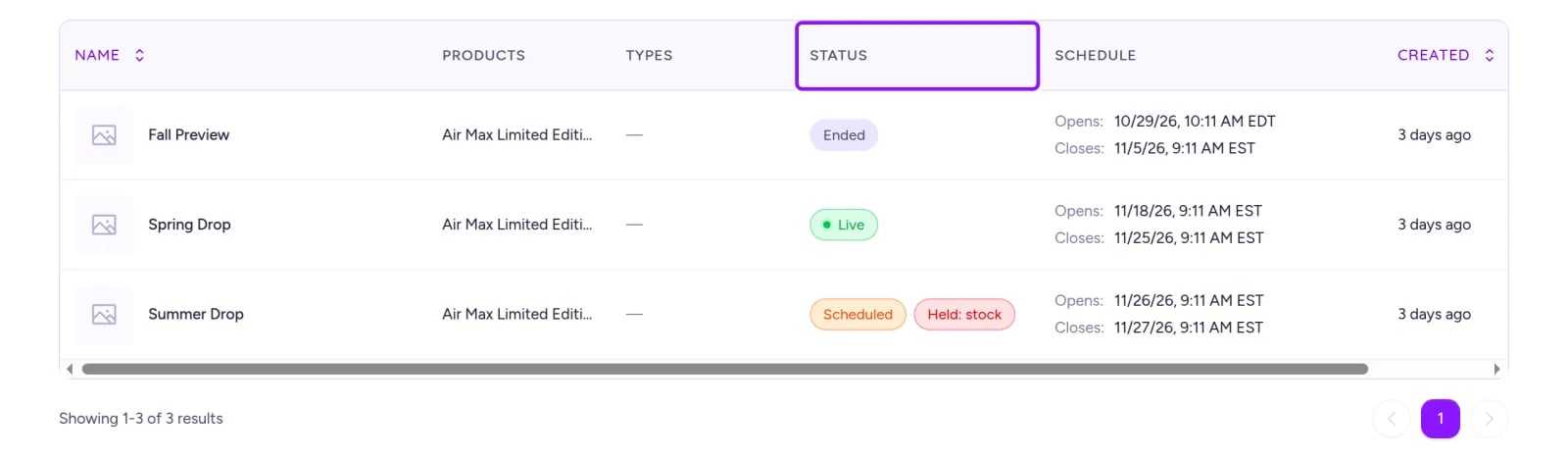
Every experience displays one status chip, calculated from its distributions.
- Deactivated with a date in the header: Everything has stopped and at least one part was deactivated (Stop a drop).
"Sequences: 2 (1 Live | 1 Scheduled)"in the header: Summarizes your sequences by status chip (Experiences)."… was deleted"on a saved link: The experience or sequence has been deleted (Stop a drop).
Distributions
See Distributions for how windows work by type, and What locks, and when for what you can edit at each stage.
- Waiting room: A queue displays Scheduled during its 5-minute waiting room, even though shoppers can already join (Queue).
- Paused queues: Paused appears next to a paused queue’s Live chip. Setting Admit rate to 0 doesn’t show a Paused badge (Change things mid-drop).
- Performance labels: Performance labels each drop Upcoming, Live, Settling, Closed, or Draft. Settling means entry closed, but admitted customers can still pay (Watch a live drop).
- Auction phases: Auction views display a phase: Upcoming, Bidding, Settling, Settled, Ended, or Ended early (Auction, Watch a live drop).
- Draws settling: A draw card stays Live while selecting winners or waiting for payment—even after entry closes—and switches to Ended once complete (Distributions).
- Deactivated cards:
"Deactivated"with a date appears on any distribution you deactivated (Stop a drop).
Orders
All order and payment statuses are covered in Orders and refunds, including these details:
- On synced orders, Pending payment can show Authorized, Partially paid, or Voided underneath.
- A canceled Fanfare order shows payment status Failed in the list, so filtering by Failed includes it.
- Test flags test orders—they appear in Orders, but are excluded from revenue, purchase limits, and customer metrics.
- Refunded items display
"Returned to stock","Kept out of stock","2 of 3 returned to stock","No stock decision recorded", or"Not managed · no stock to return". - Gross revenue includes unpaid orders.
Audiences
Creating or editing audiences requires Growth or above (Plans and what they unlock). Dynamic audiences show their status in the Status column, while static and imported lists show it in the Access row on the audience page (and never display Refreshing or Held).
A new audience admits no one until its first build reaches Live (Audiences and access codes).
Other status labels
On Shopify
- Order sync status: Shopify checkout orders show Sync status Synced, and the list flags sync issues such as
"Shopify sync: Failed"(Orders with Shopify checkout). - Deleted Shopify products: A product deleted in Shopify displays Source missing (Products from Shopify).
- Inside Shopify admin: The Fanfare experiences block on a Shopify product page labels experiences Active, Upcoming, or Closed (Fanfare inside Shopify admin).
- No appointments: Appointments aren’t available in the Shopify app, so attendee statuses don’t apply.
- Shopify-billed plans: Manage plan changes from inside the Fanfare app in Shopify (Billing and usage, Install and choose a plan).
Related
Experiences
How experiences roll up sequences, schedules, and statuses.
Distributions
Compare queues, draws, auctions, timed releases, and appointments.
Watch a live drop
Monitor live status, stock tiles, and settling windows in real time.
Stop a drop
Understand Deactivate, Ended early, and Delete timing.