

Guest entrants and archived customers don’t appear in the Customers list. A guest who placed an order has a minimal profile reachable only from their name on that order. See Customers and identity.
Browse and search customers
Open Customers in the sidebar to view your directory (10 customers per page).- Search: Type at least two characters to match whole words in a customer’s name or any part of their email address (phone numbers aren’t searched).
- Sort: Select Value or Activity and choose Asc or Desc.
Add a customer
Add VIPs or early-access members ahead of a drop so they’re ready for audience gating and invites.1
Open the form
In Customers, select Add Customer.
2
Enter customer details
Fill in Email Address (required) and any optional fields below.
3
Create the profile
Select Create Customer. Rule-based audiences re-evaluate the new profile immediately, so the customer joins any audience whose rules they match.
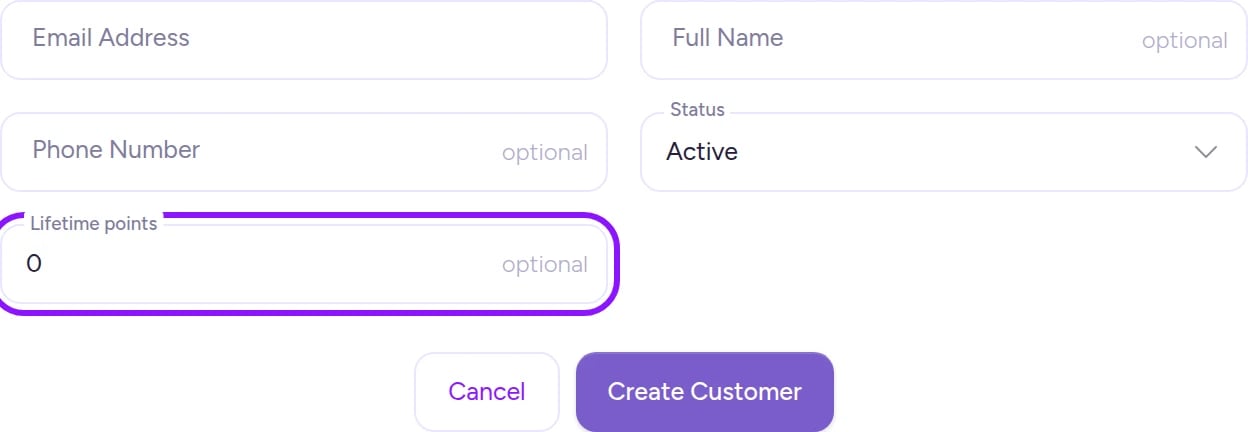
Add a customer manually before a drop; double-check all fields before saving since profiles can't be edited afterward.
Lifetime points sets lifetime points only—it doesn’t grant a spendable balance or create a Points Ledger entry. Loyalty tiers based on lifetime points count it, while loyalty priority in queues and draws (which uses spendable balance) doesn’t.
Read a customer’s profile
Open a profile from Customers or by selecting a customer’s name on an order (see Orders and refunds). The header displays the customer’s name, Active or Inactive badge, contact details (with a verified checkmark once confirmed via sign-in code), and an Archive button (hidden for customers synced from Klaviyo or Mailchimp, including manually added profiles that later match a synced list).Metric cards
Four summary cards break down a customer’s history (test orders are excluded). Percentile bars labeled “Top N%” or “Bottom N%” compare the customer against the rest of your customer base and show ”—” until there’s enough activity to score.
Best send time suggests 8 AM, 12 PM, 3 PM, or 7 PM based on when the customer last engaged—in the customer’s own time zone, not yours.
When your loyalty program is active, the Value card includes Adjust points and a Points Ledger appears beside the drops timeline. See Run a loyalty program.
Invites
When an audience-gated sequence has an invite for this customer, the Invites card tracks each one through five stages: In audience → Invited → Delivered → Clicked → Entered (failed steps, such as a bounced email, highlight in red with the reason). You can trigger an individual email from the card when needed:- Send invite now — Sends the invite to a customer who is in the audience and hasn’t been invited yet. The button also appears for customers skipped for having no email address, but the send fails until they have one, and you can’t add an email to an existing customer in the admin.
- Resend invite — Re-sends an invite that was already sent (including invites that bounced).
Audiences
The Audiences card lists every audience the customer belongs to and links directly to each one. Rule-based audiences note “As of its build”—membership reflects the audience’s last build or last re-check of this customer. See Audiences and access codes and Build audiences.Drops
The Drops timeline lists every experience the customer participated in, newest first (10 per page—select Show N more for older history). Each row shows the distribution type, sequence, outcome badge, and date. Expand a row to see:- Step-by-step entry progress (such as Joined line, Admitted, and Completed)
- Auction bids
- Messages sent for that experience
- Open sequence to jump straight to that sequence
- Orders for this experience (when any entry converted)—opens all orders for that experience, not just this customer’s
To see how these stages appear on the storefront, read What your customers see.
Archive a customer
Archiving removes a customer from your directory. Customers synced from Klaviyo or Mailchimp can’t be archived.1
Open the profile
Open the customer’s profile from Customers.
2
Confirm archiving
Select Archive, then confirm Archive in the dialog.
On Shopify
The Customers directory, profiles, and Add Customer form work the same in the Fanfare Shopify app. Fanfare doesn’t import your Shopify customer list—customers appear here only after signing in to a drop or being added manually, and you can archive them unless they’re synced from Klaviyo or Mailchimp. See Integrations for list sync details.Troubleshooting
Search isn't filtering or can't find a customer
Search isn't filtering or can't find a customer
Search requires at least two characters. Names match only on whole words, and phone numbers aren’t searched—try the customer’s full first or last name, or part of their email address.
Creating a customer shows 'Failed to create customer'
Creating a customer shows 'Failed to create customer'
When you see “Failed to create customer”, another profile—including an archived customer—already uses that email address or phone number. Search active profiles for the email; archived emails and phone numbers can’t be reused.
The Drops timeline is completely blank
The Drops timeline is completely blank
A customer with no drop entries shows “No drops yet”. If the section is blank instead, reload the page to retry loading their activity.
Related
Customers and identity
Understand guests vs. signed-in customers and how profiles are created.
Run a loyalty program
Adjust point balances, inspect the points ledger, and configure expiration.
Orders and refunds
Review a customer’s orders and process refunds.
Invites, waitlist and access-code sends
Configure the audience invites tracked on customer profiles.