

Before you start
- Admin access required: Only organization admins can connect, manage, or disconnect Stripe. Members can view rates and account status read-only.
- US accounts in USD only: Fanfare checkout currently supports US Stripe accounts charging US dollars.
- Set your currency first: Confirm your organization’s Currency is set to USD in Organization settings before connecting. Linking a Stripe account sets your organization’s country to match the Stripe account and permanently locks both country and currency.
- Connect before creating drops: Your Stripe account must be able to take payments before Fanfare will let you create a queue, draw, auction, or timed release (appointments aren’t affected).
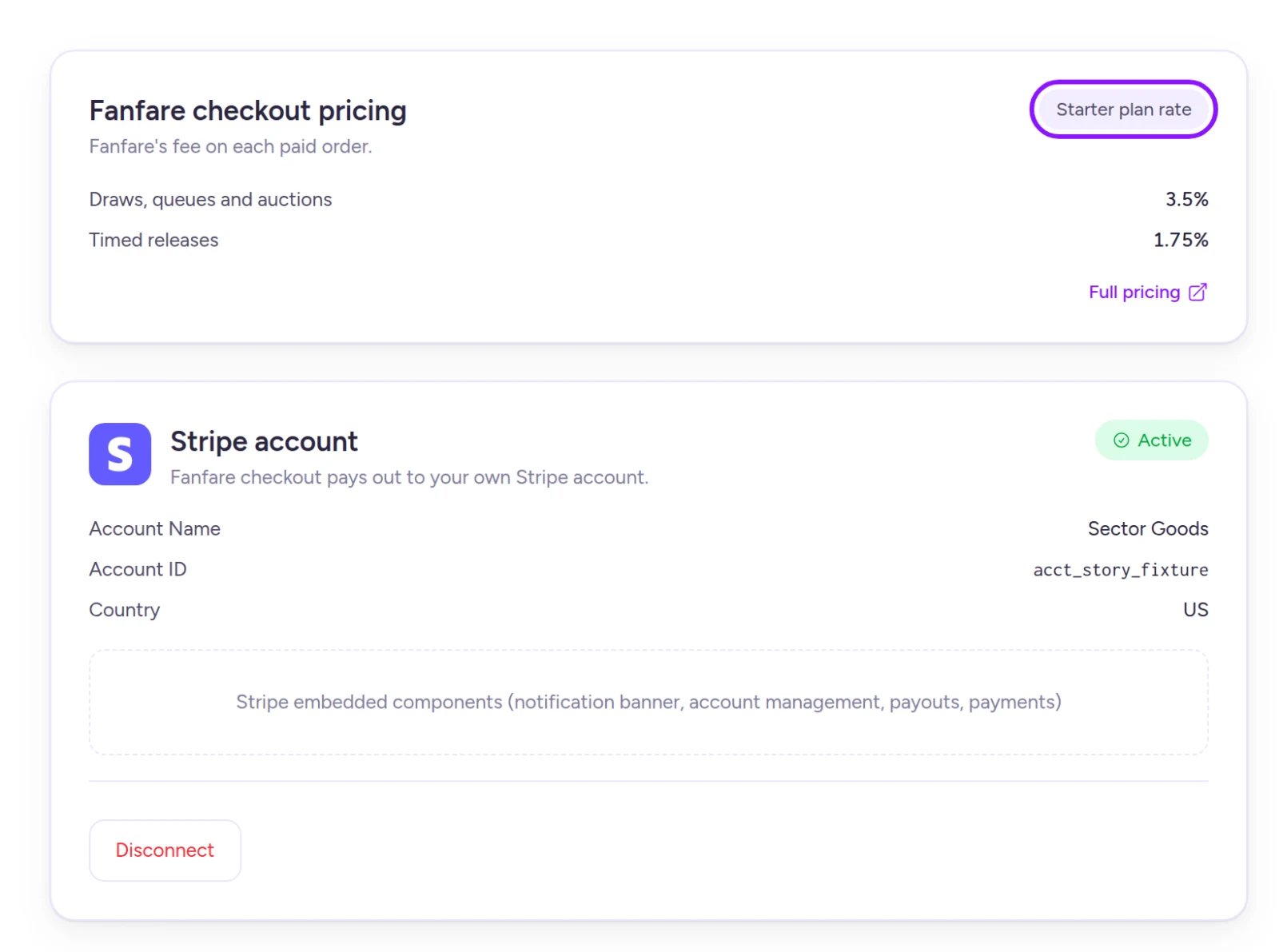
Review your per-order rates on the pricing card and your payout connection on the Stripe account card.
Check your fees
The Fanfare checkout pricing card shows the exact rates applied to your paid orders:- Rate badge: Shows whether you’re on your plan’s standard rate (Starter plan rate, Growth plan rate, Pro plan rate, or Enterprise plan rate) or a negotiated Custom rate.
- Draws, queues and auctions: The percentage fee on orders from those three drop types.
- Timed releases: The percentage fee on timed-release orders.
- Minimum fee per order: Appears only when a custom rate includes a minimum fee.
- Split rates: If your Shopify checkout orders carry a different custom rate, the card separates On Fanfare checkout and On Shopify checkout.
- Full pricing: Links to Fanfare’s public pricing table.
How fees work
- Automatic deduction: Fanfare’s fee is deducted directly in Stripe when payment is captured (including when a pre-authorized hold is captured). You’re never invoiced for it separately.
- Minimum fee: If your custom rate has a minimum fee per order, Fanfare takes the percentage or the minimum—whichever is higher—never exceeding the order total itself.
- Rate locked at payment: Each order keeps the rate active when it was paid. Changing plans mid-period doesn’t re-rate earlier orders.
- Custom rates stay put: A custom rate overrides standard plan rates across every tier, so changing plans won’t alter it.
- Other fees and exceptions: Appointments never take payment, so they carry no fee. Stripe’s own processing fees are billed separately to your Stripe account.
- Order details and refunds: After payment is captured, the fee appears as Fanfare fee on the order’s Payment card (and in each distribution’s payment settings—see Admission and the payment window). Refunding an order doesn’t return the Fanfare fee (Orders and refunds).
Choose how to connect Stripe
You can either create a Stripe account through Fanfare or link an existing Stripe account you already own.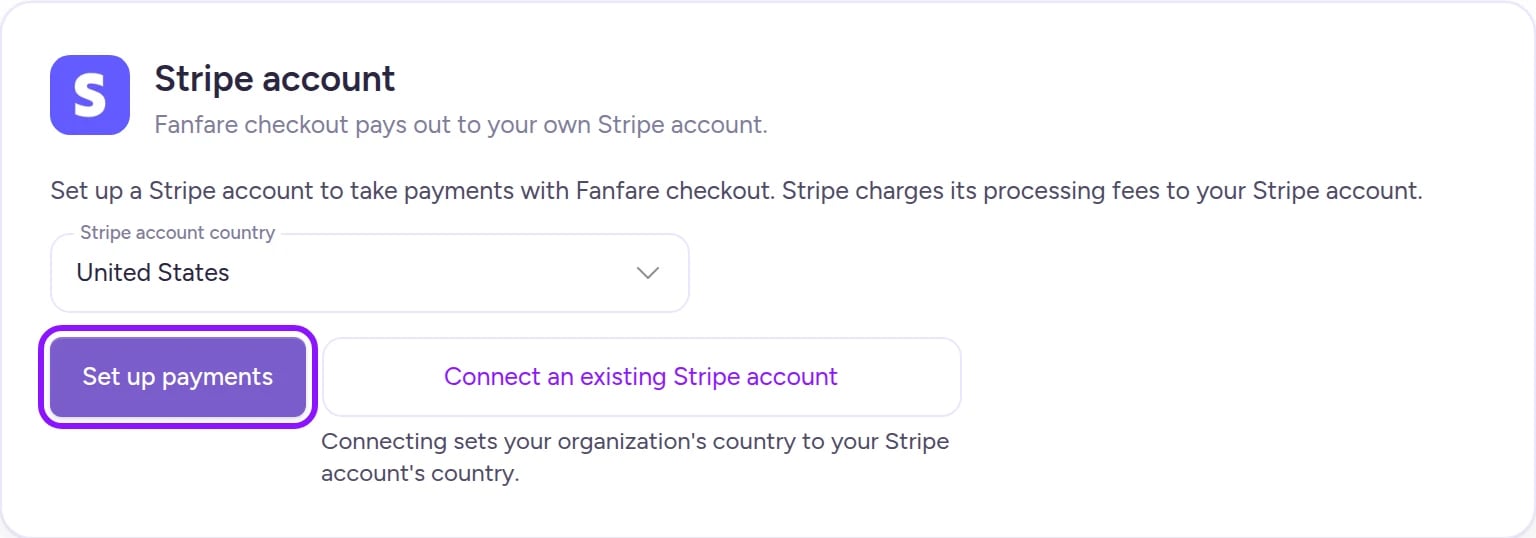
Create a Stripe account through Fanfare
- Go to Settings → Payments.
- Confirm Stripe account country is set to United States.
- Select Set up payments.
- Review the country-lock confirmation and select Create account.
- Complete Stripe’s onboarding flow. Stripe will return you to Settings → Payments.
Connect an existing Stripe account
- Go to Settings → Payments.
- Select Connect an existing Stripe account.
- Sign in to Stripe and authorize Fanfare.
- Stripe returns you to Settings → Payments.
Account states
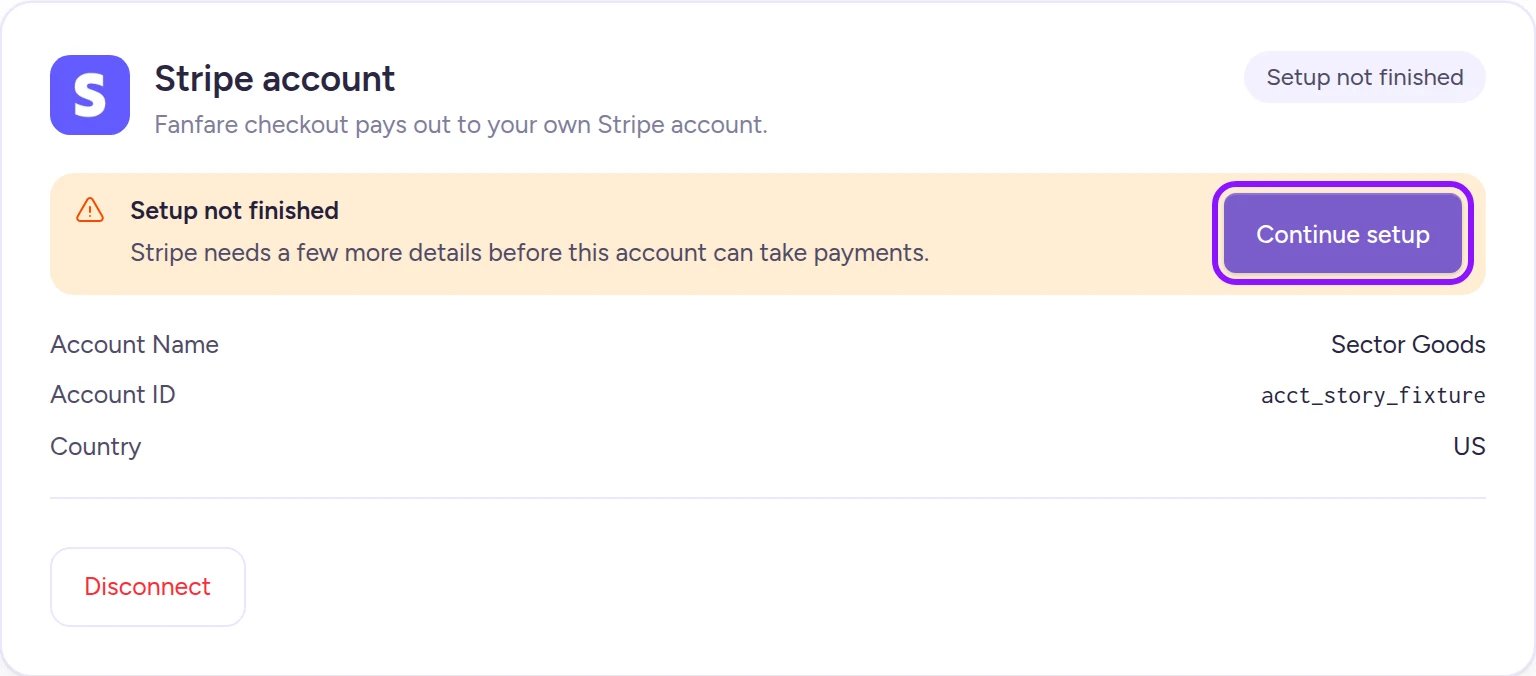
Once an account is linked, the Stripe account card displays its Account ID (along with Account Name, Email, and Country once available from Stripe) and one of three badges:
If you revoked Fanfare’s access from your own Stripe Dashboard, the badge returns to Setup not finished—select Disconnect, then reconnect the same account using Connect an existing Stripe account.
Manage payouts, bank details, and disputes
- Fanfare-created accounts: Once your account is Active or Action needed, organization admins can manage Account and bank details, Payouts, and Payments and disputes directly on the Stripe account card, with any Stripe notices shown above them.
- Existing Stripe accounts: Select Open Stripe Dashboard to manage payouts, bank accounts, and disputes in Stripe.
Disconnect Stripe
- On the Stripe account card, select Disconnect.
- Review the confirmation dialog and select Disconnect again.
What members see
Non-admin team members can view your fee rates, Stripe status badge, and account details, but can’t connect, manage, or disconnect Stripe, and won’t see payout or bank management sections. For existing Stripe accounts, Open Stripe Dashboard remains visible. To grant admin permissions, see Team members.On Shopify
Fanfare checkout isn’t available inside the Shopify app—orders run through Shopify checkout instead. See Orders with Shopify checkout and Checkout protection. In the Shopify app, Settings → Payments displays your Fanfare checkout pricing card alongside a Coming soon placeholder for Stripe.Troubleshooting
Set up payments shows an error
Set up payments shows an error
If you see a message about US dollars, update your organization’s Currency to USD in Organization settings and try again. If the message says your organization uses its own Stripe account, reconnect that original account using Connect an existing Stripe account.
I returned from Stripe and my account still says 'Setup not finished'
I returned from Stripe and my account still says 'Setup not finished'
The status updates to Active once Stripe confirms your account can accept payments. If you just finished Stripe’s onboarding steps, refresh the page—Stripe verification can take a moment to sync. If the badge shows Action needed, check what details Stripe is requesting.
I can't change my organization's country or currency
I can't change my organization's country or currency
Both lock permanently as soon as you create or connect a Stripe account, including after disconnecting. Currency can also be temporarily locked by active or undeleted auctions—see Organization settings.
Related
Organization settings
Choose your checkout processor and set your country and currency.
Checkout options
Compare Fanfare checkout, external checkout, and Shopify checkout.
Plans and what they unlock
Compare every plan’s monthly price and take rates.
Orders and refunds
See how Fanfare fees appear on orders and how refunds work.