

Edit a live distribution
1
Open the sequence
Open your experience, then select the sequence you want to update.
2
Open distribution settings
On the Overview tab, find the Distributions card and select Edit on the distribution you want to change.
3
Adjust and save
Update fields under Schedule, Configuration, or Payment (queues and draws only), then select Save.
Existing distributions stay editable—and Pause queue / Resume queue keep working—even if your organization moves to a plan that doesn’t allow creating that distribution type.
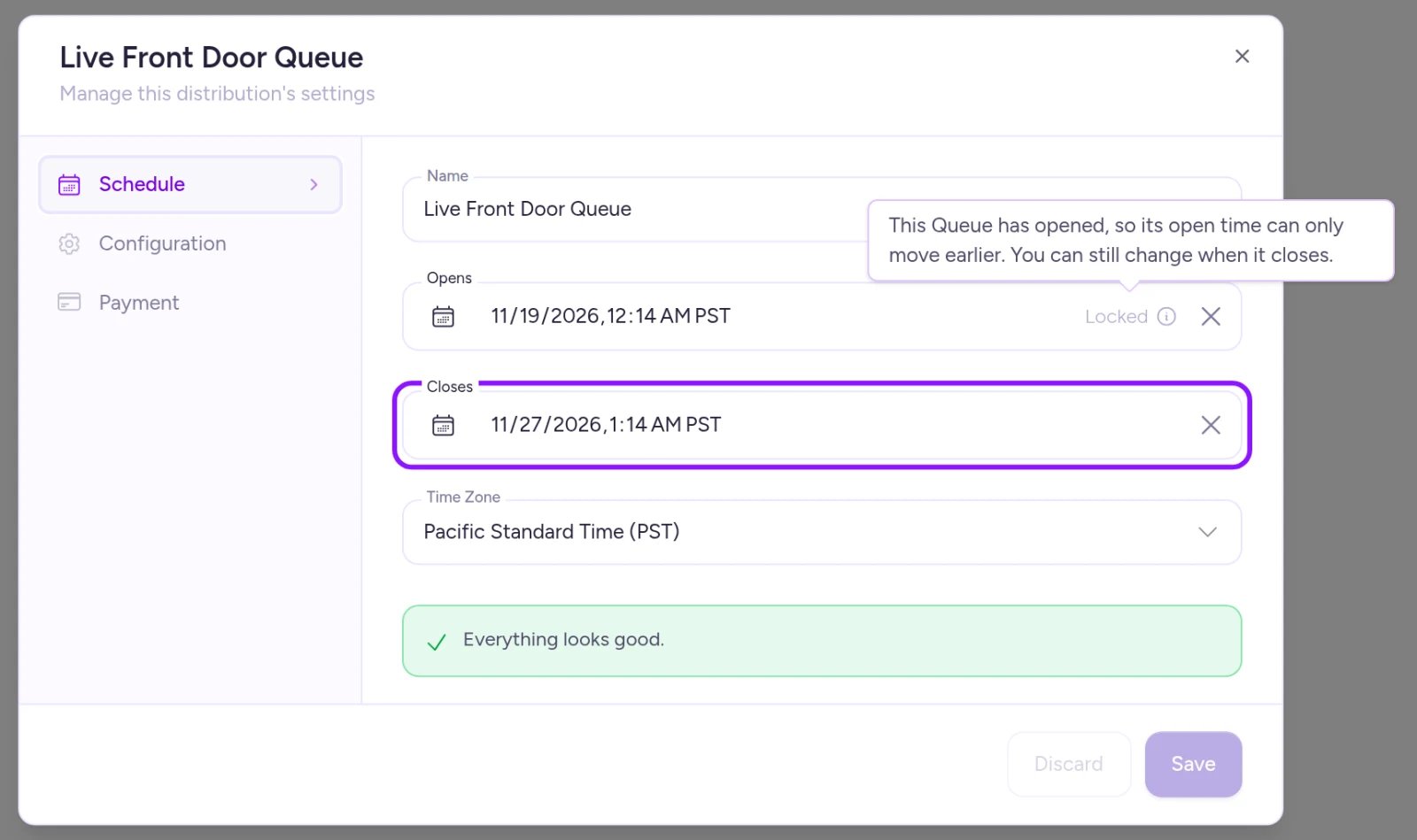
Once a distribution opens, Opens locks to earlier times only, while Closes stays editable.
Change when a distribution closes
Closes stays editable throughout a live drop, so you can wrap up early or extend the window:- Avoid overlaps: Distributions in the same sequence can’t overlap—Save stays disabled if an extended close time runs into the next distribution’s window.
- Draws: Keep the Draw date inside the open window. If you pull Closes earlier than the draw date, move the draw date too.
- Appointments: Appointment schedules can’t change while any booking exists.
- Once opened: Opens shows Locked and can only move earlier (moving it doesn’t unlock settings that locked at open). Queues count as opened about 5 minutes 30 seconds before Opens, right before their 5-minute waiting room opens.
- Once closed: Schedules can’t be changed after a distribution closes, and closed queues refuse all edits.
What you can change while live
For the full lock timeline, see What locks, and when. For type-specific rules and defaults, see Set up a queue, Set up a draw, Set up an auction, Set up a timed release, and Set up appointments.A queue’s payment window is always 30 minutes and doesn’t have an editable field (even though Run mode displays an Admission window link). See Admission and the payment window.
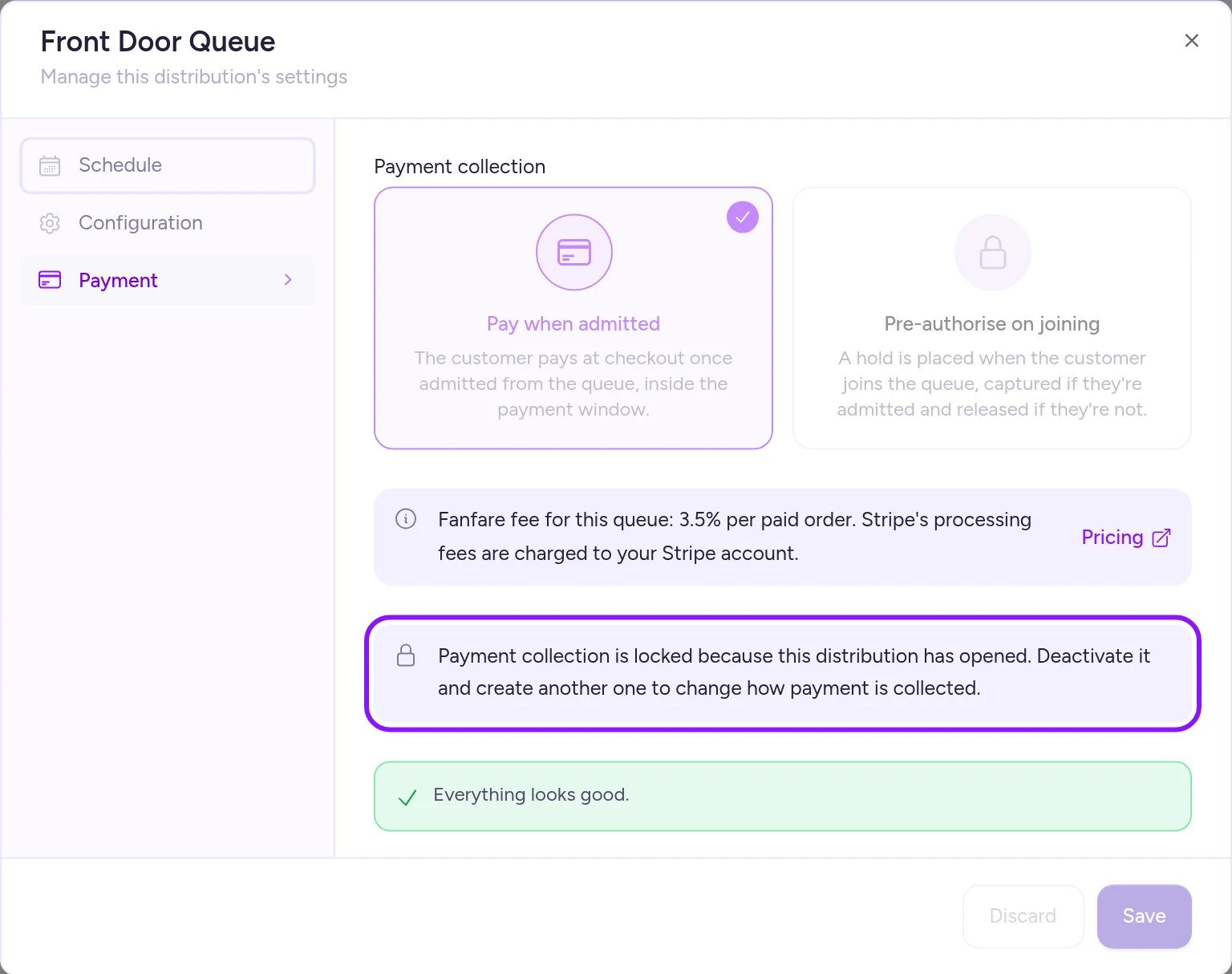
Payment collection locks as soon as a queue or draw counts as opened.
Pause and resume a queue
To temporarily stop admitting people from a live queue without losing your pace settings:- Open the menu on the queue’s card and select Pause queue.
- When you’re ready to restart at your previous rate, open the same menu and select Resume queue.
0 as a pause—that overwrites your admit rate instead of pausing, so Resume queue won’t appear. See Set up a queue and What your customers see.
Move units during a drop
Stock counting starts about 10 minutes before a sequence opens. Once counting begins, quantities in Edit allocations can only increase—to take units out of a sequence or move stock between sequences mid-drop, use Move units. (For pre-drop setup, see Allocate stock to a drop.)1
Open Move units
On the sequence’s Overview tab, select Move units in the Stock card. (If a size sells out, the sold-out banner also shows Move units in, and—when exactly one size is sold out and the experience has unassigned units of that size—a one-click shortcut to pull units from Unassigned.)
2
Pick source and destination
Select From and To—either another sequence in the same experience or Unassigned.
3
Choose size and quantity
Pick the size and enter Units to move (up to the maximum shown below the field).
4
Confirm the move
Select Move [units]. Fanfare shows how many units moved along with before-and-after totals for each sequence.
Moves can be partial. Units currently held in active customer checkouts stay with the source sequence, and the confirmation shows how many remained behind. If those checkouts expire without completing, the units return to the source’s Remaining count and you can move them then.
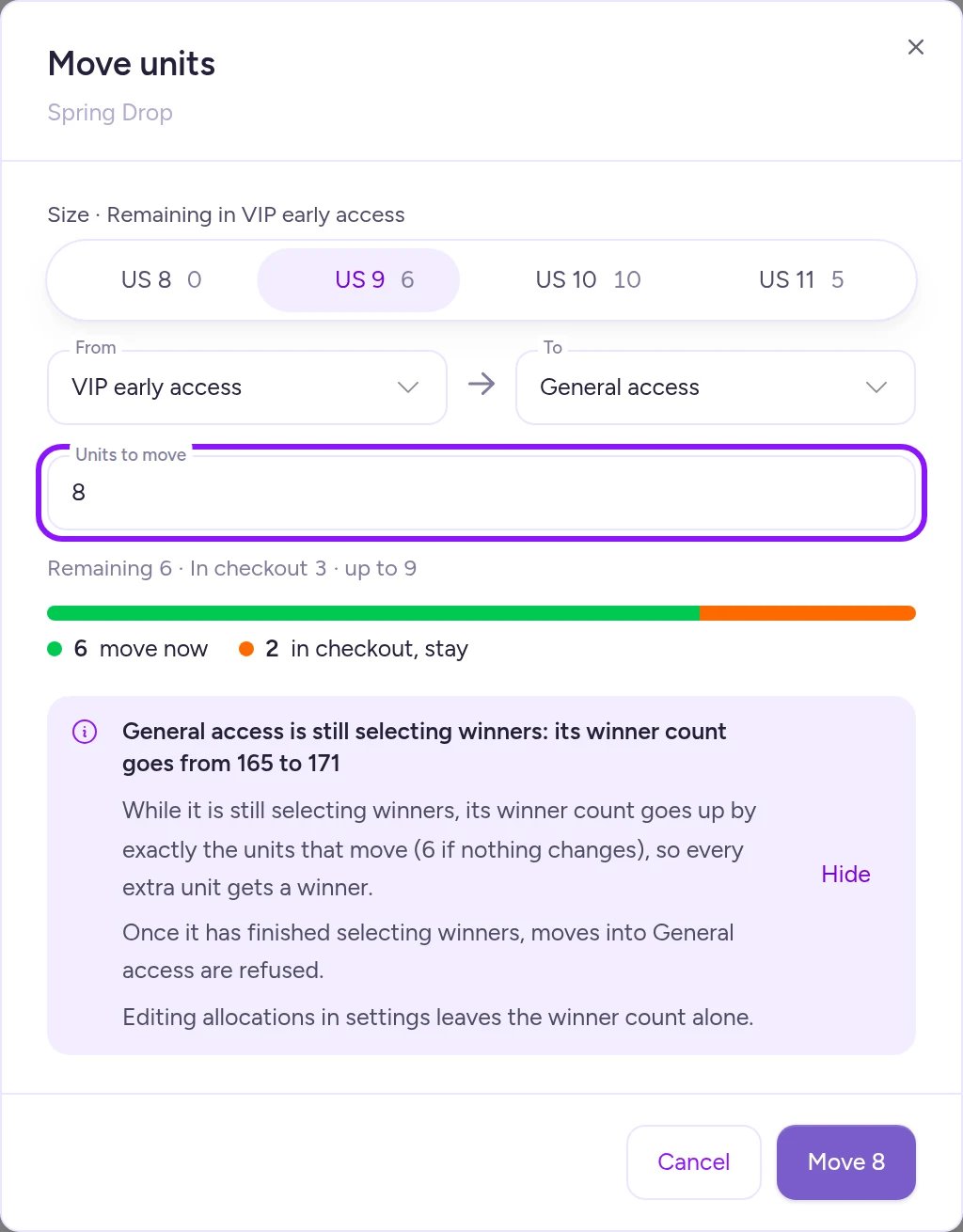
Once stock counting starts, move inventory between sequences or Unassigned with Move units.
Cancel a booking
You can cancel a customer’s appointment booking before or during the appointment, as long as its time slot hasn’t ended.1
Find the appointment panel
On the sequence’s Overview tab, scroll below the Distributions card to the appointment card.
2
Select the day and slot
Pick the appointment day and time slot to load Slot Attendees.
3
Cancel and confirm
Select Cancel booking beside the customer’s name, review the confirmation prompt, and select Cancel booking again. The customer is notified automatically.
Canceling a booking can’t be undone, and individual bookings can’t be canceled after the appointment has been deactivated. Any active booking keeps the appointment’s slot settings, window, and location locked until all bookings end or are canceled.
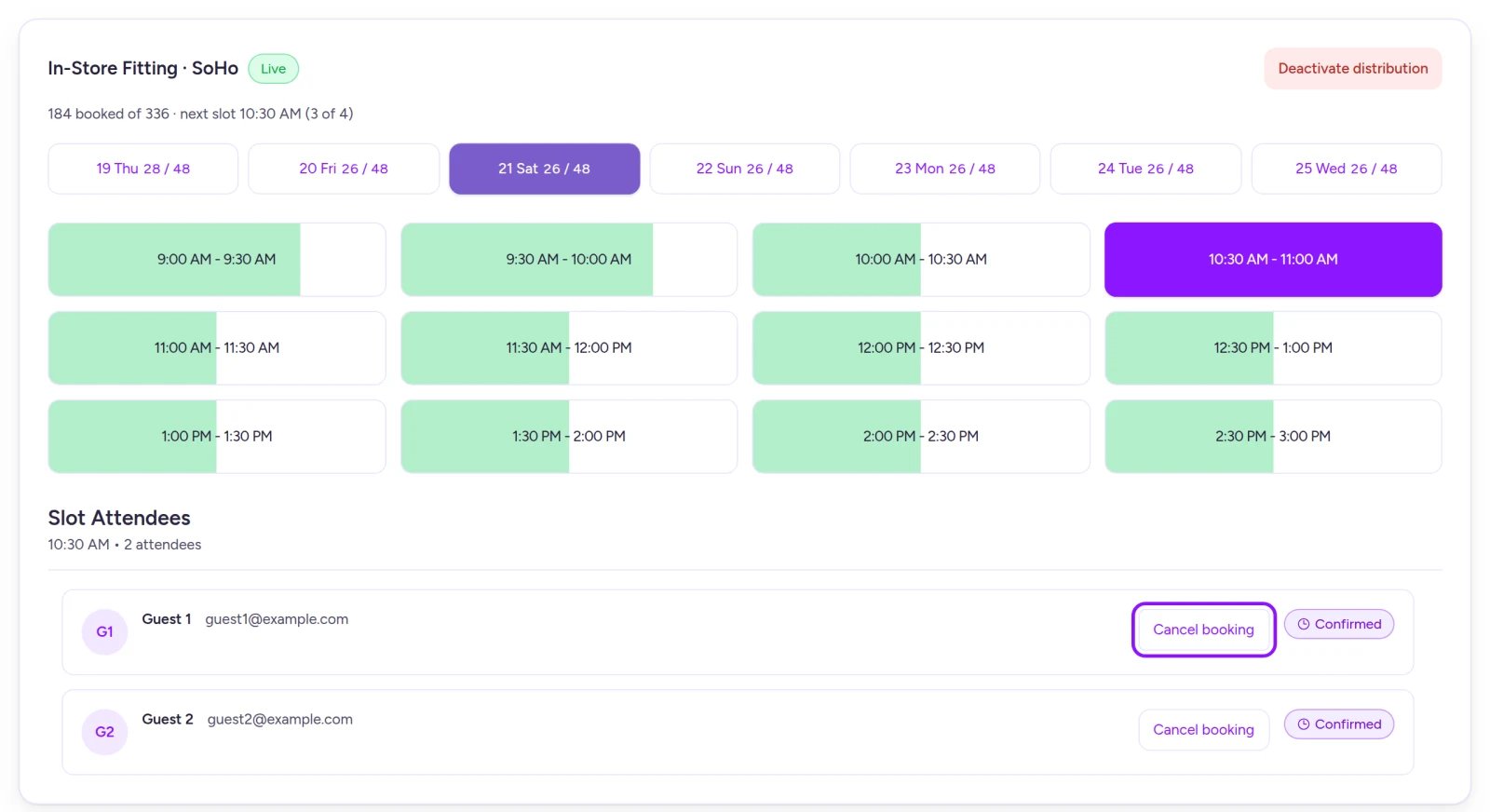
Select a day and slot to view attendees and cancel individual bookings.
Other live changes
- Access code: Updating or clearing a sequence’s Shared access code takes effect immediately for anyone who hasn’t entered yet. Audience and sign-in gates still apply. See Add and gate sequences.
- Order limits: Adding or deleting an order limit applies to the live drop as soon as you save. See Add and gate sequences.
- Brand and hosted pages: Saving brand changes restyles live pages, widgets, and emails within about a minute—even during a hosted page publish freeze (which begins 15 minutes before a distribution opens). See Set your brand and Build and publish the hosted page.
- After Deactivate: Once every distribution in a sequence or experience is deactivated, you can’t add new ones to it. See Stop a drop.
On Shopify
Appointments aren’t offered in the Fanfare app in Shopify, so Cancel a booking doesn’t apply. For Shopify-managed products, the Stock card can also warn you if Shopify’s inventory count falls below what your drop has left or in checkout. See Products from Shopify for how to resolve stock mismatches.Troubleshooting
Save is grayed out
Save is grayed out
Save stays disabled until you make a change and all fields pass validation. Common causes: the new schedule overlaps another distribution in the sequence; a draw’s Closes time is earlier than its Draw date; Opens was pushed later after opening; or the distribution was deactivated and is now read-only.
Save says the distribution has closed
Save says the distribution has closed
Once a distribution’s window closes, its schedule can’t be changed (and closed queues reject all edits). Add a new distribution to the sequence instead.
I can't lower a size in Edit allocations
I can't lower a size in Edit allocations
Stock counting has already started, so Edit allocations only allows increases. Use Move units to transfer units out.
A move into a draw is refused
A move into a draw is refused
The draw has already finished selecting winners and can’t accept additional units. Move the units to another sequence or keep them where they are.
Winner count is grayed out
Winner count is grayed out
Draw entry has already closed, so Winner count is final.
Appointment settings won't change
Appointment settings won't change
One or more bookings still stand on the appointment. Wait for those slots to finish—or cancel them—to unlock slot duration, buffer, capacity, window, and location.
Related
What locks, and when
See exactly when each setting locks before, during, and after a drop.
Watch a live drop
Follow live metrics and jump to settings from Run mode.
What your customers see
See what customers experience during a pause, sellout, or close.
Stop a drop
Deactivate or delete a distribution, sequence, or experience.
Allocate stock to a drop
Configure per-sequence stock allocations before counting begins.