

Waitlists, “opens soon” alerts, and access-code sends work on every plan. Audience invites apply to any sequence with an audience—built-in customer segments work on all plans, while creating custom audiences requires Growth or above. See Build audiences and Plans and what they unlock.
Before you start
- Your experience has a sequence with at least one scheduled distribution.
- For audience invites: The sequence has an audience (Add and gate sequences), your hosted page is published, and your postal address is saved (see What the invite needs to send).
- For access-code sends: The sequence has a Shared access code configured (Add and gate sequences).
Where to manage them
Open Experiences, select your experience, and click the sequence:- Access tab: Manage the Invite email, monitor delivery metrics, inspect individual audience members, and trigger Send code.
- Waitlist tab: View, add, remove, and export people on that sequence’s waitlist.
- Marketing Hub (on the experience): Lists each sequence’s invite alongside your scheduled announcements.
Audience invite emails
As soon as a sequence has both an audience and a distribution with an open time, Fanfare automatically prepares an invite email so eligible members know how to enter. Invites are email-only—each member receives it once, and anyone without an email address or who unsubscribed from marketing email is skipped. Default copy (customizable anytime):- Headline (email subject): “You’re invited”
- Body: “You’re on the list for early access. Use the button below to enter.”
- Button: “Enter now” (links to your hosted page)
When invites send
By default, Fanfare sends the first wave 2 days before the sequence’s earliest opening. Until that first wave goes out, adding an earlier distribution automatically shifts the invite earlier to match. After the initial send, Fanfare checks the audience every 15 minutes and emails any newly added members until the sequence’s last distribution ends (or for as long as that distribution is live if it has no close time). If you swap the sequence’s audience, subsequent checks invite members of the new audience.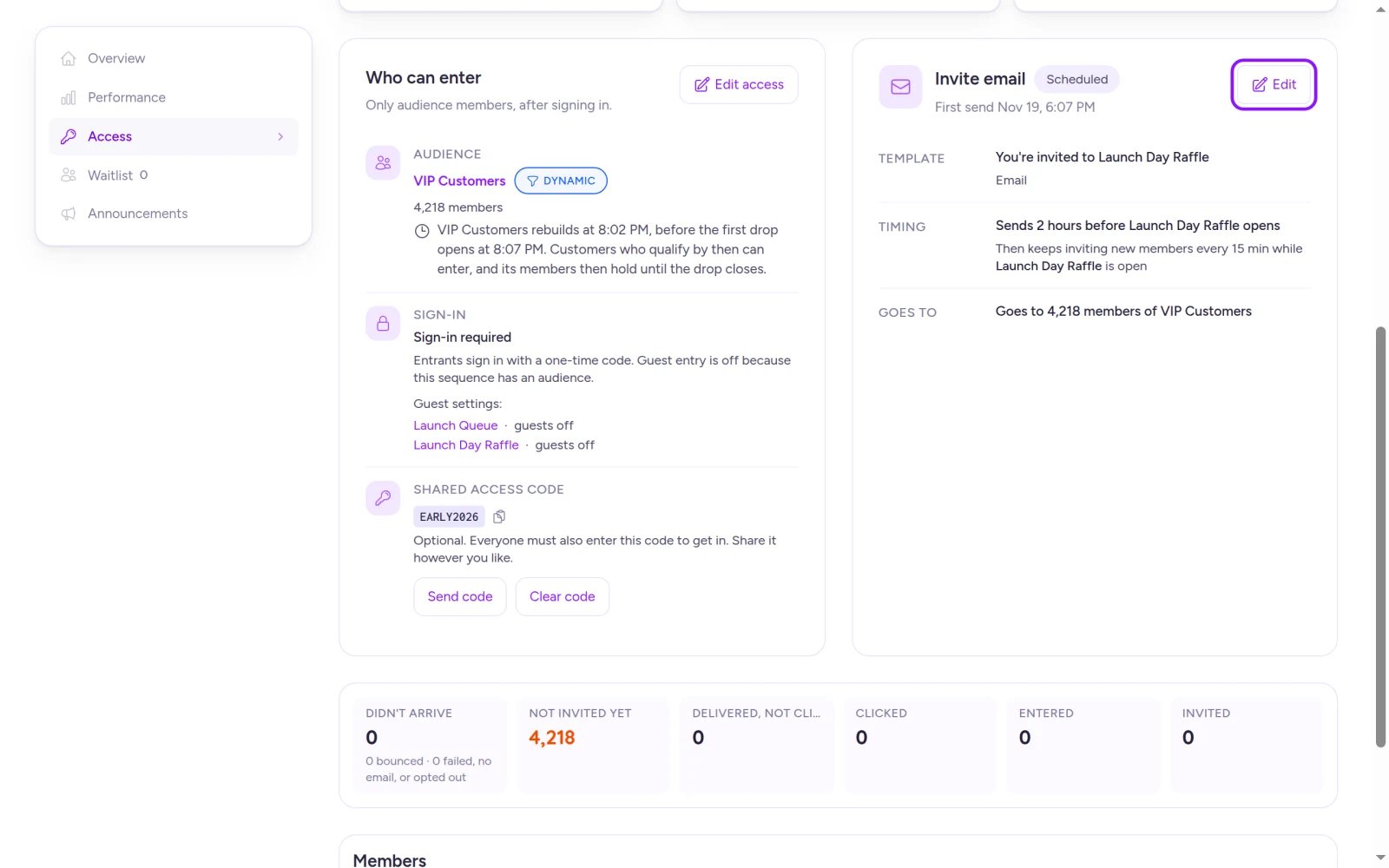
Check invite wording, timing, audience coverage, and delivery progress on the sequence's Access tab.
Customize or turn off the invite
- On the sequence’s Access tab, select Edit on the Invite email card (or open it from the experience’s Marketing Hub).
- Select the content step to customize the Headline, Body, or Button label.
- Under When it sends, pick how far before opening the initial invite should go out (must be at or before the opening).
- Under Keep inviting, choose how often Fanfare checks for new audience members.
- To pause emailing without deleting your wording, toggle off Send this invite at the top—this takes effect immediately. Audience members can still enter the drop even while invites are off.
- Select Save to keep your other edits.
Once the first invite wave has gone out, When it sends locks—you can still edit copy, change the Keep inviting interval, or toggle Send this invite off.
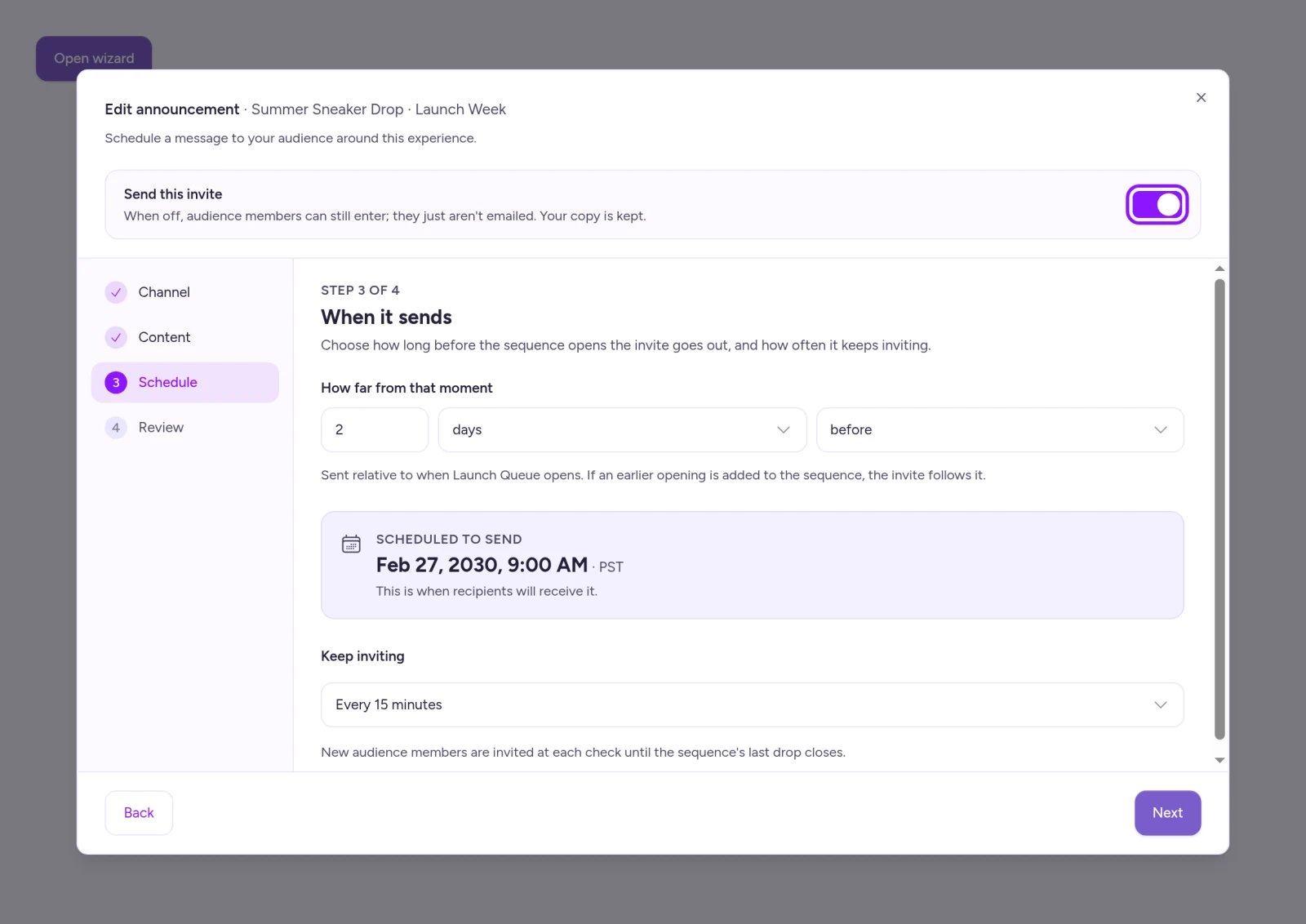
Toggle Send this invite off to stop audience invite emails while preserving your custom copy.
Invites can’t be deleted—toggle Send this invite off instead (it stays off even if you swap the audience). Removing the audience stops invites entirely; if none have gone out yet, your custom edits reset if you attach a new audience later. Deactivating a distribution removes it from invite timing (stopping invites if no open or upcoming distributions remain), and deactivating the sequence stops invites immediately.
What the invite needs to send
- A published hosted page: The invite’s CTA links to your hosted page. Until it’s published (with an active drop-page subdomain), the Invite email card shows Needs link and holds off sending. See Build and publish the hosted page.
- A saved postal address: Required on all marketing emails under Settings → Email Sender. See Sender identity and sending domain.
Track invite delivery
The Access tab breaks down invite progress across Invited, Didn’t arrive, Not invited yet, Delivered, not clicked, Clicked, and Entered. Use the Members list to filter by status or search across customers, and select any person to inspect their full invite history. If any emails bounce or fail, the Access tab flags the count (for example, “3 didn’t arrive”). For drop-wide engagement metrics, see Read your results.Waitlist “opens soon” alerts
Every sequence (except appointment-only sequences) includes a waitlist automatically—see Waitlists for how customers join. Five minutes before each distribution in the sequence opens, Fanfare automatically notifies everyone on the waitlist. This alert can’t be edited or turned off.- Channel: Each customer receives one message—email or SMS—based on your Default Messaging Channel (Settings → Organization → Messaging), automatically falling back to the other channel if they’re unreachable on the default.
- Content: The email subject reads “[Distribution name] opens soon”. The body repeats that line, followed by “You’re on the waitlist — don’t miss it.”
- Exceptions: Not sent for appointments, distributions already open at creation, or deactivated/deleted distributions (Stop a drop).
- Where it appears: Listed on the sequence’s Announcements tab and shown as a Waitlist email milestone under What happens next on the experience Overview (not in Marketing Hub).
Manage your waitlist
Open a sequence’s Waitlist tab to see everyone signed up along with their Status and Joined date. Filter by On the list (default), Left, or All, or search by name, email, or phone. (The experience-level Waitlist page shows a read-only roll-up across all sequences—manage members from each sequence’s own Waitlist tab.)- Add someone: Select Add person, enter their Email (Fanfare creates a customer record if needed), and click Add to waitlist. Anyone who has already reached the experience’s order limit can’t be added.
- Remove someone: Select Remove on their row and confirm. They aren’t notified, and the list updates after a moment.
- Export as CSV: Select Exports → New export. Fanfare generates CSV files in the background—you can navigate away and come back to Download them when ready.
Customers added manually via Add person receive a waitlist confirmation via your default messaging channel. Customers who join the waitlist themselves don’t receive a confirmation email or text—keep that in mind when writing your drop copy. See Waitlists.
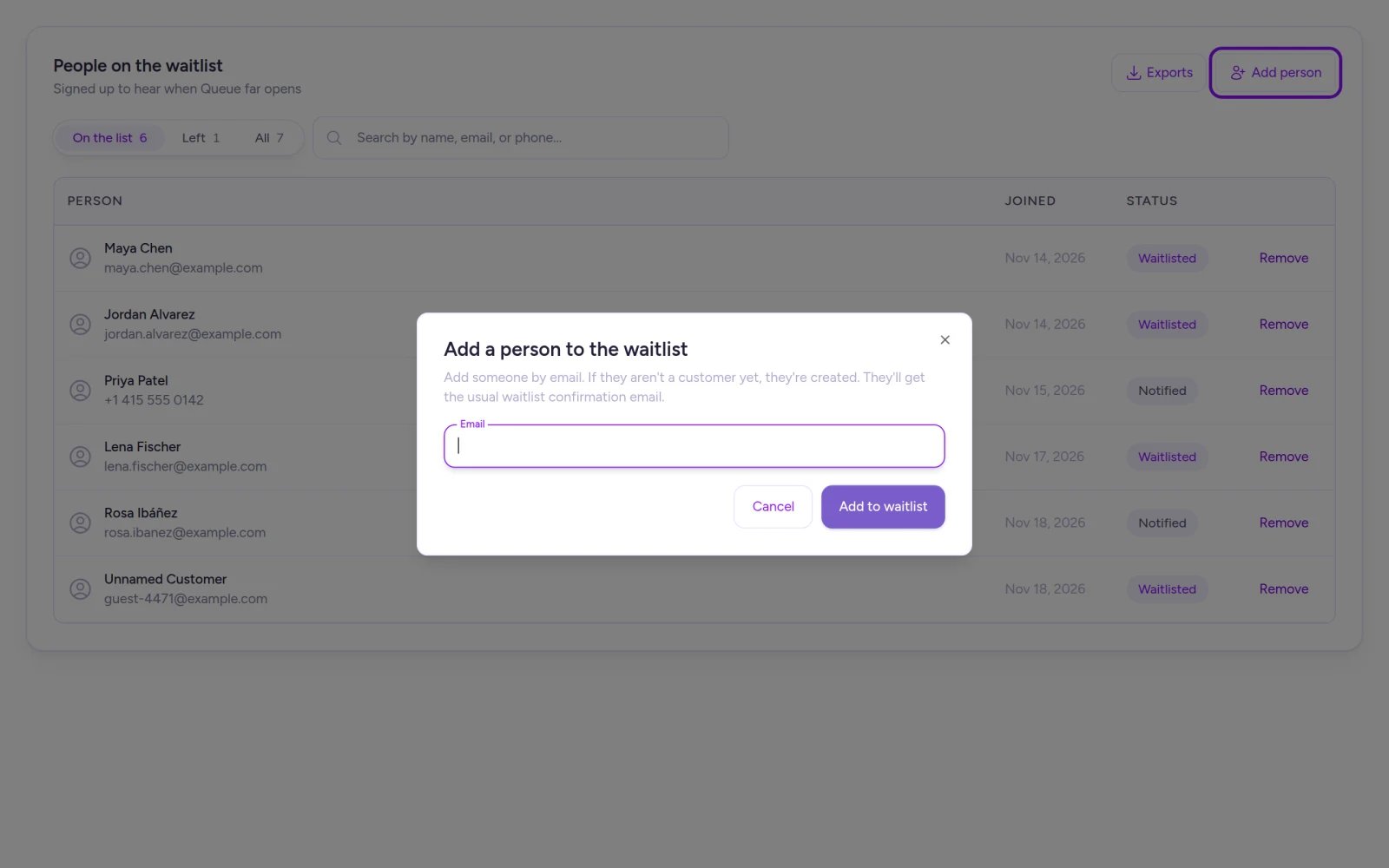
Search, filter, export, or manually add people to a sequence's waitlist by email.
Send a shared access code to the waitlist
When a sequence has a Shared access code (codes aren’t case-sensitive), you can blast it to everyone currently on the waitlist whenever you choose:- On the sequence’s Access tab, find Shared access code and select Send code.
- Confirm Send the access code to everyone on the waitlist? by clicking Send code.
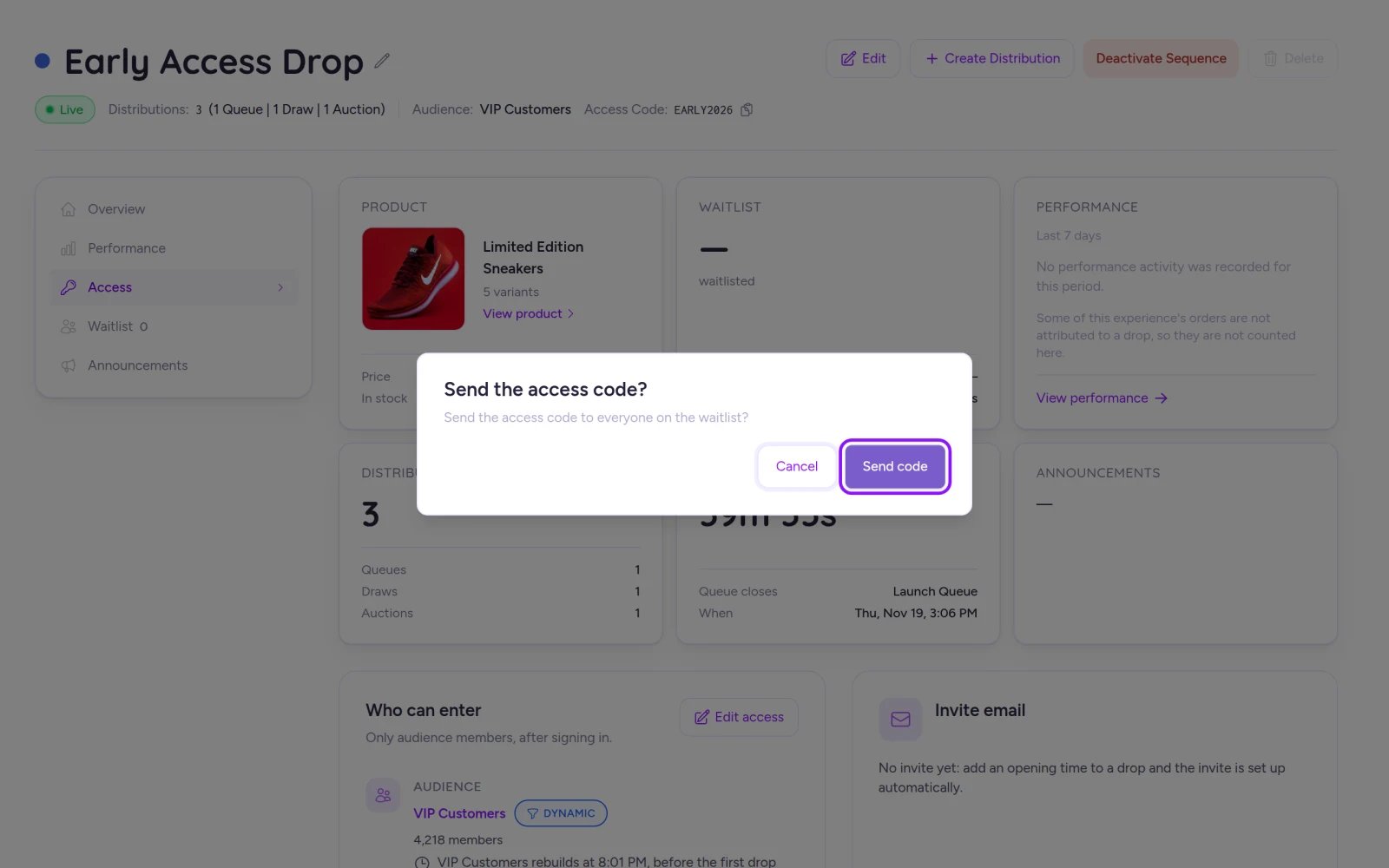
Send a shared access code to everyone currently on your sequence's waitlist in one step.
Troubleshooting
The invite card shows Needs link
The invite card shows Needs link
Publish your experience’s hosted page and confirm your organization’s drop-page subdomain is active. See Build and publish the hosted page.
The invite shows Didn't send in the Marketing Hub
The invite shows Didn't send in the Marketing Hub
Check the reason on the row: add your business postal address under Settings → Email Sender, or publish your hosted page if it says “Needs an experience page link”. Once fixed, Fanfare retries automatically on the next Keep inviting interval (or within 15 minutes if Keep inviting is off)—no need to re-save.
Send code is disabled
Send code is disabled
The sequence doesn’t have a shared access code yet. Select Edit access on the Access tab to set one—see Add and gate sequences.
I see 'Already on the waitlist' when adding someone
I see 'Already on the waitlist' when adding someone
That email address is already signed up for this sequence’s waitlist.
A customer says they never got a waitlist confirmation
A customer says they never got a waitlist confirmation
Self-serve waitlist sign-ups don’t trigger a confirmation email or text. Verify they’re listed on the sequence’s Waitlist tab—they’ll still receive the automatic “opens soon” alert 5 minutes before doors open.
Related
Add and gate sequences
Attach audiences and configure shared access codes for sequences.
Waitlists
How customers join waitlists and when sign-ups close.
Announcements
Schedule custom emails, SMS texts, and social posts around your drop.
Sender identity and sending domain
Set your postal address, sender name, and custom sending domain.
Audiences and access codes
Understand how gating controls who can enter each sequence.
What your customers see
Preview every customer screen and message across a drop.