

Before you start
- Checkout support: Your checkout must be able to charge the winning bid. Auctions are included on every Fanfare plan—if the Auction card shows “Needs a checkout that charges the winning bid”, upgrading won’t unlock it. Switch to Fanfare checkout or connect a checkout that supports auction pricing in your organization’s currency. See Checkout options, or On Shopify if you’re using the Shopify app.
- Currency lock: Your organization’s currency can’t be changed while any undeleted auction exists, or while a winner from an ended auction is still inside their payment window (even if you’ve deleted that auction). See Organization settings.
- Allocated stock: Make sure the sequence holds units—adding an English auction to a sequence with zero units causes it to open sold out. See Allocate stock to a drop.
Choose English or Dutch
Create an auction with a new experience
Shared wizard steps and default times are covered in Create an experience. Here’s what’s specific to an auction:1
Choose Auction
Open Experiences, select Create Experience, and choose Auction.
2
Set products and schedule
On Configure Experience, pick your products, enter an Experience Name, and set Time Zone, Opens At, Closes At, and Settles. Settles is when bidding ends and must fall between Opens At and Closes At.
3
Allocate stock
On Stock, enter units per size. A Dutch auction sells the total across sizes. An English auction ignores the quantities you type and assigns one unit of each size to the sequence.
4
Pick the auction type and pricing
On Auction Configuration, choose English auction or Dutch auction, then review and adjust the pricing fields (see the tables below).
5
Set access and create
Complete Access and Review & launch, then select Create experience.
Add an auction to an existing sequence
- Open your experience, then open the sequence you want to add to.
- On the Overview tab, select Add distribution in the Distributions card.
- Enter a Name, choose Auction, and select Next.
- On Schedule, set Opens, Closes, Time zone, and Settle at (same field as Settles in the wizard and Edit). Windows in the same sequence can’t overlap—see Distributions.
- On Configure, choose English (ascending) (selected by default) or Dutch (descending) under Auction Type, then fill in your pricing fields and select Next.
- Review your settings and select Create Distribution.
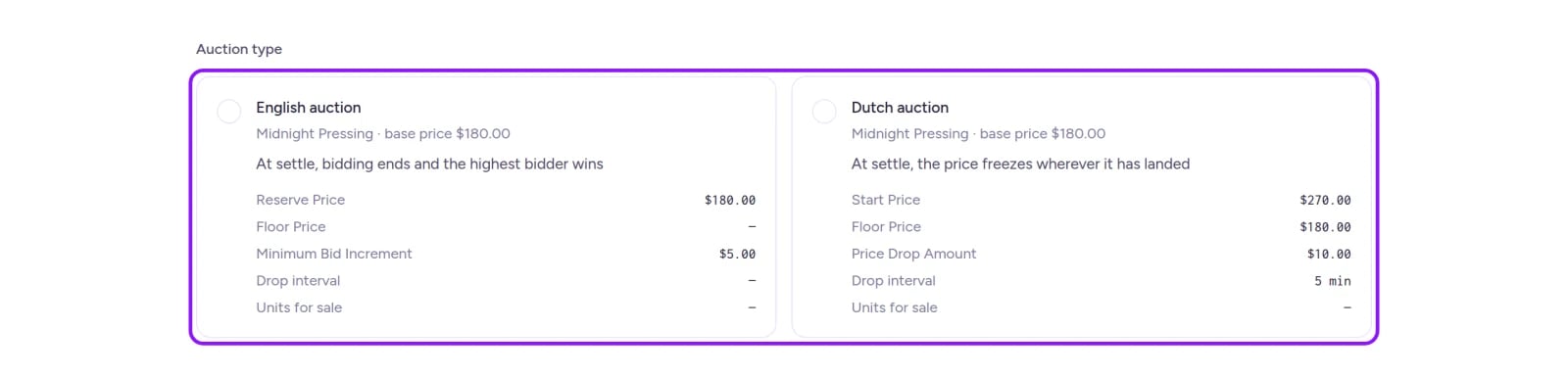
Select English or Dutch auction to configure its pricing rules.
Leave room for auto-extend: If you turn on auto-extend, Settle at (or Settles) must leave at least the full extension length before Closes. A late bid extends the auction once by that duration, and never past Closes.
Check prefilled wizard prices: Add distribution leaves price fields blank, while the experience wizard prefills starting values from a base price (the lowest price of your first selected product, or
100 if unpriced): Reserve Price and Floor Price default to the base price, Start Price to 1.5× the base price, Minimum Bid Increment to 5, and Price Drop Amount to 10 every 5 minutes. Review every price before creating your auction.English auction settings
English auctions don’t have a quantity field. On a stock-tracked sequence, the auction offers one unit of each size and the winner takes one (any extra units remain in the sequence). On an untracked sequence, it still picks one winner without deducting stock, and Add distribution doesn’t show a units summary.
Dutch auction settings
How Quantity is set depends on where you create the auction:
- In the wizard: Automatically equals the total units entered on Stock (edit it on that step).
- In Add distribution: On a stock-tracked sequence, it automatically equals the sum of sizes on the sequence’s Stock card. On an untracked sequence, enter Quantity manually (at least
1).
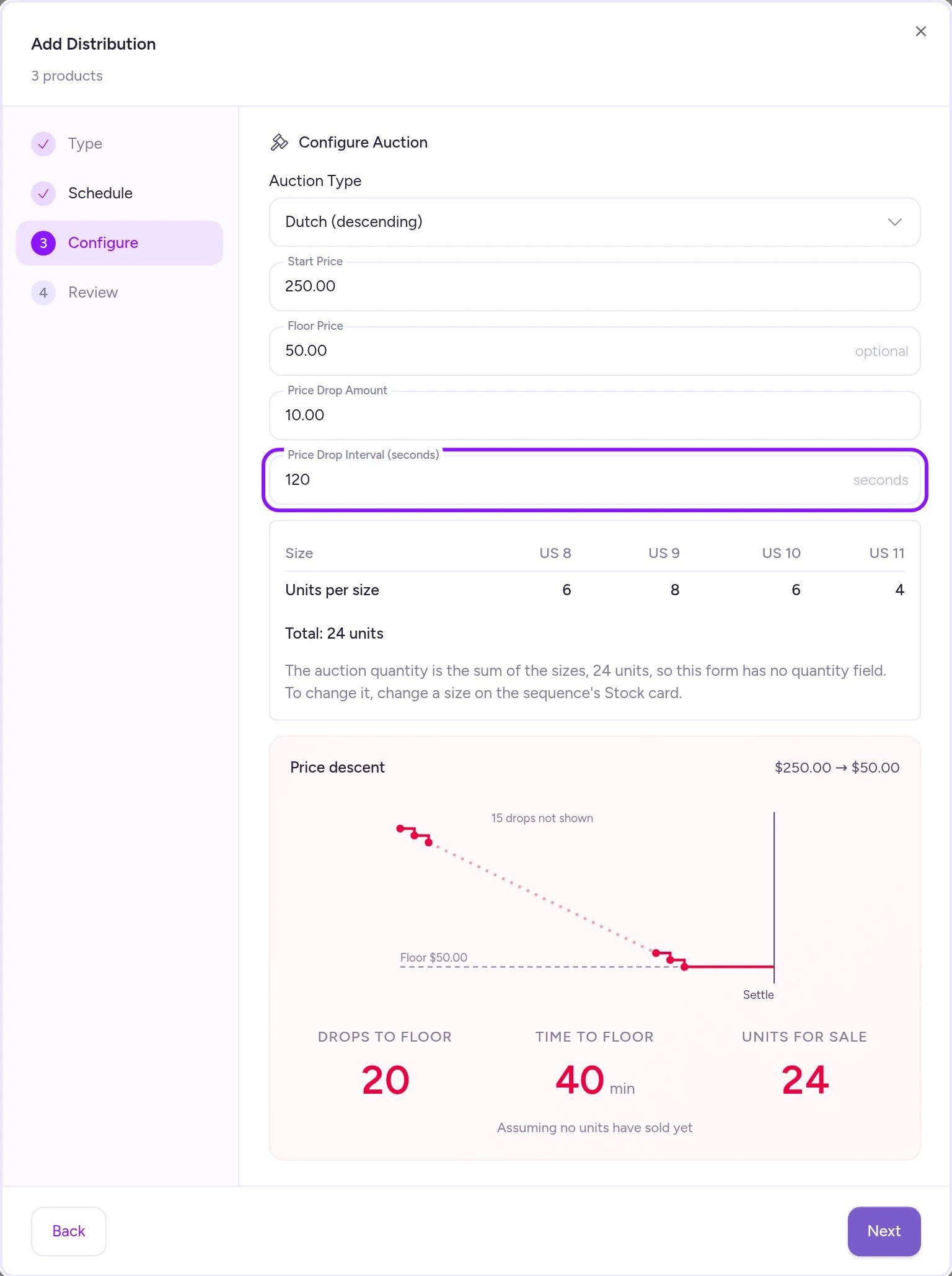
On a stock-tracked sequence, a Dutch auction automatically sells the total allocated across sizes.
Edit an auction
Open the sequence’s Overview tab and select Edit on the auction card to adjust Schedule or Configuration. On a stock-tracked sequence, a Dutch auction’s quantity displays as “From allocation” in Edit and tracks the sequence’s Stock card until the auction opens. After an auction opens, you can still:- Move Closes, or move Opens earlier (never later)
- Adjust Auto Extend Seconds on an English auction
- Adjust Settles, as long as it stays inside the window and leaves room for any extension
On Shopify
In the Shopify app, Auction stays locked with “Needs a checkout that charges the winning bid” (regardless of your Fanfare plan) until all four requirements are met:- Your store is on Shopify Plus.
- The Fanfare app has all requested permissions in Shopify.
- The Fanfare checkout validation rule is turned on in Shopify’s checkout settings, with Allow all customers to complete checkout unchecked. Fanfare won’t re-enable this rule if you turn it off. See Checkout protection.
- Your Shopify store’s currency matches your Fanfare organization’s currency.
Troubleshooting
Auction is grayed out with 'Needs a checkout that charges the winning bid'
Auction is grayed out with 'Needs a checkout that charges the winning bid'
Your current checkout can’t charge dynamic winning bids—upgrading your Fanfare plan won’t unlock it. Switch to Fanfare checkout or connect a checkout that supports auction pricing in your organization’s currency. Using Shopify? Check the four requirements under On Shopify.
My auto-extend duration is rejected
My auto-extend duration is rejected
Your extension would push settlement past Closes. Move Settles (or Settle at) earlier, push Closes later, or shorten the extension length.
The price fields are grayed out when editing
The price fields are grayed out when editing
Pricing changes are refused starting 30 seconds before Opens, and the price fields become disabled once the auction opens. If pricing must change, deactivate the auction and create a new one.
I can't get past the Dutch auction settings
I can't get past the Dutch auction settings
Your stock allocation is missing units. In the wizard, select Go to Stock and enter units for each size. In Add distribution on a stock-tracked sequence, give every size a unit count on the sequence’s Stock card so the total is above zero.
Related
Auction
How English and Dutch auctions run, settle, and pick a winner.
Allocate stock to a drop
Set the units per size that an auction sells.
Watch a live drop
Follow bids and extensions while an auction runs.
Stop a drop
Deactivate an auction and learn when Fanfare blocks deactivation.