

Using Shopify? Team access is managed through your Shopify store’s staff permissions instead of Fanfare roles. See On Shopify.
Before you start
- You’re signed in to the Fanfare admin at admin.fanfare.io.
- You have your teammate’s work email address ready.
Where team management lives
Team management lives in the user menu at the bottom of the sidebar—not under Settings. Select your name and email, then choose Account to manage your organization’s members and pending invitations. Your personal login details live under Profile in the same menu. For a full walkthrough of the sidebar and user menu, see A tour of the admin.Invite a team member
- Open the user menu at the bottom of the sidebar and select Account.
- Go to your organization’s members list.
- Send an invitation to your teammate’s email address.
Admins and members
Fanfare uses two roles: Admin and Member. Whoever creates the organization starts as an admin.
For role details in each area, see Billing and usage, Payments and fees, and Integrations.
Change a member’s role or remove them
Open the user menu at the bottom of the sidebar and select Account to update a teammate’s role or remove them from your organization.Accept an invitation
Open the link in your invitation email to join your team’s organization.If you’re new to Fanfare
- Open the link in your invitation email. The form uses the email address the invitation was sent to; there’s no email field (Google sign-up isn’t used for invite links).
- Enter your First name, Last name, and a Password (at least 8 characters).
- Select Create account.
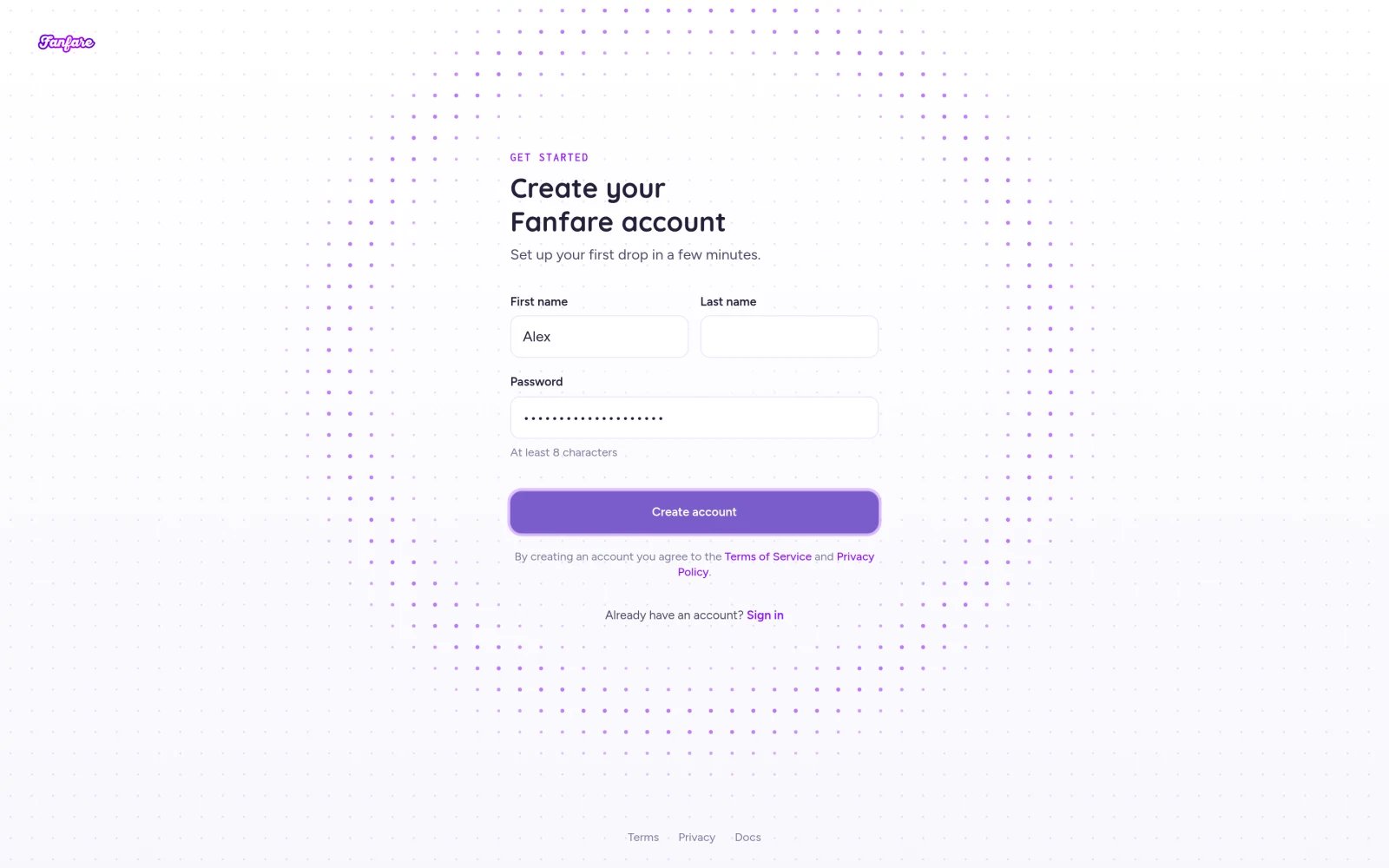
An invitation link asks only for your name and a password.
If you already have an account
- Open the link in your invitation email.
- If two-step verification is turned on for your account, enter your authenticator code or a backup code.
Sign in
Choose whichever sign-in method fits your account on the Sign in to Fanfare screen:
If two-step verification is enabled, enter the 6-digit code from your authenticator app (it submits automatically once all six digits are entered), or select Use a backup code, paste a saved code, and select Verify.
Two-step verification on the admin sign-in screen supports authenticator apps and backup codes only—SMS-only second factors aren’t supported. Also, if your password appears in a known data breach, Fanfare requires you to reset it before signing in.
Reset a forgotten password
- On the sign-in screen, select Forgot password?.
- Enter your Work email and select Send reset code.
- Enter the 6-digit code from your email and select Continue.
- Enter a New password (at least 8 characters).
- Leave Sign out of all other devices checked to end other active sessions, or uncheck it to stay signed in elsewhere.
- Select Update password and sign in (and complete two-step verification if enabled).
Update your profile or sign out
Manage your password and sign-in methods under Profile in the user menu, or choose Sign Out to end your session. If you’re creating a brand-new organization instead of joining a team, see Your first drop.On Shopify
Inside the Fanfare Shopify app, there are no invitations, Fanfare roles, or Account / Profile / Sign Out menus—access is controlled entirely by your Shopify store’s staff permissions. See Fanfare in Shopify.Troubleshooting
I see 'This invitation is for another account'
I see 'This invitation is for another account'
You’re currently signed in with a different email address than the one the invitation was sent to. Select Sign out and continue to switch accounts and accept the invite. If you’ve already accepted it earlier, simply sign in with the invited email address.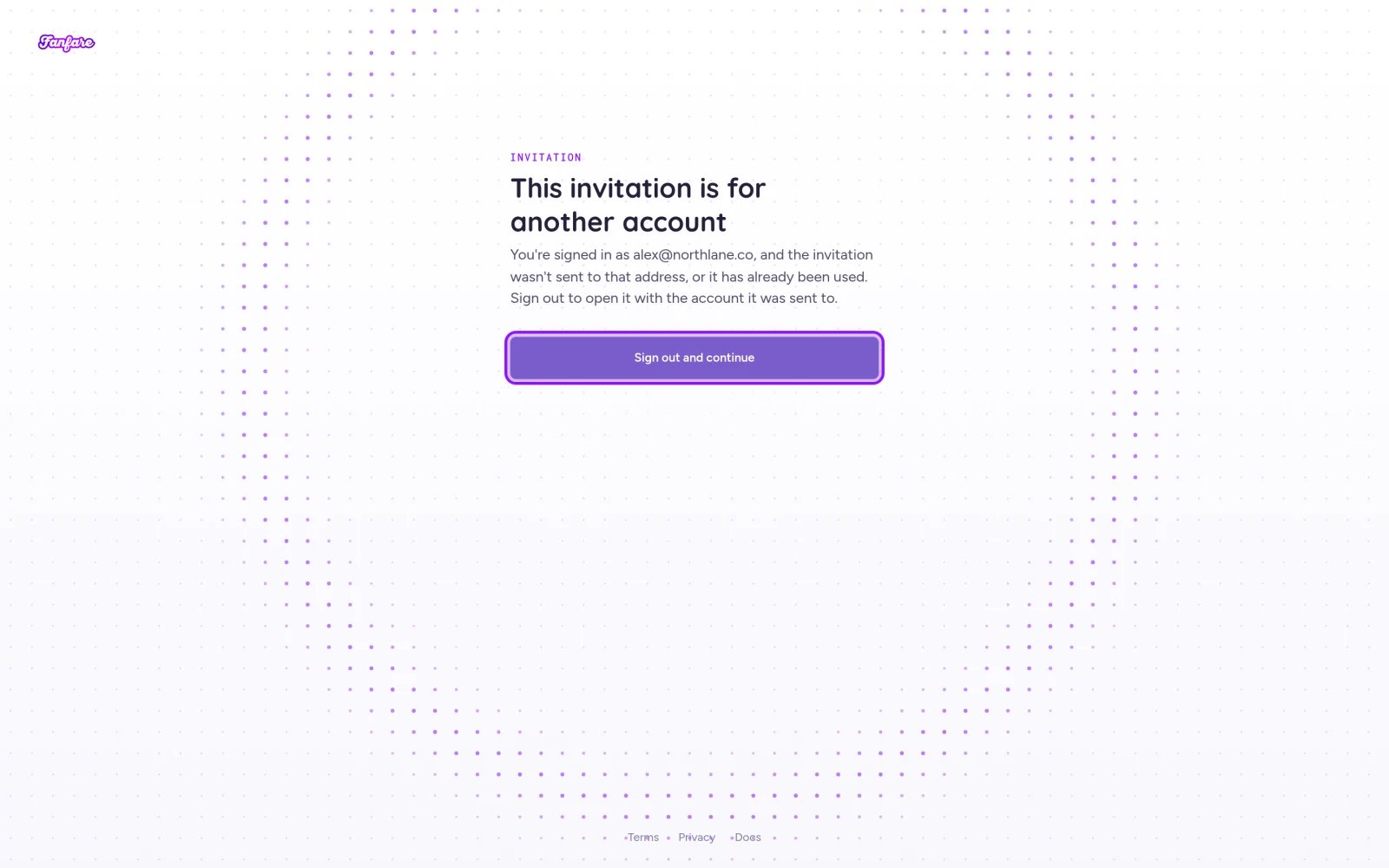
I see 'This invitation can't be used'
I see 'This invitation can't be used'
The invitation link has expired or been revoked. Ask an admin in the organization to send you a fresh invite.
I was signed out while opening my organization
I was signed out while opening my organization
Fanfare couldn’t load your organization session and signed you out automatically. Sign in again to continue, and contact [email protected] if it keeps happening.
Related
Organization settings
Company details, subdomain, region, and checkout processor.
Billing and usage
Manage your plan and see who can make billing changes.
Integrations
See which marketing and messaging connections require an admin.
A tour of the admin
Find your way around the sidebar, user menu, and settings.