

Before you start
- Permissions: Any team member can edit most fields on this page, except Checkout processor, which is restricted to organization admins. See Team members for the full role breakdown.
- Stripe lock: Confirm your Country and Currency before connecting Stripe. Once a Stripe account is linked to your organization—even if setup isn’t finished or you disconnect it later—neither can change. See Payments and fees.
- For a full overview of settings that lock across Fanfare, see What locks, and when.
Navigating Settings
Selecting Settings in the sidebar opens Organization directly. The Settings menu is organized into four groups:
Looking for brand colors and fonts? Those live in Design Studio—see Set your brand.
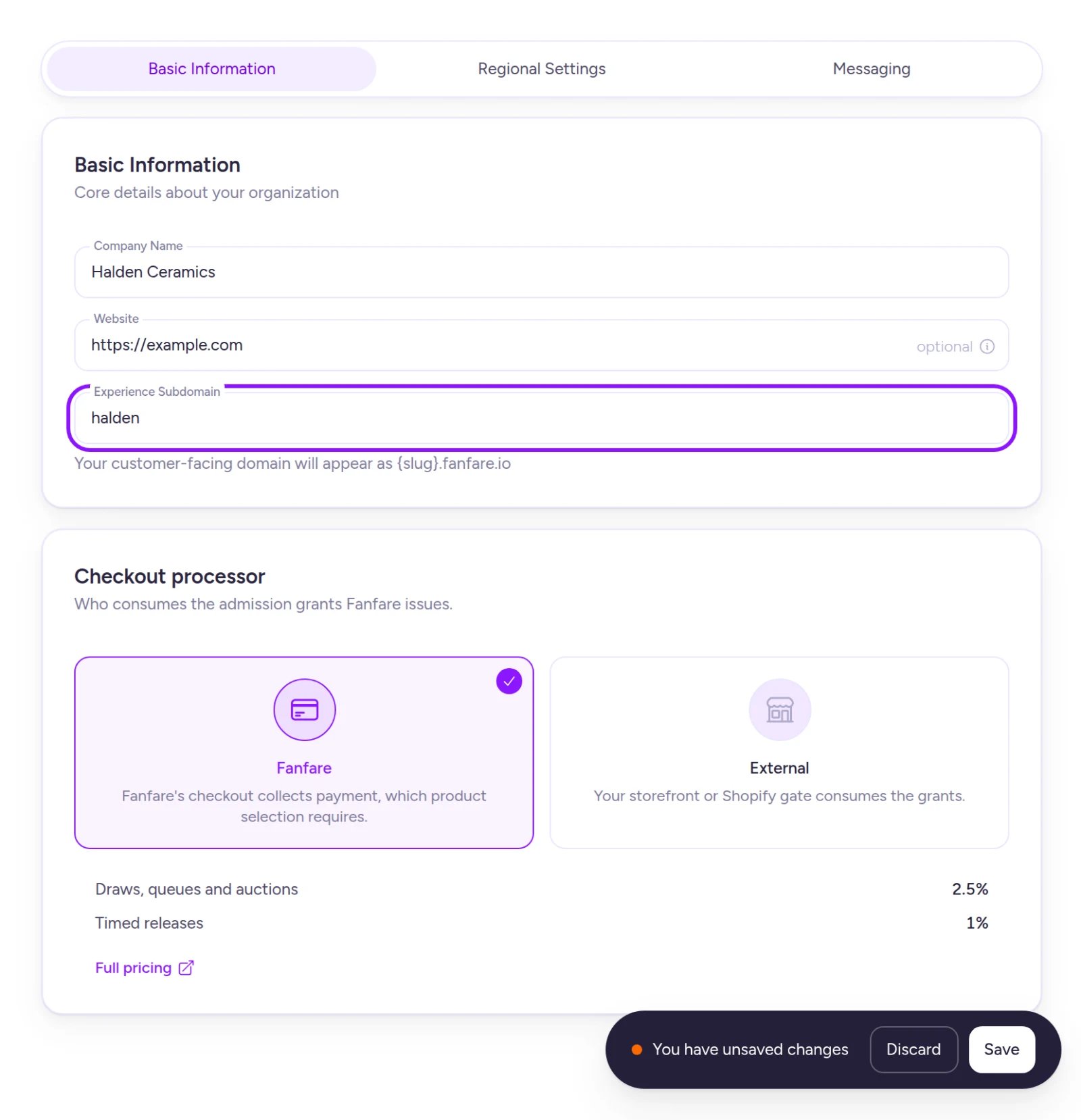
The Basic Information tab holds your company identity, drop-page subdomain, and checkout processor.
How saving works
Basic Information, Regional Settings, and Messaging share one form. As soon as you edit a field on any tab, a bar appears at the bottom with Discard and Save. Selecting Save applies your edits across all three tabs at once, and updates reach your customer-facing pages within moments.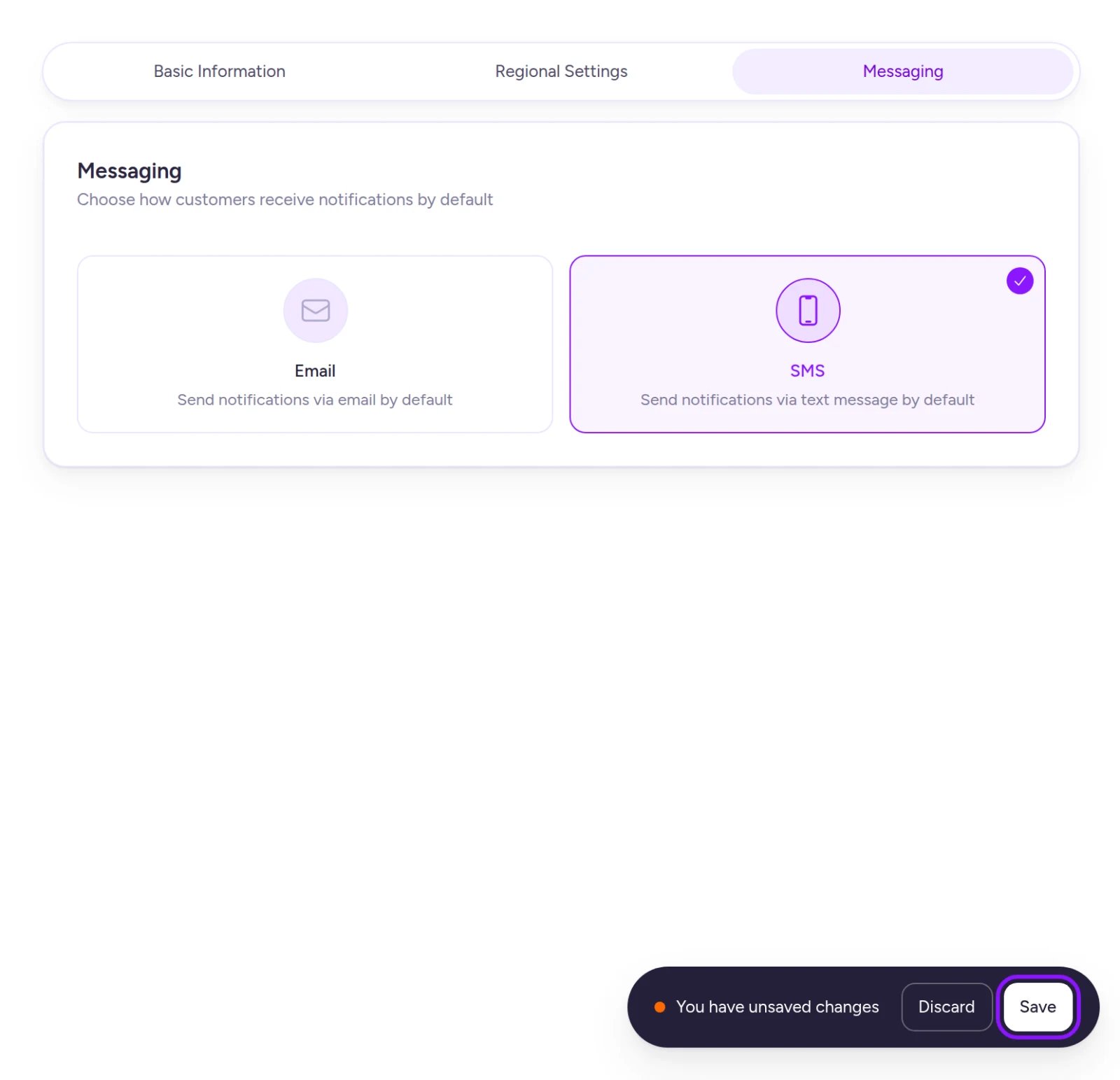
One Save button applies changes across all three tabs.
Settings reference
Update your company identity and subdomain
- Open Settings → Organization on the Basic Information tab.
- Update Company Name and, if you want ended or missing drop pages to link back to your store, enter your Website.
- To change your drop-page address, edit Experience Subdomain. Fanfare automatically formats your entry to lowercase and replaces unsupported characters with hyphens.
- Wait for the green checkmark confirming your subdomain is available.
- Select Save.
- Between 3 and 64 characters long
- Lowercase letters, numbers, and hyphens only (no leading or trailing hyphens)
- Not a reserved word (such as admin, app, checkout, help, login, or www)
- Not already used by another organization, including a previous subdomain an organization changed away from
your-subdomain.fanfaredrops.com, and each experience’s page card displays its exact live URL.
Choose your checkout processor
Your checkout processor determines where customers complete payment after admission:- Fanfare: Customers pay directly through Fanfare checkout using your connected Stripe account. Offering customers a choice of product inside a sequence requires Fanfare checkout (with one Shopify exception—see On Shopify). When Fanfare is selected, your card displays Fanfare checkout rates and a link to full pricing.
- External: Customers check out on your own storefront or Shopify store.
- Open Settings → Organization on the Basic Information tab.
- Under Checkout processor, choose Fanfare or External.
- Select Save.
- Fanfare-managed products still in your catalog, even if their drops have ended. Remove them from any active or draft experiences (or end/deactivate those experiences), then delete the products before switching. See Add products.
- Sequences offering a choice of product or variant—reduce any sequence that offers customers a choice of product or variant to a single product and variant first.
- Auctions that rely on Fanfare checkout to charge the winning bid.
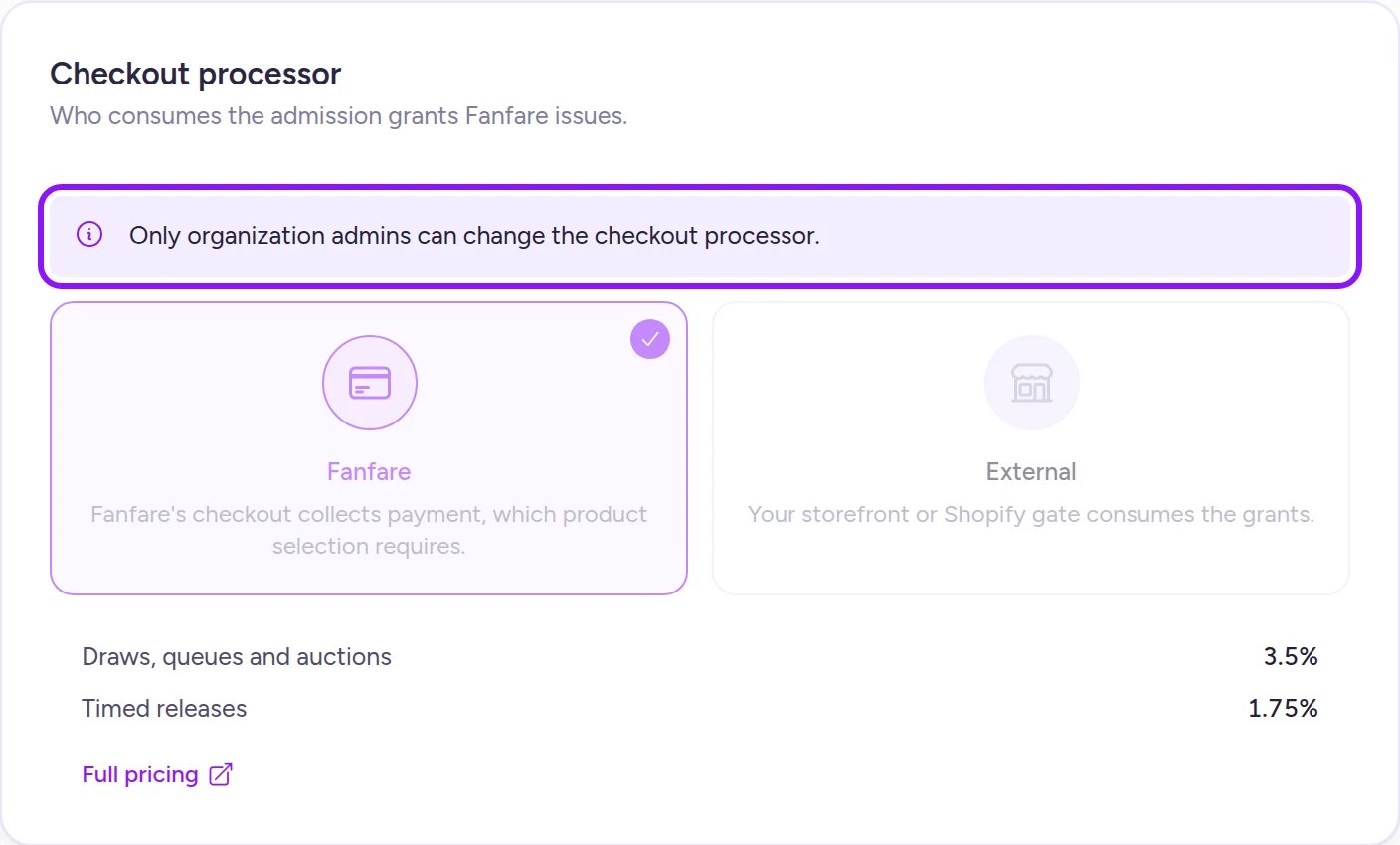
Non-admin members can view the checkout processor but can't change it.
Set your regional defaults
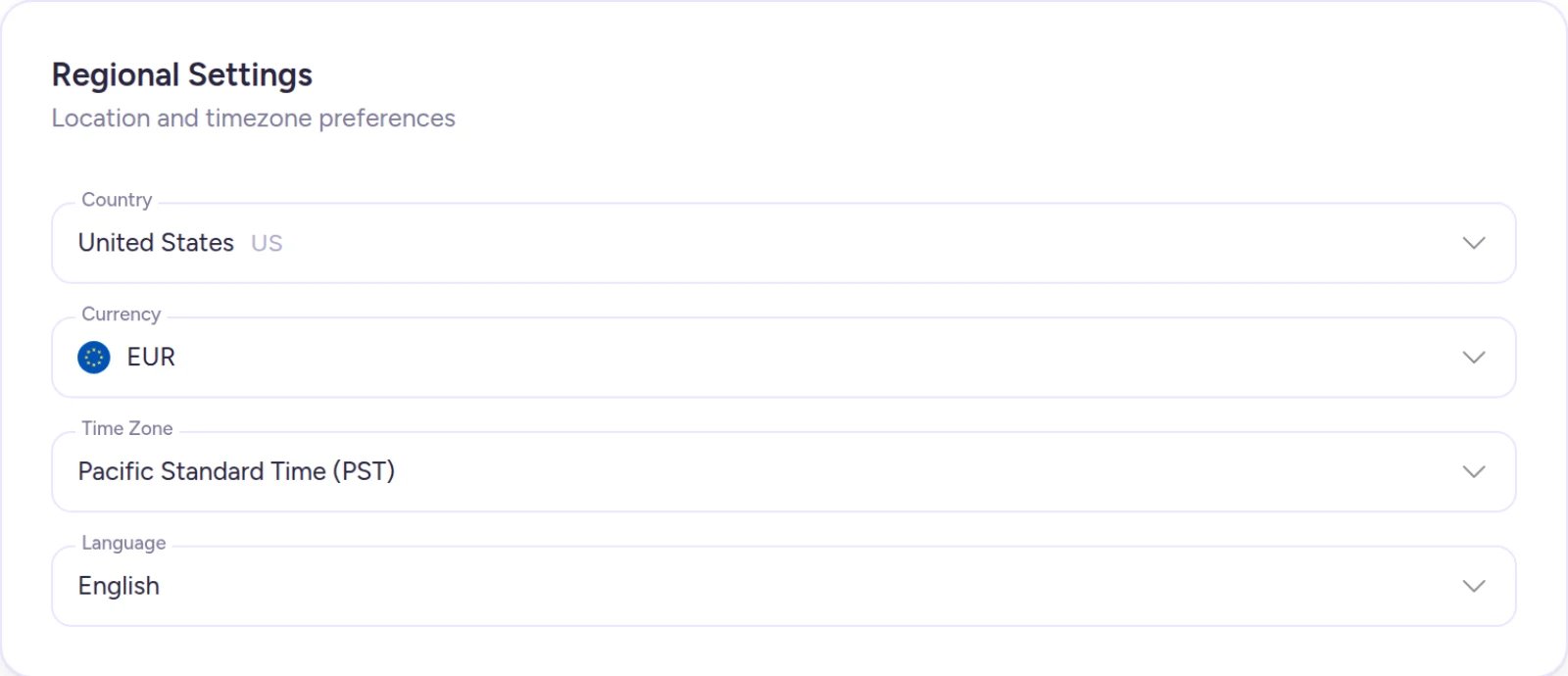
- Open Settings → Organization and select Regional Settings.
- Choose your Country, Currency, Time Zone, and Language.
- Select Save.
- Country and Currency: Both lock permanently as soon as your organization has a Stripe account (even if onboarding isn’t complete or you later disconnect it). See Payments and fees for details and why Fanfare checkout requires a US organization selling in USD.
- Currency and auctions: You can’t change Currency while you have an undeleted auction or an ended auction whose winner can still pay. Wait for the payment window to close and delete the auction before changing currency.
- Time Zone: Sets the starting time zone for new experiences and locations without altering existing experiences. It’s also used for dates on Billing and for resetting Calendar order-limit windows at midnight (Add and gate sequences).
- Language: Combines with Country to format dates and times in your social posts. It doesn’t translate the Fanfare admin, customer pages, or emails.
Set your default messaging channel
- Open Settings → Organization and select Messaging.
- Choose Email or SMS.
- Select Save.
On Shopify
The Organization page works the same in the Fanfare Shopify app, with a few differences:- Default processor: Organizations installed from Shopify start on External.
- Permissions: Every Shopify staff member with access to the Fanfare app can edit every field, including the checkout processor—there’s no admin/member split. See Team members.
- Currency: Automatically matches your Shopify store’s currency when the app is installed.
- Multi-product sequences: Sequences can offer customers a choice of product on External checkout as long as every option is linked to a Shopify variant. Only unlinked options block switching to External (all other checkout locks still apply).
- Settings menu: Adds Storefront setup under General and omits Tours & Tips. See Storefront setup.
Troubleshooting
Save is disabled after I edited the subdomain
Save is disabled after I edited the subdomain
A red X next to Experience Subdomain means the name is already taken, is a reserved word, or doesn’t meet the formatting rules above. Fix any validation message shown on the field and try another name until the green checkmark appears, or select Discard to keep your current subdomain.
My checkout processor change was refused when I saved
My checkout processor change was refused when I saved
Check every experience—including drafts—for upcoming or live distributions, ended distributions whose winners are still in their payment window, distributions without a close time, or draws without recorded results. If switching to External, also make sure no Fanfare-managed products, sequences offering a choice of product or variant, or Fanfare-checkout auctions remain. Wait for payment windows to close or delete what’s holding the lock, then save again. (Deactivating also releases the lock, but review Stop a drop first—Deactivate can’t be undone.) If you also edited other fields, revert Checkout processor to its previous value and select Save to keep your other edits.
My currency change was refused when I saved
My currency change was refused when I saved
Either your organization already has a Stripe account (which permanently locks currency), or you have an active/undeleted auction or an ended auction whose winner is still within their payment window. For auctions, wait for the hold to end, delete the auction, and try again. To save your other edits in the meantime, set Currency back to its previous value and select Save.
My country change was refused when I saved
My country change was refused when I saved
Your organization already has a Stripe account linked to it—even if onboarding wasn’t finished or the account was disconnected—so Country is permanently locked. Set Country back to its previous value and select Save to keep your other changes. See Payments and fees.
Related
Team members
See who can change which settings in your organization.
Payments and fees
Connect Stripe and learn why country and currency lock.
Checkout options
Compare Fanfare checkout, external checkout, and Shopify checkout.
What locks, and when
See what you can change before, during, and after a drop.