

Before you start
- Have each location’s street address, local time zone, and weekly hours ready.
- Set any seasonal or special hours up front—once a customer books a slot at a location, its opening hours and time zone lock until every active booking ends or is canceled.
Create a location
1
Enter basic details
In the sidebar, go to Locations → Create Location. Under Basic Information, enter a Location Name. Handle fills in automatically (lowercase letters, numbers, and hyphens) and must be unique across your locations—customize it if you have multiple stores with the same name. Optionally pick a Location Type (default Store) and Status (default Active).
2
Add the address and verify the map pin
Under Address Information, set Country first if the store is outside your organization’s default country—address search only suggests matches in the selected country. Pick a suggestion from the search box to fill in the address and place a pin, or use Or enter manually (Street Address, City, and Postal Code are required, plus State for some countries).Under Location Preview, click the map or drag the pin if you want to fine-tune its position.
3
Set weekly opening hours
Under Opening Hours, every day defaults to 09:00–17:00. Toggle off any closed days and adjust open/close times for open days, or use Open All Days / Close All Days to update the whole week at once.
4
Confirm the time zone and save
Optionally add a Phone Number and Email Address under Contact Information, plus a Description and Capacity under Additional Details.Verify Timezone under Additional Details (defaults to your organization’s time zone, or Pacific time if none is set), then select Create Location.
Always double-check Timezone for stores in another region. Entering an address doesn’t update Timezone automatically. Opening hours, bookable slots, and customer booking notifications all use the location’s time zone—regardless of the experience or appointment’s time zone.
One continuous shift per day: Locations support a single opening interval each day—you can’t add midday breaks, holidays, or one-off closures. Entering a close time earlier than or equal to the open time wraps past midnight into the next day (for example,
17:00 to 09:00 creates a 16-hour overnight window, and 09:00 to 09:00 creates a 24-hour window).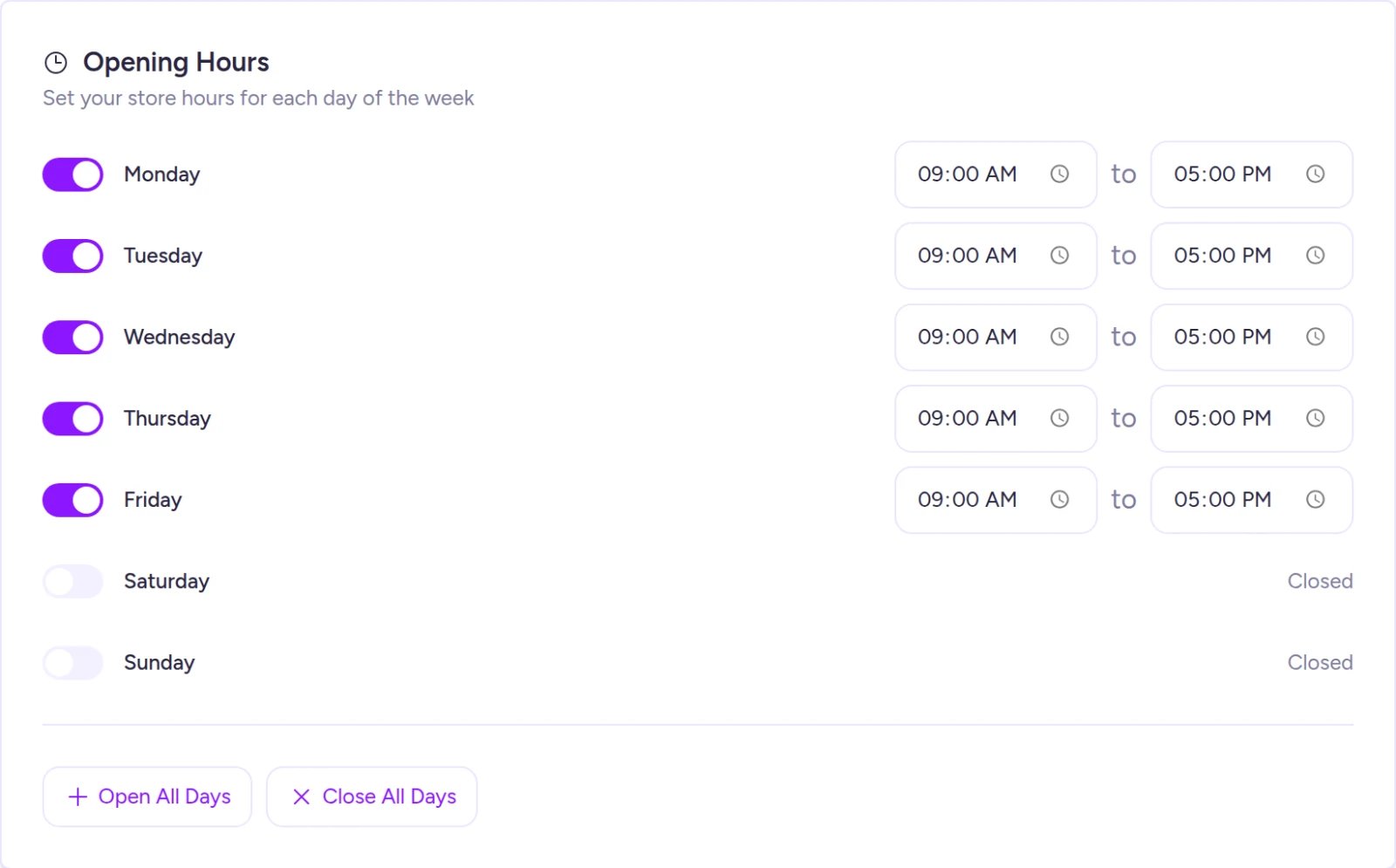
Opening hours default to 09:00–17:00 every day—toggle off any days the location is closed.
Location settings
Several fields on the form act as organizational labels and don’t change how appointments behave:
Your default country and time zone come from Organization settings.
Find a location
On Locations, you can search by whole words matching a location’s name, description, city, or state (partial words and street addresses don’t match). Narrow results with All Types and All Statuses—note that Temporary locations appear only under All Statuses because the status filter listsActive and Inactive.
Switch between the card grid and map view using the view toggle (locations without a map pin won’t appear on the map). Select View on any card—or click a pin—to open the location.
Edit a location
- On Locations, select View on the location card.
- Update any fields you need, then select Save (or Discard to cancel).
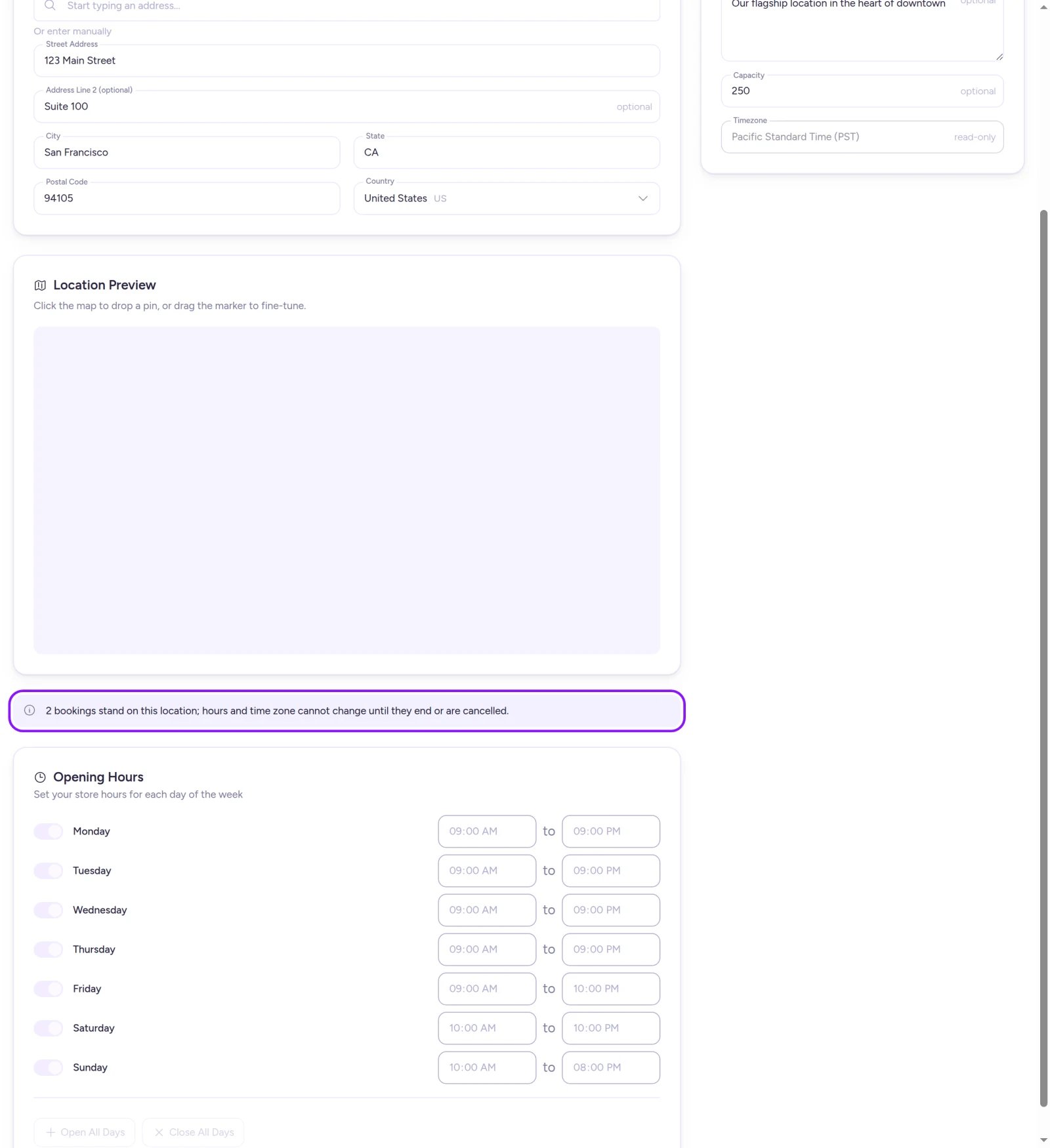
While any booking stands at a location, opening hours and time zone lock until it ends or is canceled.
Reading the location overview
The header on a location’s page displays its type, status, address, map pin, and four summary metrics:- Today’s Appointments: Bookings created today at this location (not slots scheduled for today). All time counts active bookings that haven’t been checked in or canceled.
- Active Experiences: Total experiences tied to this location, including drafts and ended experiences.
- Hours & Timezone: Today’s hours (based on your browser’s clock) and the location’s time zone.
- Capacity: The capacity label you entered.
Delete a location
- Open the location’s page (you can’t delete from the list or map).
- Select Delete, then confirm Delete in the dialog. This can’t be undone.
On Shopify
Locations work the same way in the Shopify app (and Home includes a Create Location quick action before your first experience). Keep in mind that appointments aren’t available in the Shopify app, and appointments are currently the only feature that uses Fanfare locations. A Fanfare location is separate from your Shopify inventory locations.Troubleshooting
No address suggestions appear
No address suggestions appear
Address search only looks inside the selected Country. Check Country under Address Information, or enter the address under Or enter manually.
Delete is grayed out
Delete is grayed out
Active bookings are standing on this location—the banner above Opening Hours shows how many. Wait until those slots finish, or cancel them, then try again.
A location is missing from the appointment picker
A location is missing from the appointment picker
The location picker lists your first 100 locations alphabetically. If you have more than 100 locations, ones later in the alphabet won’t appear in the dropdown.
A name change reverted after I saved
A name change reverted after I saved
If you rename a location inline at the top of the page and then save edits in the form below without reloading, the form overwrites the inline rename with the previous name. Reload the page after renaming inline before editing other fields.
Related
Set up appointments
Link an appointment to a physical location or run it online.
Appointment
How bookable slots are generated from opening hours.
Organization settings
Set the default country and time zone new locations inherit.