

Before you start
- Your experience is created in Fanfare.
- You have a developer who can add the widget to your website.
Share credentials with your developer
1
Open API Keys
In the Fanfare admin, go to Settings → API Keys. Any team member can view these credentials.
2
Copy your Organization ID and Publishable key
Under Your credentials, copy your Organization ID and Publishable key and share both with your developer.
3
Share the Quick start snippet and SDK docs
Point your developer to the Quick start card on the same page (pre-filled with your organization’s credentials) and select Read the SDK docs for full setup details—also available in the SDK docs.
4
Send the experience ID
Open the experience you want to embed and copy its ID from the browser URL (the segment right after
/app/experiences/). Your developer will replace the placeholder experience ID in the Quick start snippet with this value.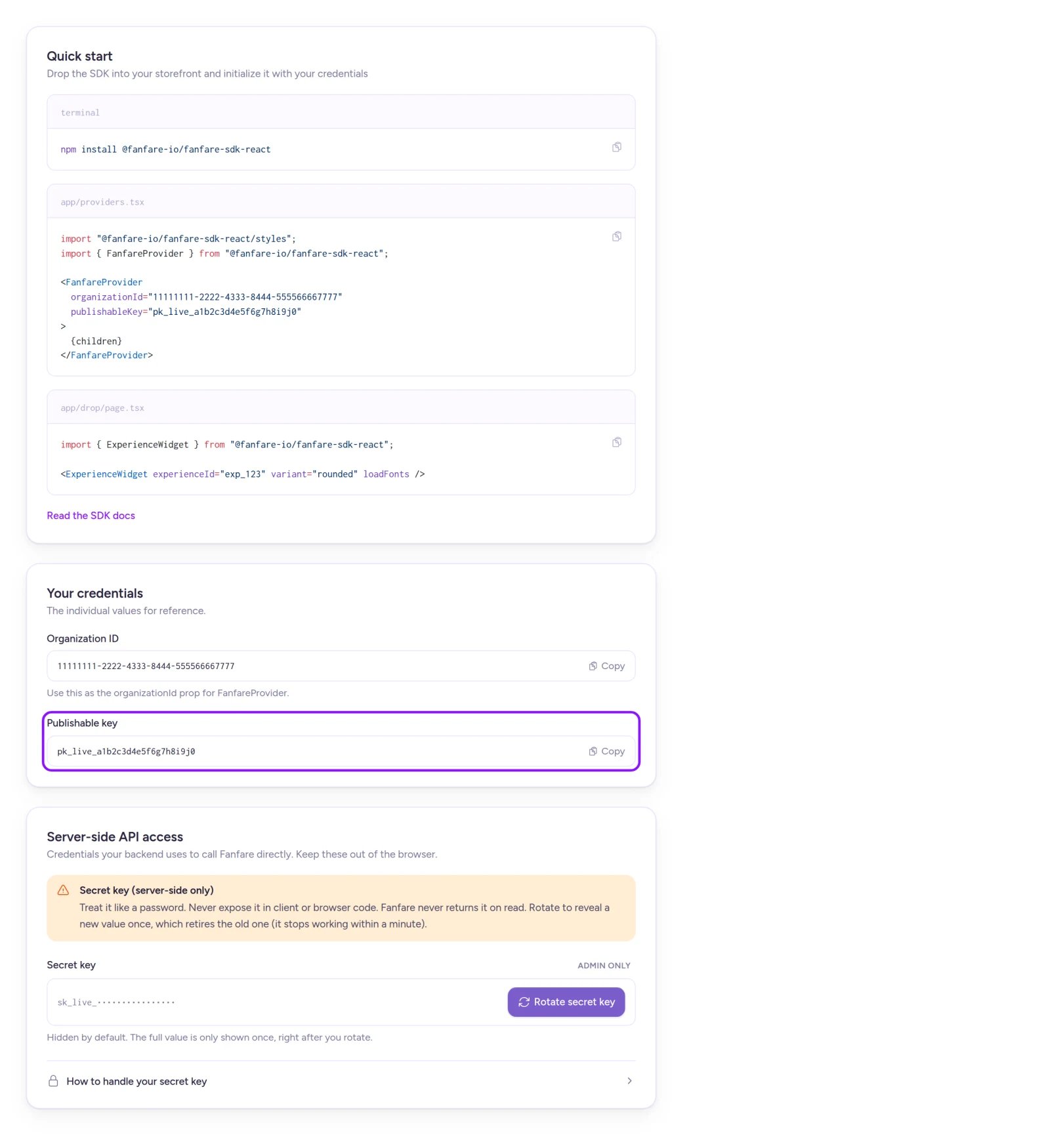
Share your Organization ID, Publishable key, and the experience ID with your developer.
How styling works on your site
- Your brand: Applies automatically once a customer enters the experience. To style pre-entry screens (such as Get started and sign-in), ask your developer to pass your brand config to the widget. See Set your brand.
- Widget design: Your experience’s widget design applies on your site unless your developer overrides the starting style in code. Note that the Quick start snippet includes the Rounded starting style—ask your developer to remove it if you want your Design Studio style to control the look. Assigning a custom widget design beyond your default requires Growth or above; see Templates and widget designs.
- Experience colours: Any overrides set on the experience’s Design tab under Experience colours apply automatically on your site. See Brand, templates, and designs.
- Custom site styling: Theme styling passed directly by your developer in code overrides your brand, widget design, and experience colors.
- Brand fonts: Display when loaded by your website or when widget font loading is enabled (included in the Quick start snippet). See Set your brand.
What changes without a published hosted page
If you run a drop exclusively on your own website—or if your organization’s drop-page address isn’t active—messages and posts that normally link to a Fanfare-hosted page behave differently:- Audience invites won’t send: Because invites require a hosted page URL, the invite displays Needs an experience page link (and Needs link on the sequence card). See Invites, waitlist and access-code sends.
- Access-code emails omit the button: Codes still send, without the button linking to a hosted page. See Invites, waitlist and access-code sends.
- Social posts and SMS omit the link: Scheduled posts and texts go out without a hosted page link, and Discord server events are skipped. See Announcements.
- Purchase notifications use your Product URL: Win notices, queue admission messages, payment reminders, and outbid alerts link to each product’s Product URL instead (or send without a link if no Product URL is set). See Add products.
Embed a hosted page in an iframe
If you publish a hosted page and want to display it inside an iframe on your own website, an organization admin must add your site’s origin under Settings → Embedding. In the standalone Fanfare admin, this setting controls iframe framing only—it doesn’t restrict the embedded SDK widget. See API keys and embedding.Preview before launch
- Preview every widget state on the experience’s Design tab under Widget (Templates and widget designs).
- Review every screen and notification shoppers experience in What your customers see.
On Shopify
On Shopify, you don’t need custom SDK code—add the Fanfare widget directly to your product pages as a theme app block from Settings → Storefront setup, and turn on Fanfare’s checkout rule to protect your inventory. See Storefront setup and Checkout protection. Two admin settings behave differently in the Shopify app:- Embedding: Once you add a site under Settings → Embedding, only those listed sites and your store’s own domains can access Fanfare from the browser.
- API Keys: Any staff member using the Fanfare app can rotate the secret key. See API keys and embedding.
Related
Build and publish the hosted page
Launch your drop on a dedicated Fanfare-hosted page.
Templates and widget designs
Customize and preview your entry widget design.
API keys and embedding
Manage API keys, secret keys, and iframe embedding allowlists.
What your customers see
Walk through the customer journey at every drop stage.