

Available on Growth and above. On Starter, Appointment displays an upgrade prompt in both the experience wizard and Add Distribution.
Before you start
- Create physical locations first: If you’re hosting in-person appointments, add the location—including its opening hours and time zone—before starting. You can’t create a new location from the appointment picker. See Locations and opening hours.
- Finalize your slot setup before announcing: The very first booking locks your slot duration, buffer, capacity, location, window, and time zone.
Create an experience with appointments
Shared wizard steps and defaults are covered in Create an experience. Here’s what’s specific to appointments:1
Choose Appointment
Open Experiences, select Create Experience, and choose Appointment.
2
Set dates, optional products, and location
On Configure Experience, attaching products is optional—if you add any, make sure they were created in Fanfare (appointments can’t use products synced from Shopify). Enter an Experience Name, then set:
- First bookable slot: The earliest time a slot can start. Customers can start booking as soon as your page goes live—not at this time.
- Closes At: No slot can end after this time.
- Time Zone: Controls the window (and slot times for online appointments).
3
Configure slot length, buffer, and capacity
Appointments skip the Stock step. On Appointment Configuration, set:
- Slot duration: 15 minutes to 2 hours (defaults to 30 minutes).
- Buffer: Gap between slots, from No buffer to 30 minutes (defaults to 15 minutes).
- Max capacity per slot: How many people can book each slot (defaults to
1).
4
Finish and create
Complete the remaining steps and select Create experience on Review & launch.
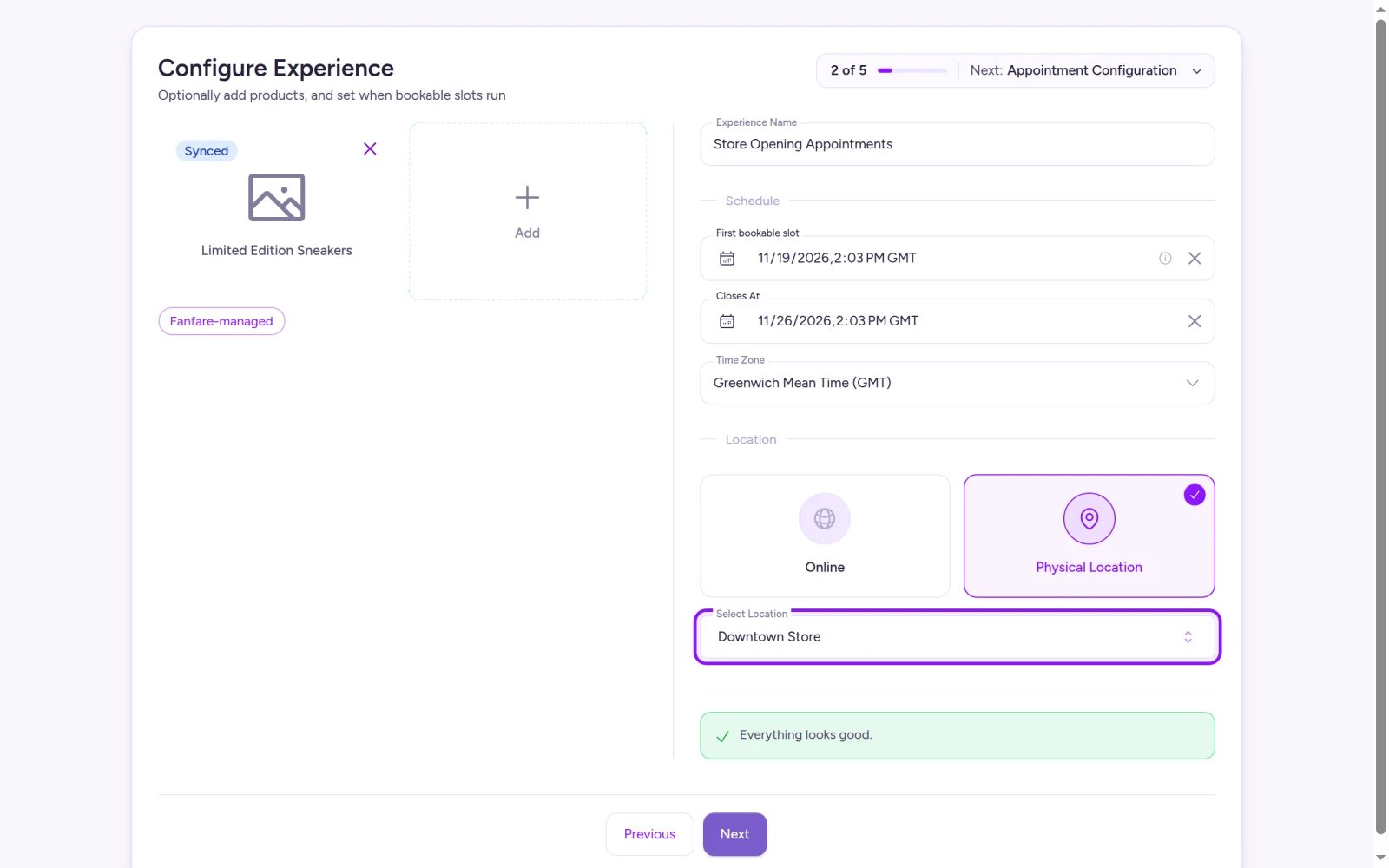
Choose a physical location to generate slots from its opening hours, or select Online.
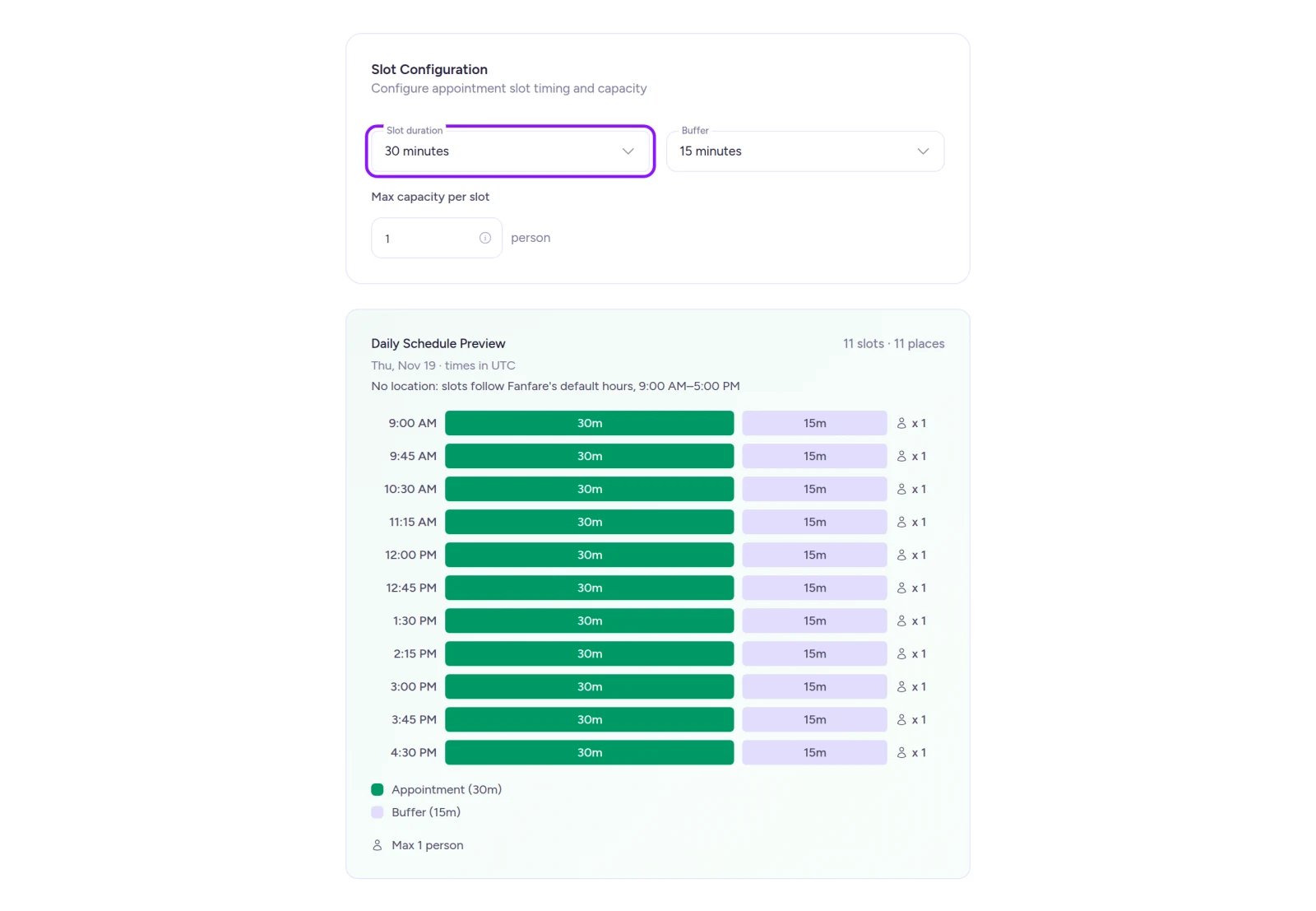
Check the Daily Schedule Preview to verify how slots fill the opening hours.
Add appointments to an existing sequence
You can add an appointment to any existing sequence whose experience doesn’t include Shopify-synced products:- Open your experience, then open the sequence you want to add to.
- On the Distributions card, select Add distribution.
- Enter a Name, choose Appointment, and select Next.
- Set First bookable slot, Closes, and Time zone (windows in the same sequence can’t overlap), and leave Location blank—you’ll attach a physical location in Edit afterward.
- Enter Slot duration, Buffer, and Max capacity per slot, then select Create Distribution on Review. Duration and buffer limits are validated when you create the distribution.
- New appointments added this way default to Online. To tie it to a physical store, select Edit on the appointment card, open Configuration, switch to Physical Location, choose your store, and save.
In Add distribution, Slot duration and Buffer start blank (defaulting to 60-minute slots and no buffer if left empty), while Max capacity per slot starts at
1.Settings
To update an appointment later, select Edit on its card—Schedule holds the date window and time zone, and Configuration holds slot settings and location.
Deactivated appointments become read-only (View replaces Edit).
Where slot hours come from
In-person appointment slots run inside the chosen location’s weekly opening hours, in that location’s time zone. Online appointments—and locations with no opening hours saved—use Fanfare’s default hours of 9 AM to 5 PM daily. Location hours and time zone also lock while bookings stand at that location. See Locations and opening hours. Note that changing an experience’s time zone doesn’t move an appointment’s window, time zone, or existing bookings—see Create an experience.Manage bookings
On the sequence’s Overview tab, below the Distributions card, an appointment schedule card displays each day and its bookable slots. It stays visible while the appointment is Scheduled, Live, or deactivated, and clears automatically once the window ends normally. (Because Overview shows one schedule card per sequence—prioritizing a Live distribution first, then the next Scheduled one—another active distribution in the same sequence can appear in its place.) Closed days and dates outside your window are marked clearly. Select any slot to view its Slot Attendees and each attendee’s status (Confirmed, Checked In, Cancelled, or Completed). To cancel a customer’s booking:- Select the slot, then select Cancel booking beside the attendee.
- Confirm the cancellation. This can’t be undone, and Fanfare notifies the attendee automatically.
Payment and waitlists
Appointments never take payment, so there’s no payment step and they carry no Fanfare fee. Sequences containing only appointments don’t have a waitlist, so the Waitlist tab isn’t shown. See Waitlists.On Shopify
Appointments aren’t available in the Shopify app on any plan. Shopify checkout protection requires an experience to grant purchase access, and because appointments don’t gate checkout, pairing one with a Shopify product would make that product unbuyable. In the Shopify app, Appointment is hidden from the wizard and Add distribution, links targeting an appointment open with no type selected, and saved drafts using Appointment can’t continue.Troubleshooting
Prompted to 'Choose a location, or switch to Online'
Prompted to 'Choose a location, or switch to Online'
Physical Location is selected without a store chosen. Pick a store from Select Location, or switch to Online. If your store isn’t listed yet, create it under Locations and opening hours.
Blocked with 'Appointments can't use Shopify products'
Blocked with 'Appointments can't use Shopify products'
An experience with an appointment can’t include products synced from Shopify. Remove the Shopify product or use a product created directly in Fanfare instead.
No slots appear on certain days
No slots appear on certain days
Your chosen location is marked closed on those days. Update its opening hours under Locations before customers start booking.
Appointment settings are grayed out
Appointment settings are grayed out
At least one active booking is standing on this appointment—the banner at the top of the settings dialog shows how many. Wait until those slots finish, or cancel the bookings from the appointment card on the sequence’s Overview tab (canceling notifies each attendee and can’t be undone).
Related
Appointment
How appointments work and how customers book slots.
Locations and opening hours
Create stores and set the opening hours your slots follow.
Create an experience
Shared wizard steps and experience-level settings.
Stop a drop
Deactivate an appointment and see what happens to upcoming bookings.