

Before you start
- Have at least one product ready in Fanfare. See Add products.
- To use Pre-authorise on entry, you need Fanfare checkout and a connected Stripe account (not available in the Shopify app). See Payments and fees.
- To use Bias toward loyal consumers, turn on your loyalty program first (Pro and Enterprise). See Run a loyalty program.
Create a draw with a new experience
The experience wizard creates your experience, its first sequence, and the draw together. Shared steps are covered in Create an experience. Here’s how to set up a draw:1
Choose Draw
Open Experiences, select Create Experience, and choose Draw.
2
Set products and dates
On Configure Experience, pick your products and enter an Experience Name. Set Time Zone first (it appears below the date fields), then set Opens At, Draw date, and Closes At—Draw date must fall between Opens At and Closes At.
3
Allocate stock
On Stock, enter how many units the drop can sell. If you picked two or more products, complete Product assignment next. See Allocate stock to a drop and Add and gate sequences.
4
Configure draw behavior
On Draw Configuration, set Winner count, Admission expiration, and any optional switches. See Draw settings below.
5
Choose payment and access
On Payment, choose Pay after the win or Pre-authorise on entry under Payment collection (review Payment collection first). Then on Access, choose Who can enter—pick Anyone, as a guest to allow entry without signing in, or Anyone, after signing in to require it.
6
Review and create
Check every row on Review & launch (use Edit to jump back to any step), then select Create experience.
Add a draw to an existing sequence
- Open your experience, then open the sequence you want to add to.
- On the Overview tab, select Add distribution in the Distributions card (or Create Distribution at the top of the page).
- Enter a Name, choose Draw, and select Next.
- On Schedule, set Opens, Closes, Time zone (defaults to the experience’s time zone), and Draw at (must fall between Opens and Closes), then select Next.
- On Configure, set Winner count, Admission expiration, and your toggles, then select Next.
- On Payment, choose your Payment collection option and select Next.
- Review your setup and select Create Distribution.
Draw at (in Add distribution) and Draw date (in the wizard and Edit) are the same setting. Distributions in the same sequence can’t overlap—if they do, Schedule conflict blocks you from continuing until you adjust the dates or move the draw to another sequence. See Distributions.
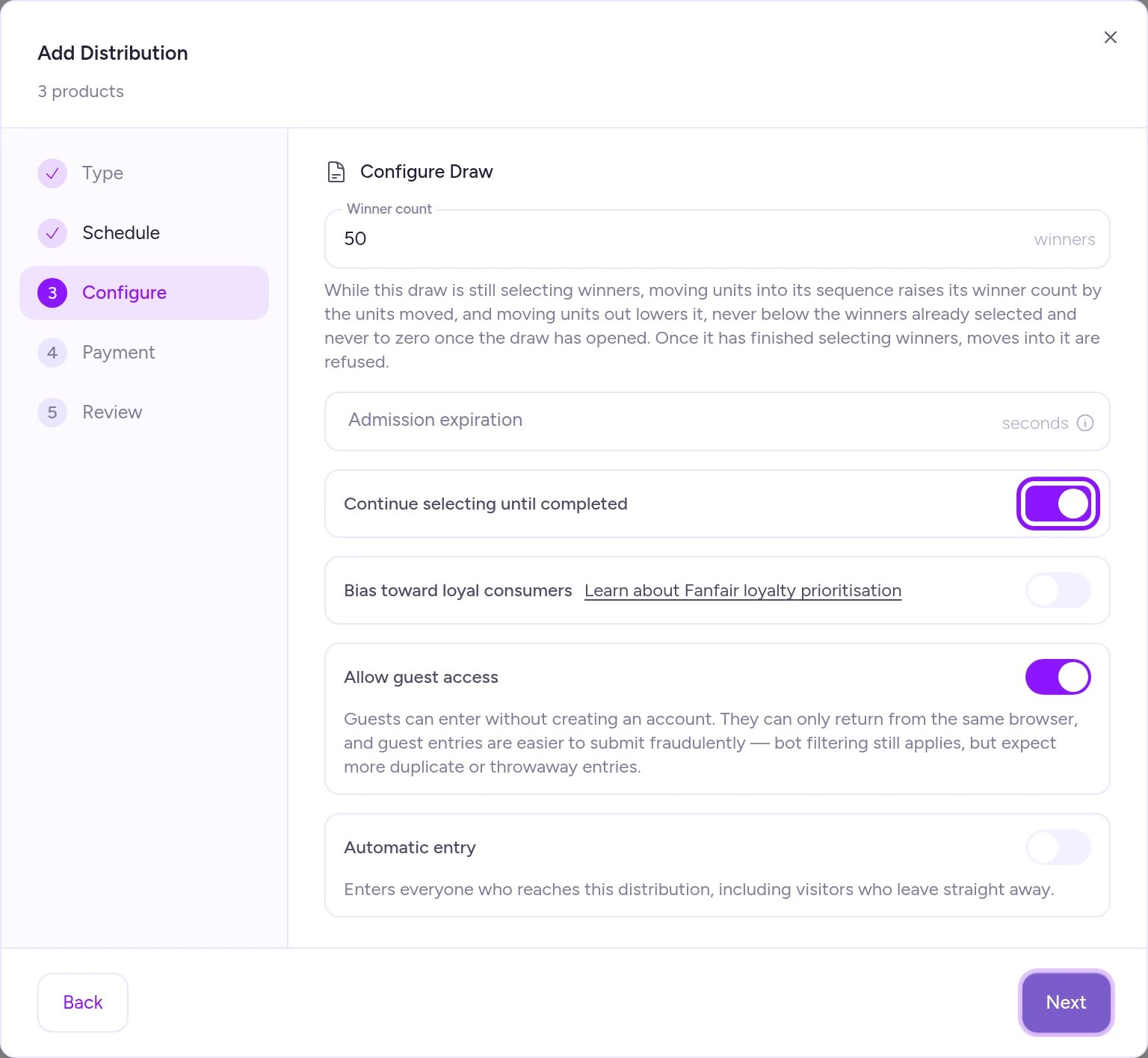
Continue selecting until completed is turned on by default so unclaimed spots go to replacement winners.
Draw settings
Winner count
- Wizard auto-sync: When every size on the Stock step has a unit count, Winner count automatically follows that total—update units on Stock to change it.
- Locks at close: Once entry closes, Winner count can’t be edited.
- Stock-tracked sequences: Moving units into or out of a stock-tracked sequence while selection is still running raises or lowers Winner count automatically (never below the winners already chosen). Total winners across all draws in a sequence can’t exceed its allocated units—lower the winner count or add stock first. If Continue selecting until completed is on and stock sells out, new entrants are turned away once Draw at passes. See Stock and Allocate stock to a drop.
Admission expiration
Enter the checkout window in seconds, or leave it blank when creating the draw to use the default shown in the field’s hint. For what happens when a winner lets their window expire, see Admission and the payment window.- On sequences where winners pick between multiple products or variants, Fanfare displays a warning if the window is under 5 minutes (you can still save).
- Editing the window: Always enter an explicit number in Edit. Clearing the field or entering
0sets a 30-minute window rather than the creation default.
Guest access and loyalty bias
- Bias toward loyal consumers requires an active loyalty program—see Loyalty and Fanfair.
- Guests can only return from the same browser, and open guest entry tends to draw more duplicate or throwaway entries than sign-in. Audience-gated sequences never allow guests, and if any Scheduled or Live distribution in a sequence requires sign-in, everyone in that sequence must sign in. See Sequences and routing.
Payment collection
- Pay after the win: Winners receive a notification and pay at checkout within their payment window.
- Pre-authorise on entry: Fanfare places a hold on each entrant’s card when they enter and captures it automatically if they win (or releases it if they don’t). Because the hold is a single Authorization amount, every product and variant in the draw must cost exactly that amount.
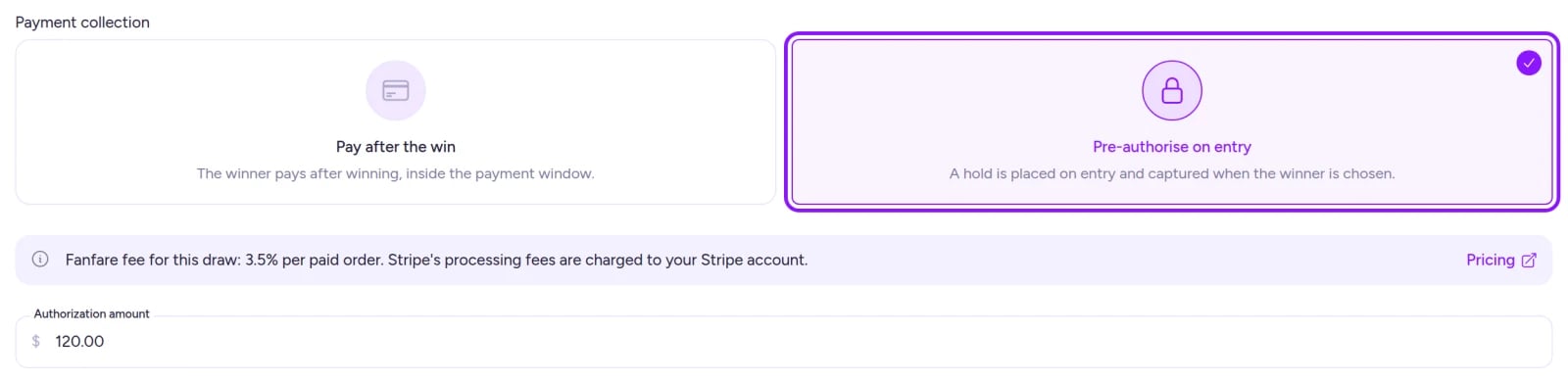
With Pre-authorise on entry, Fanfare holds the authorization amount on each entrant's card until selection.
Edit a draw
Open the sequence’s Overview tab, select Edit on the draw card, update Schedule, Configuration, or Payment, and select Save.- After Opens: Opens can only move earlier (moving it never unlocks Payment collection), and Continue selecting until completed can’t change.
- After entry closes: Draw date, Opens, Closes, and Winner count are locked—create a new draw if you need another window.
- Deactivated draws: Become read-only (View replaces Edit).
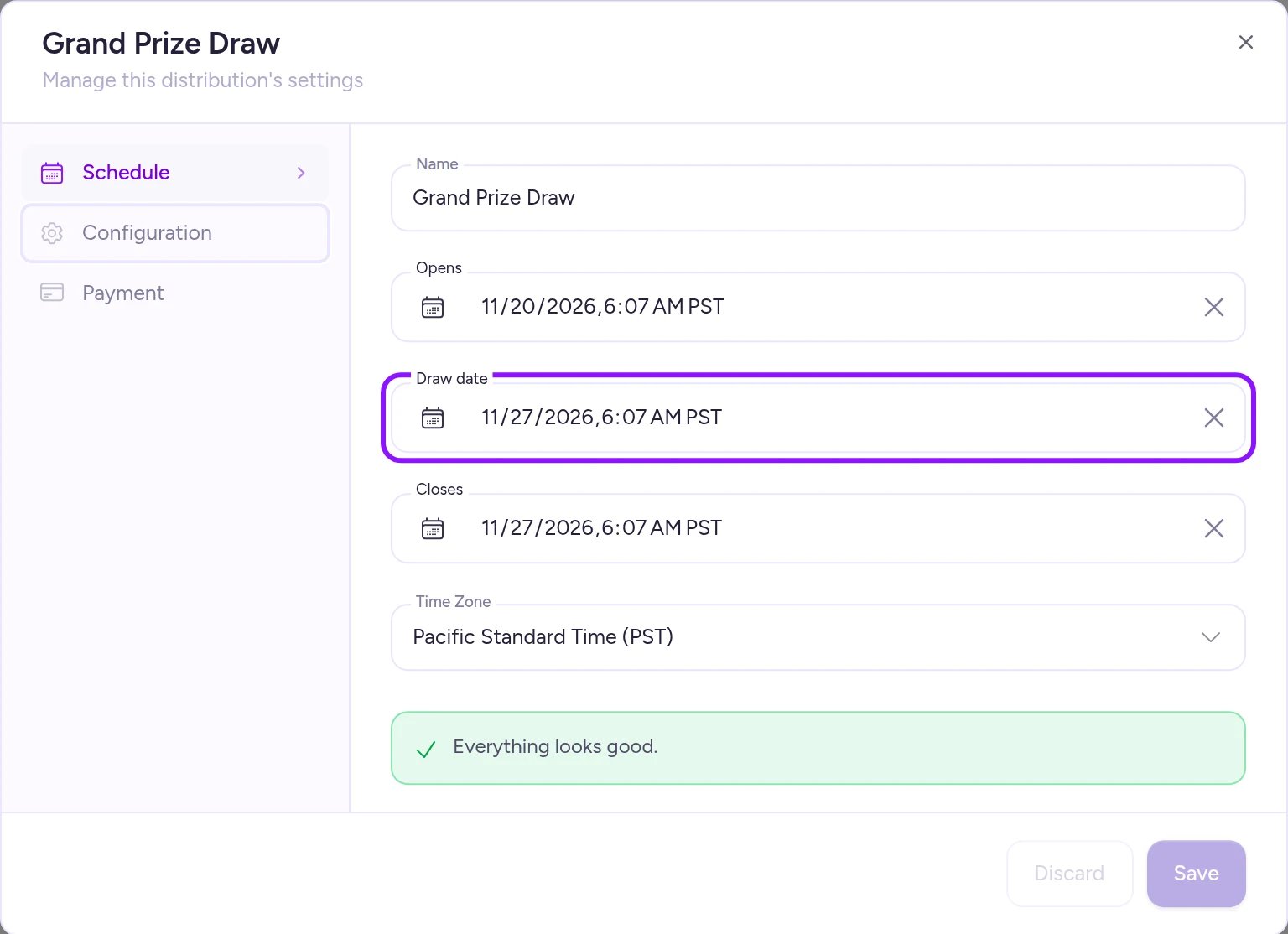
In Edit, the winner selection time is labeled Draw date.
On Shopify
Draws work the same way in the Shopify app, with two differences:- No card pre-authorization: Shoppers pay in Shopify’s checkout, so Pre-authorise on entry isn’t available.
- Automatic winner count for blank Shopify sizes: If you leave any Shopify size’s units blank on Stock, the wizard omits Winner count and sets it automatically from the total (including Shopify’s inventory count) when the draw is created.
Troubleshooting
The draw time shows 'Must fall within the distribution's window'
The draw time shows 'Must fall within the distribution's window'
Draw at (or Draw date) is set before Opens or after Closes. Move it inside the entry window, or widen Opens and Closes.
Winner count is grayed out
Winner count is grayed out
In the wizard, Winner count tracks your Stock total—adjust units on the Stock step. In Edit, entry has already closed and the winner count is locked.
I can't change Payment collection
I can't change Payment collection
Payment collection locks about 30 seconds before the draw opens. Deactivate the draw and create a new one with the payment option you want.
I can't continue past the Schedule step
I can't continue past the Schedule step
Your draw overlaps another distribution in the same sequence, shown under Schedule conflict. Move the dates so the draw starts after the other distribution ends, or add it to a different sequence.
Related
Draw
How a draw picks winners and replaces anyone who doesn’t pay.
Admission and the payment window
Payment windows and card pre-authorization rules.
Allocate stock to a drop
Control how many units the draw can sell.
Stop a drop
Deactivate or delete a draw.