

When customers can sign up
Waitlist sign-ups are open whenever no distribution in the sequence is currently live and either another window is scheduled or no distributions exist yet:- Before the first window opens: Shoppers can join.
- While any window is live: Sign-ups close immediately.
- In a gap between windows: Sign-ups reopen automatically until the next window begins.
- After all windows end or are deactivated: Sign-ups close unless you schedule a new window (on a sequence that hasn’t been deactivated) or remove all existing distributions.
Using Add person on a sequence’s Waitlist tab works at any time and bypasses audience gating, so double-check eligibility before adding someone manually.
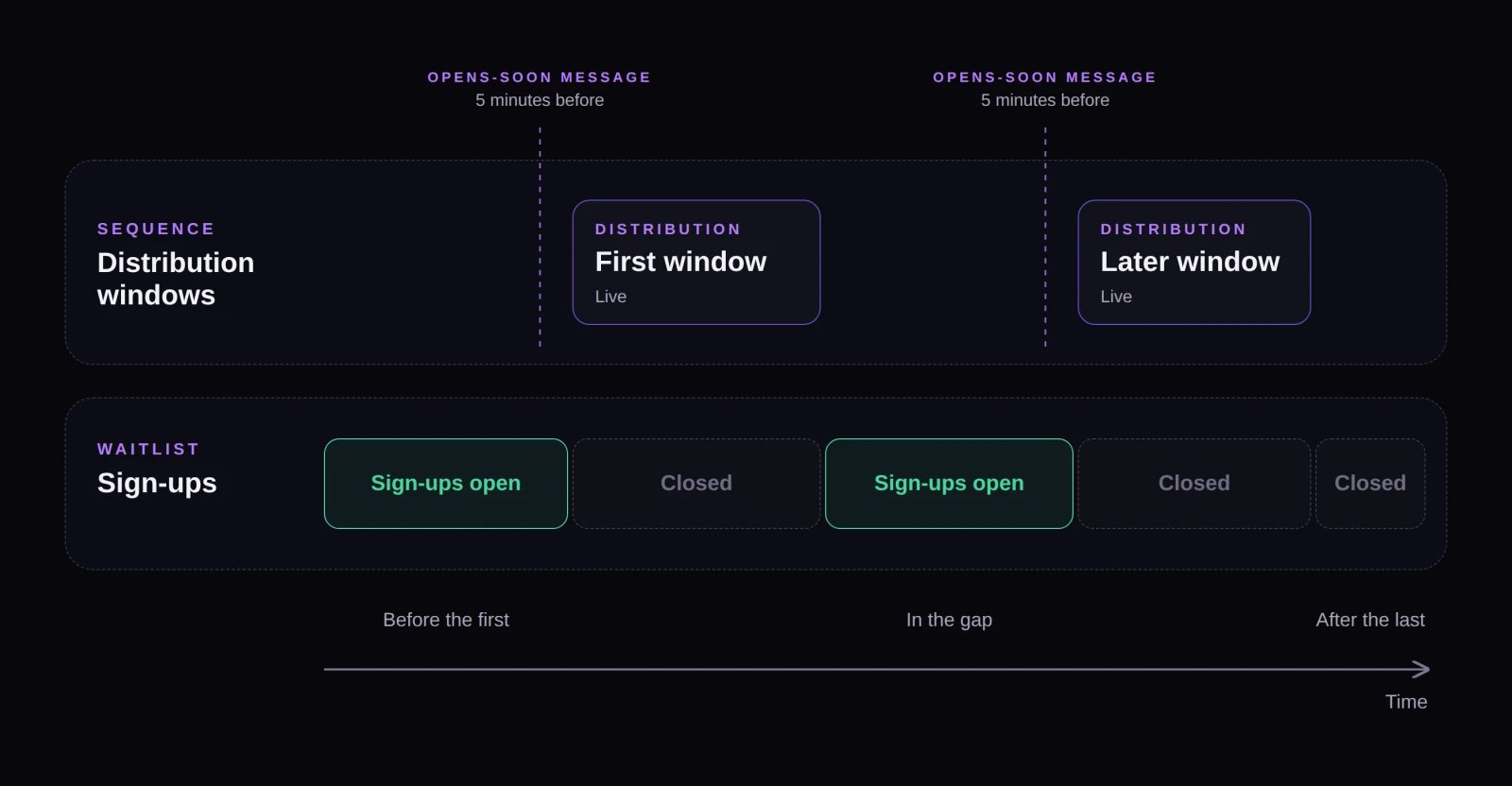
A waitlist accepts sign-ups only while no window in the sequence is live and another window is still to come.
How customers join
Before a sequence opens, eligible shoppers see a countdown and a join button (such as Notify me when the queue opens, Get notified when entry opens, Enter waitlist, or Notify me when it opens for code-gated sequences). Once on the list, they can opt out anytime by selecting Leave waitlist. To join a waitlist, a visitor must:- Be signed in (guests and signed-out visitors see Sign in to get notified first).
- Be eligible for the sequence (for example, belong to its audience).
- Be under the experience’s order limit.
Appointment-only sequences
Sequences that only run appointments take bookings instead of a waitlist, so they don’t display a Waitlist tab. If every sequence in an experience runs only appointments, the Waitlist item doesn’t appear in the experience’s navigation.Messages sent to your waitlist
Being on a waitlist triggers a focused set of notifications—see Invites, waitlist and access-code sends for full customization options:- Sign-up confirmation: Customers who join on their own see confirmation directly on the page and don’t receive an email or text. People you add manually via Add person do receive a confirmation by email or SMS based on your messaging settings.
- Opens-soon reminder: Fanfare automatically schedules a reminder 5 minutes before each upcoming distribution opens (except appointments). By default, emails use the distribution’s name in the subject and body (for example, “KaiZen Relic Release opens soon”), while SMS reminders use standard wording with the experience name.
- Announcements: You can target any scheduled announcement to the waitlist alongside or instead of an audience. See Announcements.
- Access codes: If the sequence requires an access code, the opens-soon reminder includes it automatically. You can also send the code immediately to everyone on the waitlist with Send code on the sequence’s Access tab—note that sent messages can’t be recalled.
Managing who’s on the list
Each sequence’s Waitlist tab displays the People on the waitlist table with join dates and statuses:
You can filter by On the list, Left (which includes people you removed), or All. On the list counts Waitlisted and Notified shoppers—and only those shoppers receive waitlist messages. Once someone buys (Converted), they automatically stop receiving later opens-soon reminders and waitlist announcements.
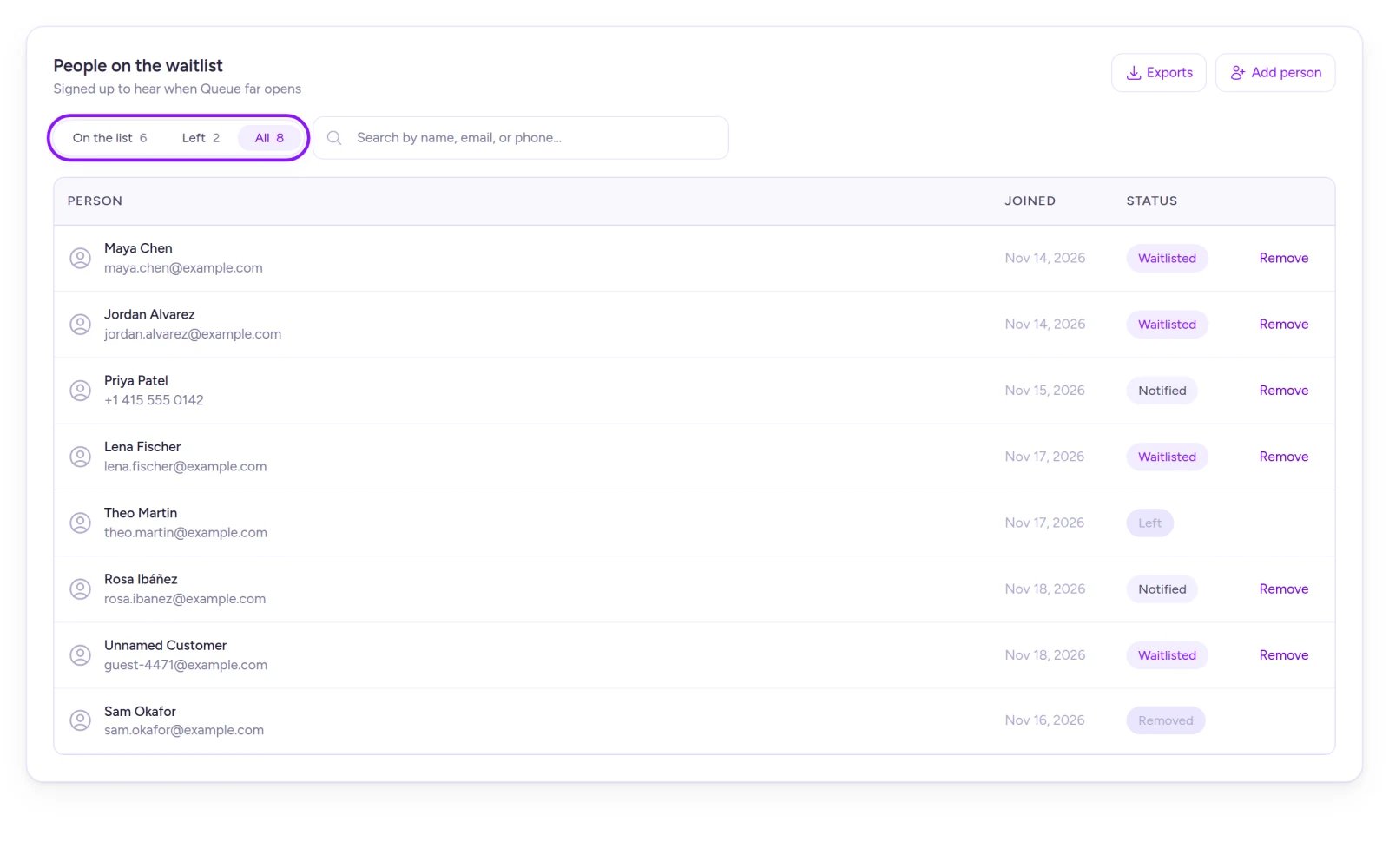
A sequence's Waitlist tab. On the list counts everyone with a Waitlisted or Notified status.
- Add someone manually: Select Add person to add by email, which automatically creates a customer profile if they’re new to Fanfare. Fanfare blocks adding anyone who has already hit the experience’s order limit.
- Remove someone: Removes them silently—no notification is sent.
- Export the list: Download your waitlist data via Exports.
What happens when a drop stops or is deleted
A waitlist doesn’t have its own Deactivate control—it follows its sequence and distributions:- Deactivating a distribution, sequence, or experience stops it from opening for waitlisted shoppers and cancels any scheduled opens-soon reminders.
- Deleting a sequence or experience clears its waitlist and cancels scheduled opens-soon reminders while keeping orders, entries, and customer profiles intact.
On Shopify
Sequence Waitlist tabs and the experience Waitlist overview work the same way in the Fanfare app in Shopify. Because the Shopify app doesn’t offer appointments, every sequence has a waitlist. On your storefront, the Fanfare product widget shows the same waitlist join button. Visitors who aren’t signed in browse as guests and see Sign in to get notified until they sign in.Related
Sequences and routing
How entry paths work and which sequence each customer is routed to.
Invites, waitlist and access-code sends
Customize automated messages and manage waitlist entries step by step.
Distributions
Compare all five distribution types and how their schedules work.
What your customers see
Preview every stage of the customer journey, from countdown to checkout.