

Before you start
- Any team member can copy your Organization ID, Publishable key, and quick-start snippets.
- Only organization admins can rotate your secret key or edit Allowed embedding origins (Team members).
Your API keys
Open Settings → API Keys to find three cards:
Your Organization ID and Publishable key are safe to include in browser code so your storefront can load Fanfare. Your Secret key is for server-to-server calls only—treat it like a password and never put it in frontend code.
Each organization has one publishable key (which can’t be rotated) and one secret key.
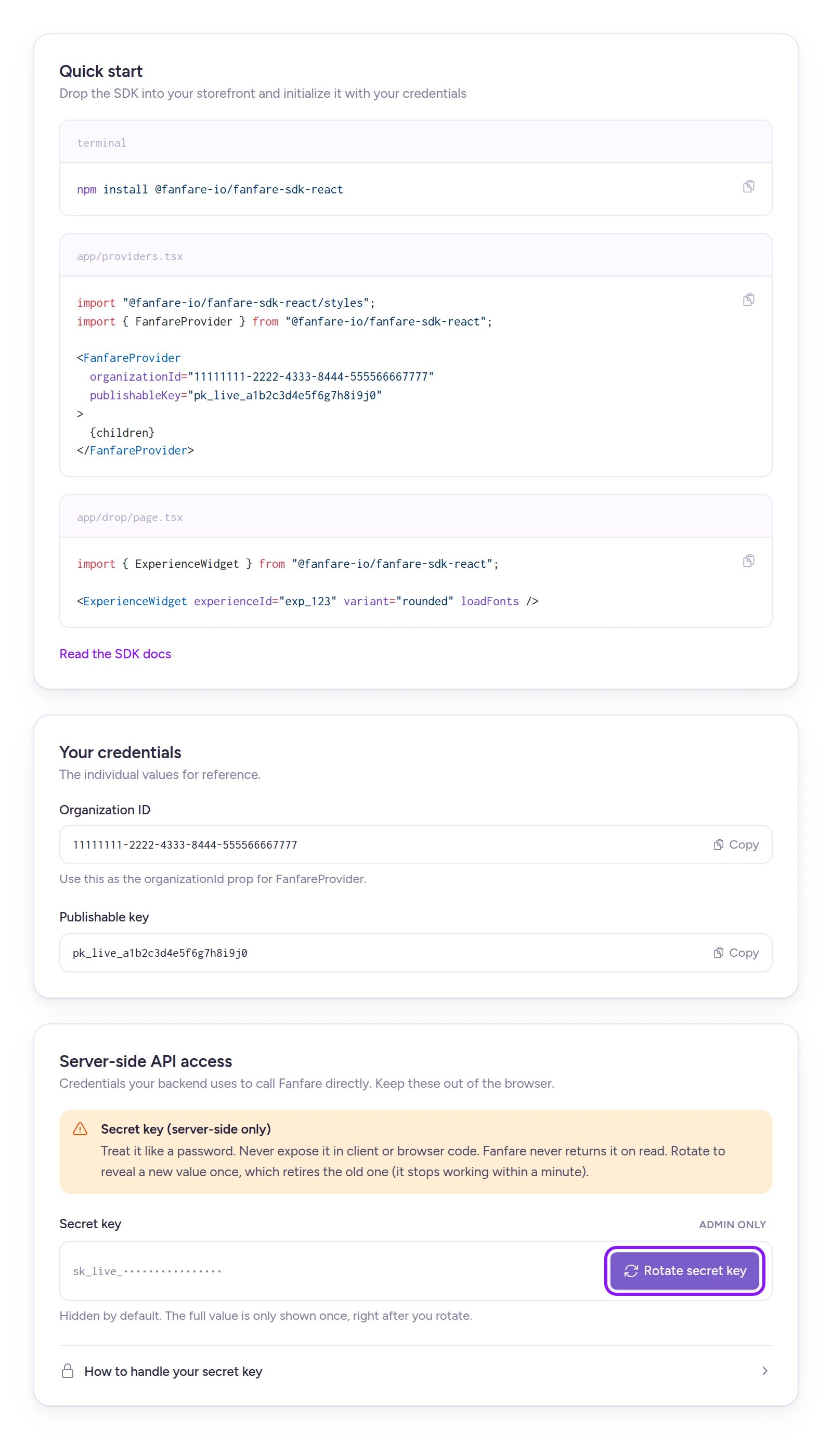
Your secret key stays masked—rotating it generates a new key and displays it once.
Share credentials with your developer
- Open Settings → API Keys.
- Under Your credentials, copy your Organization ID and Publishable key (or copy the prefilled snippets in Quick start).
- Send them to your developer along with the Read the SDK docs link.
/app/experiences/<experience-id>).
If your developer’s backend server also calls the Fanfare API directly, follow the steps below to generate and share a secret key.
Rotate your secret key
Fanfare never reveals your current secret key after it’s generated. Rotating creates a new key, displays it once, and retires the previous key—use this when you first need a server-side key or anytime you suspect a key was exposed. Only organization admins can rotate the secret key.- Open Settings → API Keys.
- Under Server-side API access, select Rotate secret key.
- Confirm by selecting Rotate key.
- Select Copy right away and send the new key to your developer over a secure channel.
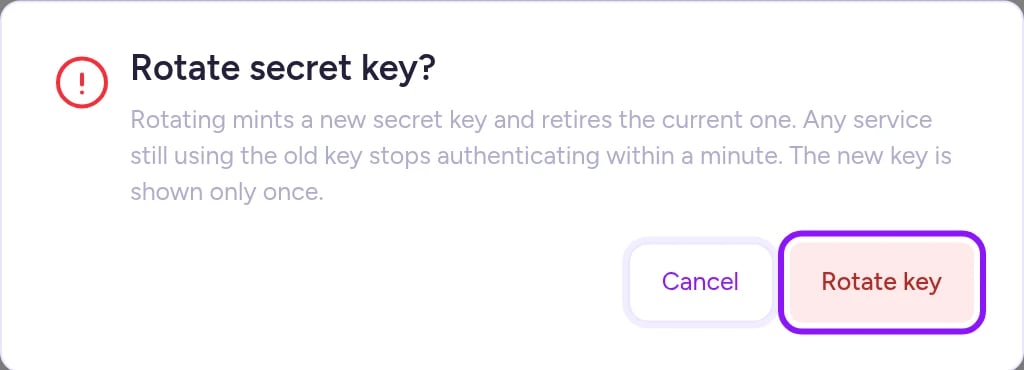
Confirming retires your current secret key immediately and shows the new key once.
Control which sites can embed your hosted pages
By default, other websites can’t display your hosted pages inside an iframe. To allow specific sites—like your main store—add them in Settings → Embedding (admins only).- Open Settings → Embedding.
- Under Allowed embedding origins, list one full origin per line, including
https://and nothing after the domain—for example,https://shop.example.com. - Select Save in the bottom bar.
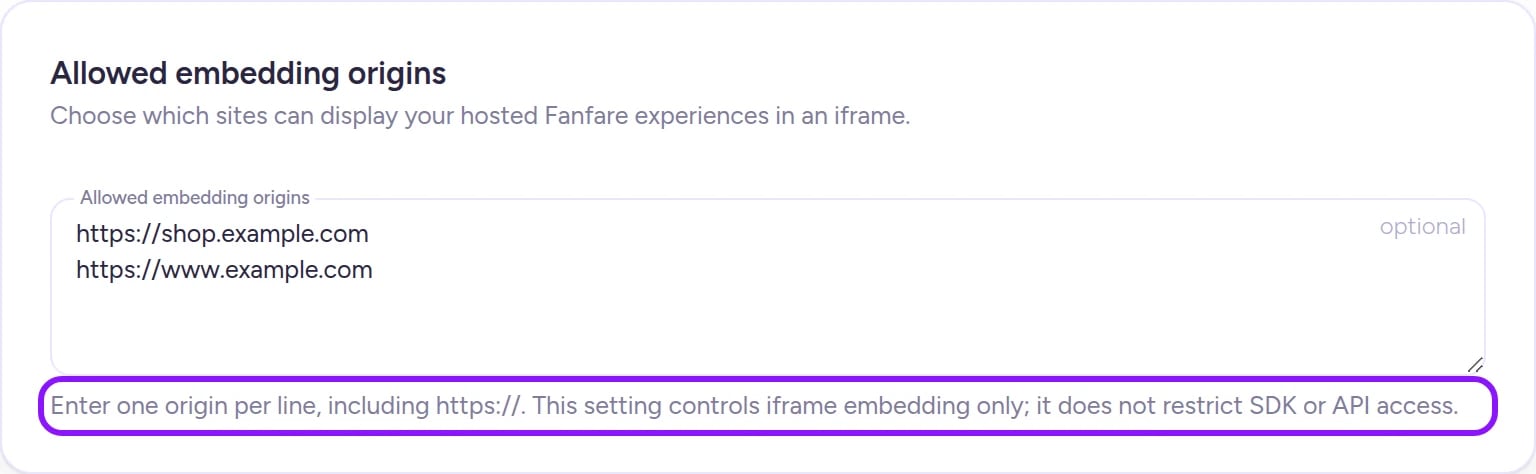
Add each origin allowed to frame your hosted pages, one per line.
For non-Shopify organizations, this list controls iframe embedding of your hosted pages only—it doesn’t restrict where your site can call the Fanfare SDK or API. If you use the Fanfare Shopify app, this list also controls headless storefront API origins—see On Shopify.
On Shopify
Both developer pages work inside the Fanfare Shopify app with two key differences:- Permissions: Every Shopify staff member who can open the Fanfare app can rotate the secret key and edit Allowed embedding origins—even where Admin only appears, Shopify manages app access through store staff permissions rather than Fanfare roles (Team members).
- Headless storefront API origins: On Shopify, Allowed embedding origins controls both iframe embedding and browser API calls from headless storefronts:
- Leave the list empty to accept headless storefront API calls from any origin.
- Once you add any origin to the list, storefront API calls are accepted only from your listed origins, your
.myshopify.comdomain, and your store’s primary domain.
Troubleshooting
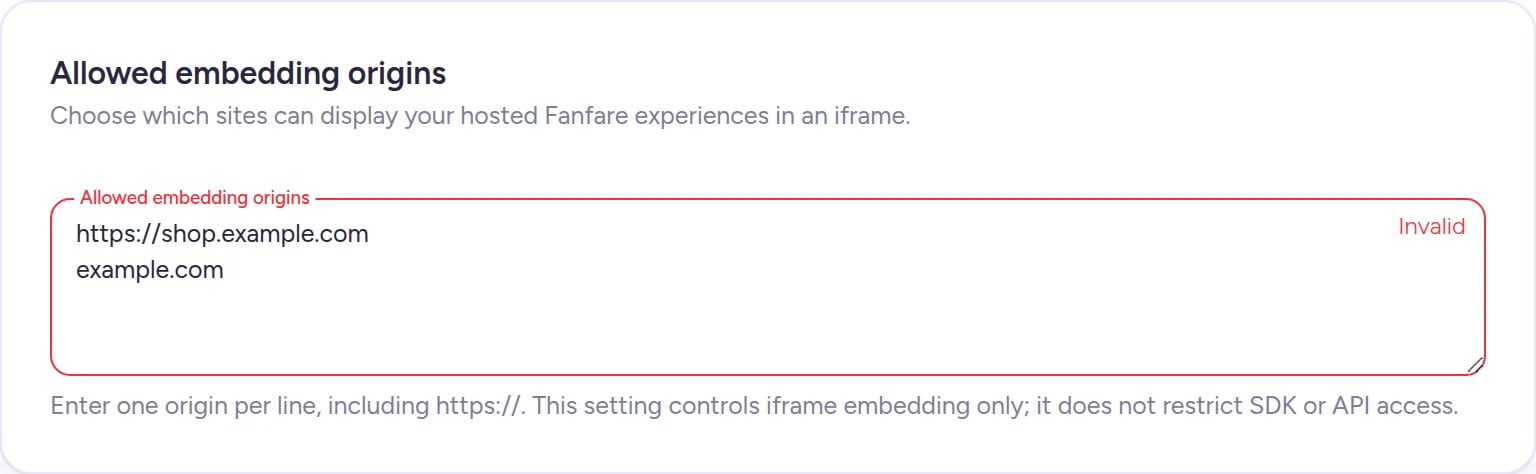
Allowed embedding origins shows 'Invalid'
Allowed embedding origins shows 'Invalid'
Make sure every line includes
https://, ends at the domain with no path (for example, https://shop.example.com), and doesn’t use *. Fix the line and select Save again.My hosted page won't load inside my storefront iframe
My hosted page won't load inside my storefront iframe
Your storefront’s origin is likely missing from Allowed embedding origins. Add your exact domain (such as
https://shop.example.com), select Save, and wait a moment for the update to propagate.Our server integration stopped authenticating after rotating the secret key
Our server integration stopped authenticating after rotating the secret key
Rotating retires the previous key shortly afterward. Have your developer deploy the new key everywhere your server calls Fanfare. If the new key wasn’t copied before leaving the page, an admin will need to rotate again and copy it immediately.
Related
Run it on your own site
Embed a drop experience on your own website with the Fanfare SDK.
Build and publish the hosted page
Design and publish hosted drop pages that other sites can embed.
Team members
See which team members have admin permissions.