

Before you start
- Recording stock changes requires a Fanfare-managed product—choose this when creating the product. See Choose who keeps the stock count.
- Fanfare-managed stock is available only when your organization uses Fanfare checkout.
Choose who keeps the stock count
You choose Stock management in the Create Product wizard, and the choice is permanent. See Add products.
Your organization’s checkout processor determines which options are available:
- Fanfare checkout: Choose Fanfare-managed or Not managed.
- External checkout: Every product you create is automatically Not managed, because Fanfare can’t count sales completed outside its checkout.
Read the stock figures
For Fanfare-managed products, Fanfare displays six stock figures per variant (labeled size on stock screens):
You’ll see these numbers in three places on the product page:
- Summary cards at the top: Supply (with Sold and On hand), Available (with Allocated and any over-allocated sizes), and At risk.
- Variants card: On hand and Available per size. On hand is read-only—sales decrease it and stock changes adjust it through Supply.
- Stock by SKU: The full breakdown table, one row per size. Expand any size to see every experience holding it, its status, units currently in checkout, Unassigned units, and units sold and allocated. Toggle between Allocations and Stock history at the top of the card.
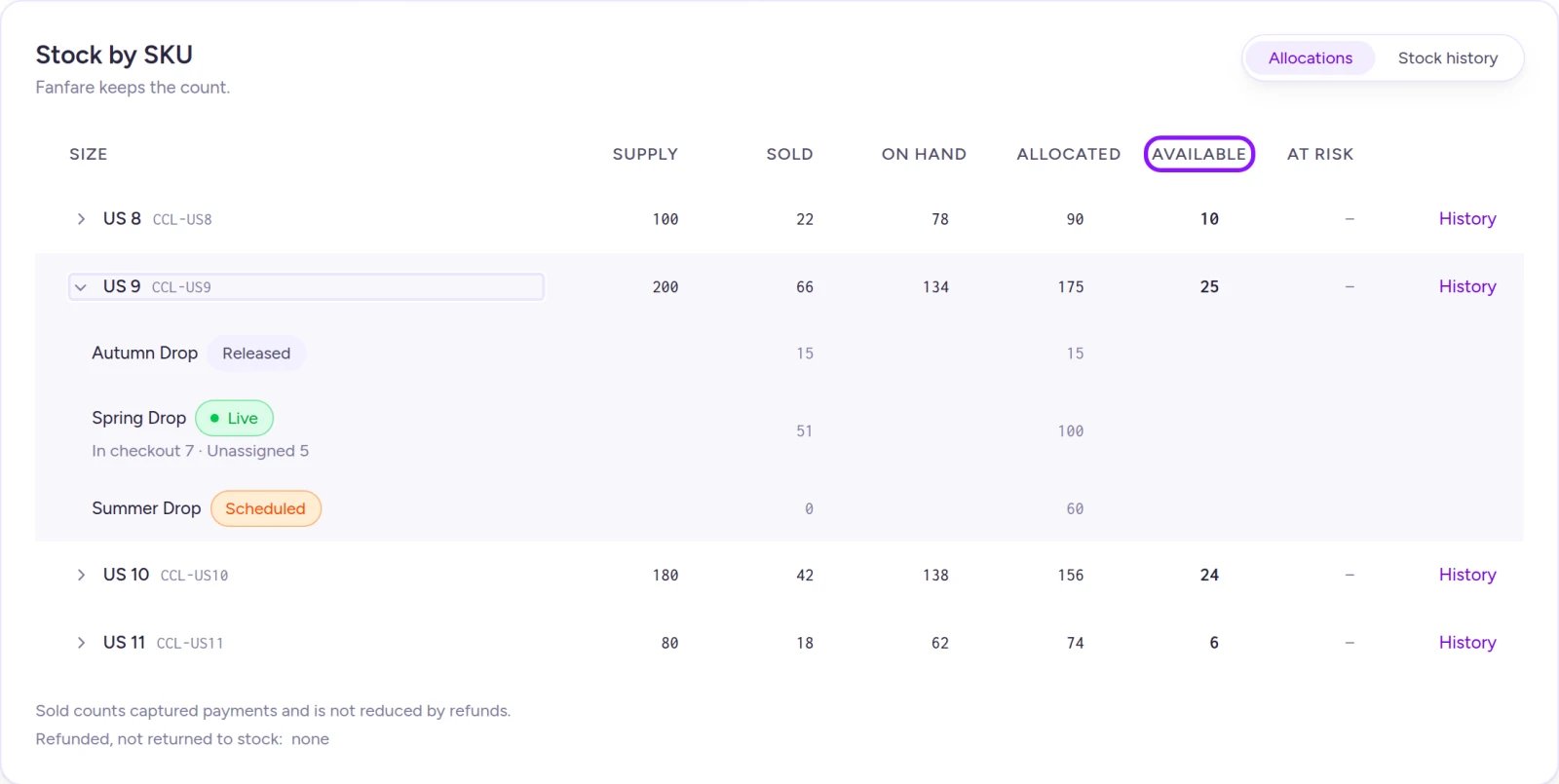
Available shows how many units you can still allocate to an experience.
Record a stock change
On a Fanfare-managed product, inventory changes only when you log an entry. Every entry stays in Stock history with your reason. You can open Adjust stock from:- A size’s menu in the Variants card
- The Adjust stock button in the variant editor
- Stock history, next to the size filter
- Any Record a receipt of at least … button on an over-allocation banner, the Resolve dialog, or a confirmation screen (pre-set as a receipt for that size)
- Select the Size (if the product has more than one).
- Choose the Type:
- Receipt: New inventory arriving.
- Adjustment: A count correction (Add or Remove).
- Write-off: Units that are lost, damaged, or unsellable.
- Enter the number of Units.
- Enter a Reason (required), or pick a quick shortcut like Purchase order received or Damaged.
- Review the before-and-after preview and any warnings underneath.
- Select the record button (for example, Record receipt of 20), review the summary, and select Done.
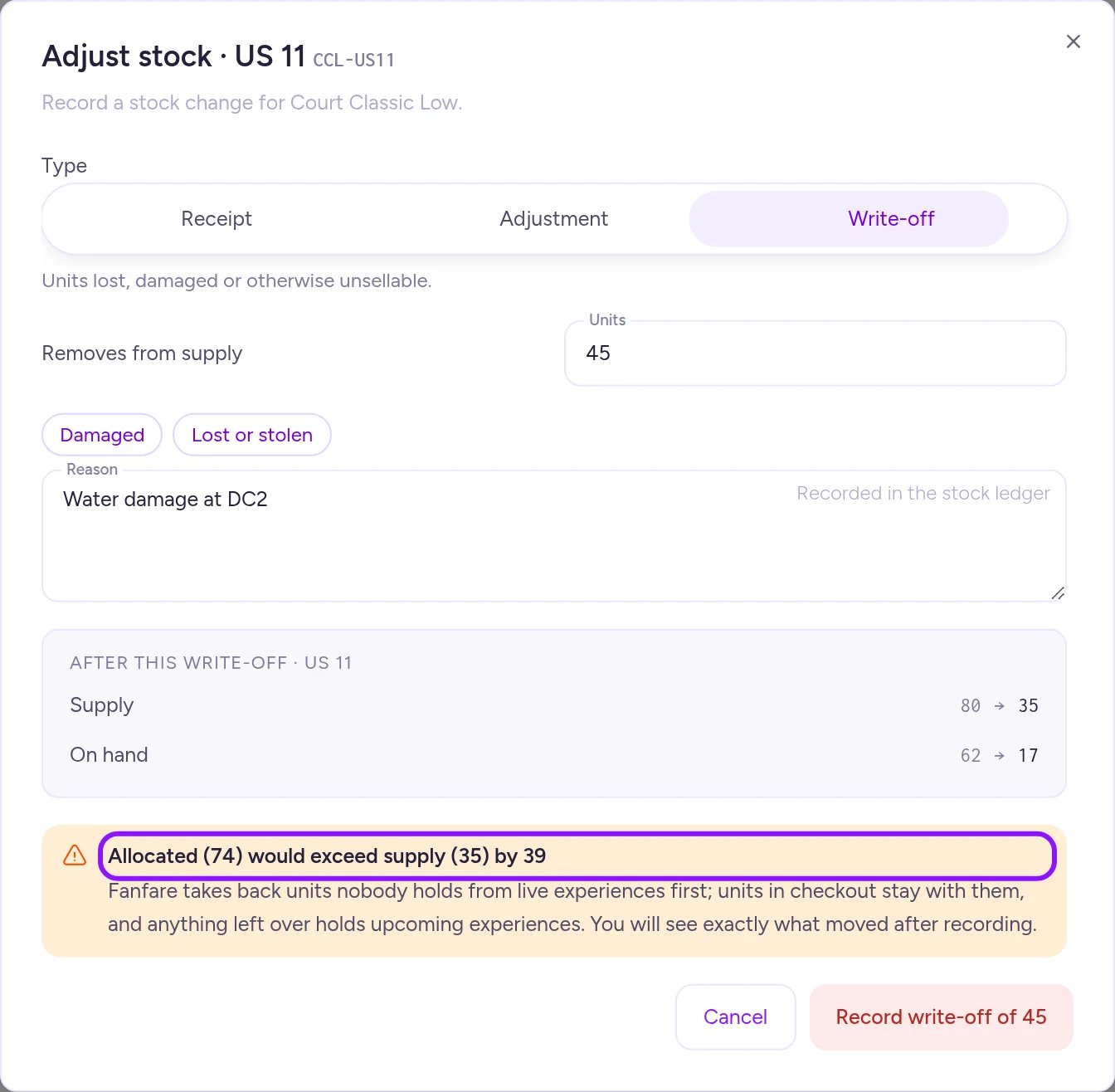
Before you confirm, the preview warns you if a write-off or downward adjustment will pull stock from active experiences.
If a connection issue prevents confirmation, click the record button again without editing any fields—Fanfare treats it as the same request so it won’t double-count. If you edit a field or close the dialog first, check Stock history before submitting again.
Fix an over-allocated size
A size becomes over-allocated when your experiences hold more units than its Supply. Stock by SKU pins that size to the top and displays an alert banner with three ways to fix it:- Resolve: Opens the Resolve dialog to compare options.
- Reduce [experience] [size] to [count]: One-click reduction for each eligible held experience.
- Record a receipt of at least [count] × [size]: Opens Adjust stock pre-filled as a receipt.
- Released experiences: Their allocation already matches what they sold.
- Closed experiences awaiting release: Their allocation remains attached until release finishes.
- Live experiences: Units already sold or in checkout can’t be reduced.
0 or higher, held experiences automatically start selling on Fanfare’s next stock check (about once a minute).
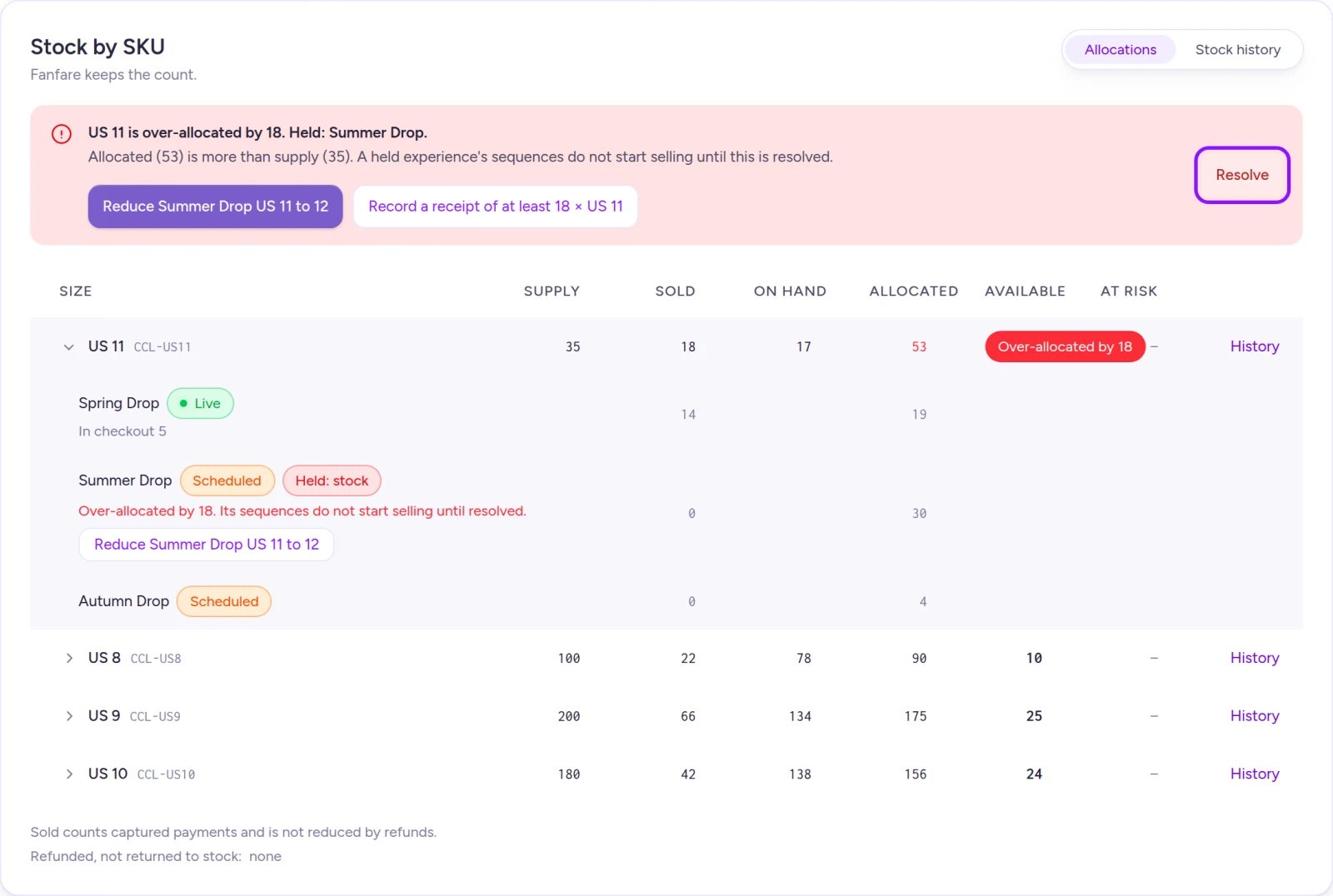
A held experience won't start selling until the over-allocated size fits supply again.
Stock history
Switch to Stock history in Stock by SKU (or select a size’s History link to filter directly to that size). Filter by All sizes or an individual size to view each entry’s Date, Size, Type (Opening stock, Receipt, Adjustment, Write-off, or Return), signed Units, Supply after, and Reason. Removed sizes appear as Removed size. Select Show older changes to load earlier entries.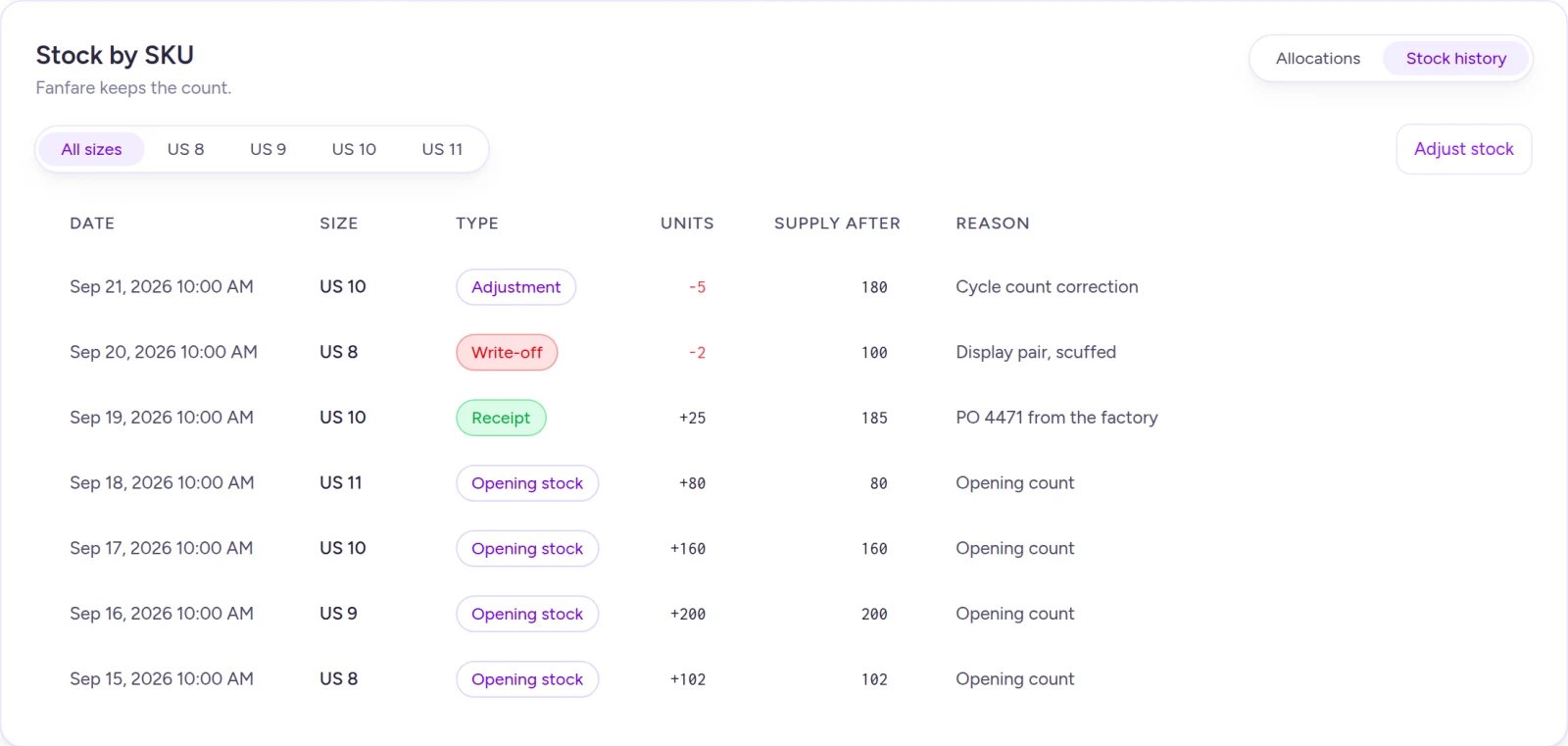
Field reference
Adjust stock
Product stock settings
Things to know before you go live
- Experience allocations lock once a drop goes live. See Allocate stock to a drop.
- You can’t delete Fanfare-managed variants from the admin. See Add products.
On Shopify
Organizations installed through the Shopify app start on External checkout, so every product imported from Shopify is Shopify-managed—Shopify tracks inventory and Fanfare-managed isn’t offered:- Adjust stock, Stock by SKU, and Stock history don’t appear on Shopify-managed products; update stock in Shopify admin instead.
- The Products list shows
—in the Stock column.
Fanfare-managed products imported from Shopify don’t sync stock counts with Shopify in either direction. Enter only the units you’ve set aside for Fanfare drops and take those units off sale in Shopify so the same inventory can’t sell twice.
Troubleshooting
I can't choose Fanfare-managed
I can't choose Fanfare-managed
Your organization’s checkout processor is set to External, so all new products are Not managed. Fanfare-managed stock requires Fanfare checkout. Existing products stay Not managed even if you switch processors later. See Organization settings.
Adjust stock isn't available
Adjust stock isn't available
The product is Not managed or Shopify-managed—only Fanfare-managed products track an editable stock ledger. Check the stock mode in the Variants card header. This setting can’t be changed after product creation.
Stock figures didn't load
Stock figures didn't load
Select Try again (or Reload if stale figures are shown) to refresh the stock ledger.
An experience shows Held: stock
An experience shows Held: stock
One of its sizes is over-allocated, blocking its sequences from starting. Open the product, locate the alert banner in Stock by SKU, and either record a receipt or reduce an upcoming experience’s allocation. See Fix an over-allocated size.
Related
Allocate stock to a drop
Reserve units for an experience, split them across sequences, and move stock mid-drop.
Stock
How supply, allocations, and sales fit together.
Add products
Create products and choose their stock management mode.
Orders and refunds
Return refunded units back to stock.