

Before you start
- Your experience, sequences, and distributions are built. See Create an experience.
- You know who on your team is an organization admin—only admins can Deactivate a drop if you need to stop it. See Team members.
Pre-launch checklist
Review each item at least a day before your drop:- Schedule and time zone: Confirm every distribution’s Opens and Closes times and the experience’s Time Zone. Make sure you replaced the wizard defaults (Opens At defaults to the next minute, Closes At to 7 days later) so the drop doesn’t open early. See Create an experience.
- Non-overlapping windows: Verify that distribution windows inside the same sequence don’t overlap, and that no earlier distribution without a close time blocks a later one. See Sequences and routing.
- Sequence priority: Confirm your sequences were created in the order you want customers offered them—priority follows creation order and can’t be reordered in the admin. See Sequences and routing.
- Access and gating: Check each sequence’s audience, Shared access code, and per-distribution Allow guest access setting. Adding an audience disables guest entry, and auctions or appointments require sign-in for the entire sequence. Creating and editing audiences requires Growth or above. See Sequences and routing and Add and gate sequences.
- Audience status: Make sure every gating audience shows Live—not Not built yet, Building, or Build failed. An audience won’t admit anyone until its first build finishes. See Audiences and access codes.
- Stock counts: Confirm every size you plan to sell has a count. A size left at
0opens sold out, a size set to No limit can’t switch to a fixed count once stock counting starts, and any sequence with more than 256 size combinations refuses new customers while counted. See Allocate stock to a drop. - Payment settings: If you use Fanfare checkout, confirm Stripe is connected (Payments and fees). Lock in Pay when admitted or Pre-authorise on joining for each queue, and Pay after the win or Pre-authorise on entry for each draw—these lock shortly before opening. When pre-authorizing, keep entry close to selection: card holds expire after about 7 days, so early entrants can lose their hold before winners are chosen. See Set up a queue, Set up a draw, and Admission and the payment window.
- Customer-facing distribution names: Give every distribution a clean name—waitlist “opens soon” emails display distribution names verbatim. See Invites, waitlist and access-code sends.
- Published destination: Publish your hosted page (Growth and above) or confirm the widget is live on your site. Finish hosted page edits before the 15-minute publish freeze below. See Build and publish the hosted page and Run it on your own site.
- Announcements, invites, and sender identity: Schedule and test-send announcements, review invite emails for audience-gated sequences, and confirm your sender identity and postal address are saved. See Announcements, Invites, waitlist and access-code sends, and Sender identity and sending domain.
- Guest access check: Only turn on Allow guest access where customers will keep the page open—guests don’t receive emails or texts. See What your customers see.
- Loyalty program (if used): If any queue or draw uses Bias toward loyal consumers, confirm your loyalty program (Pro and above) is turned on. See Run a loyalty program and Loyalty and Fanfair.
- Plan coverage: Make sure your current plan covers every feature in the drop. See Plans and what they unlock.
- Brand and widget designs: Finalize colors, fonts, and widget styling now. Saving brand changes restyles live pages within about a minute without republishing. See Set your brand and Templates and widget designs.
Countdown to opening
As a distribution’s Opens time approaches, Fanfare runs a set of automatic steps and locks. Queues begin earlier because their waiting room opens 5 minutes before Opens.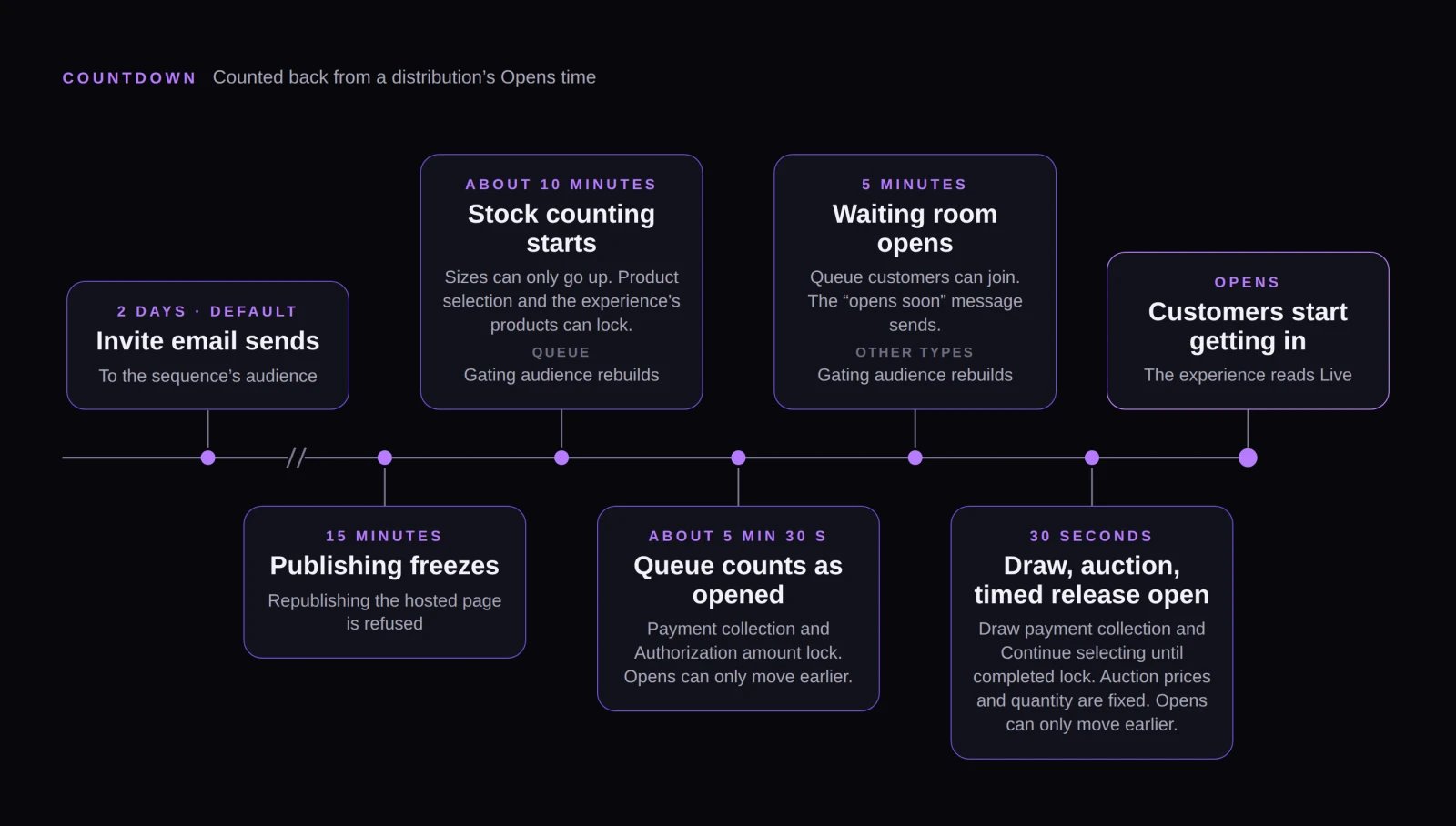
Automatic locks and events as a distribution's Opens time approaches.
Dynamic audience holds: Once a gated distribution starts taking entries (5 minutes before Opens for a queue), full rebuilds of any gating Dynamic audience pause and Refresh now is disabled until the drop closes. No hold applies while an open queue, timed release, or appointment has no Closes time; an open-ended draw still holds until its draw time. See Audiences and access codes.
Appointments lock on first booking: An appointment’s window, slot duration, buffer, capacity, and location lock as soon as any booking exists—and customers can book as soon as the page is live, even well before Opens. See What locks, and when.
Check the demand forecast
Open your sequence’s Performance tab to check Before opening, which shows Opens in, Expected entrants, and Range. Forecasts appear once the experience has at least two closed distributions of the same type (English and Dutch auctions count separately); until then, you’ll see “No forecast yet.” See Read your results.Keep live controls handy
- Live edits apply immediately: Settings that stay editable mid-drop—such as a queue’s Admit rate and Closes—take effect as soon as you save, with no confirmation dialog. See Change things mid-drop.
- Keep live monitoring open: Follow queue length, admissions, and sales in real time in Watch a live drop.
- Know how to stop a drop: Only organization admins can Deactivate, and it can’t be undone. See Stop a drop.
- Bookmark troubleshooting: If anything looks off during the drop, start at Troubleshooting a live drop.
On Shopify
If you run drops through the Fanfare app in Shopify, check these items too:- Storefront setup is complete: Both checkout protection and the product widget must be active. Home shows “Fanfare is set up on your store” when ready; otherwise it warns that your experiences won’t protect products until both steps are done. See Storefront setup.
- Products are synced: Your drop’s products come from Shopify—select Sync from Shopify on any product to pull in recent catalog changes immediately. See Products from Shopify.
- Checkout is handled by Shopify: You can skip payment collection settings in item 7—customers pay in Shopify’s checkout. See Checkout options.
- Auction requirements: Running an auction requires Shopify Plus, Fanfare’s latest approved app permissions, checkout protection enabled, and a store currency matching your Fanfare organization’s currency. See Checkout protection.
- Shopify-managed stock: Queue and draw sizes managed by Shopify start at Shopify’s current inventory count when you create them. See Allocate stock to a drop.
- No appointments: Appointments aren’t available in the Shopify app.
- Admin permissions: Every Shopify staff member who can open the Fanfare app counts as an organization admin and can Deactivate a drop. See Stop a drop.
Related
What locks, and when
What you can change before, during, and after a drop.
Watch a live drop
Follow live metrics and understand what each number counts.
Change things mid-drop
Pause a queue, move units, and edit settings during a drop.
Troubleshooting a live drop
Quick fixes when something looks wrong mid-drop.