

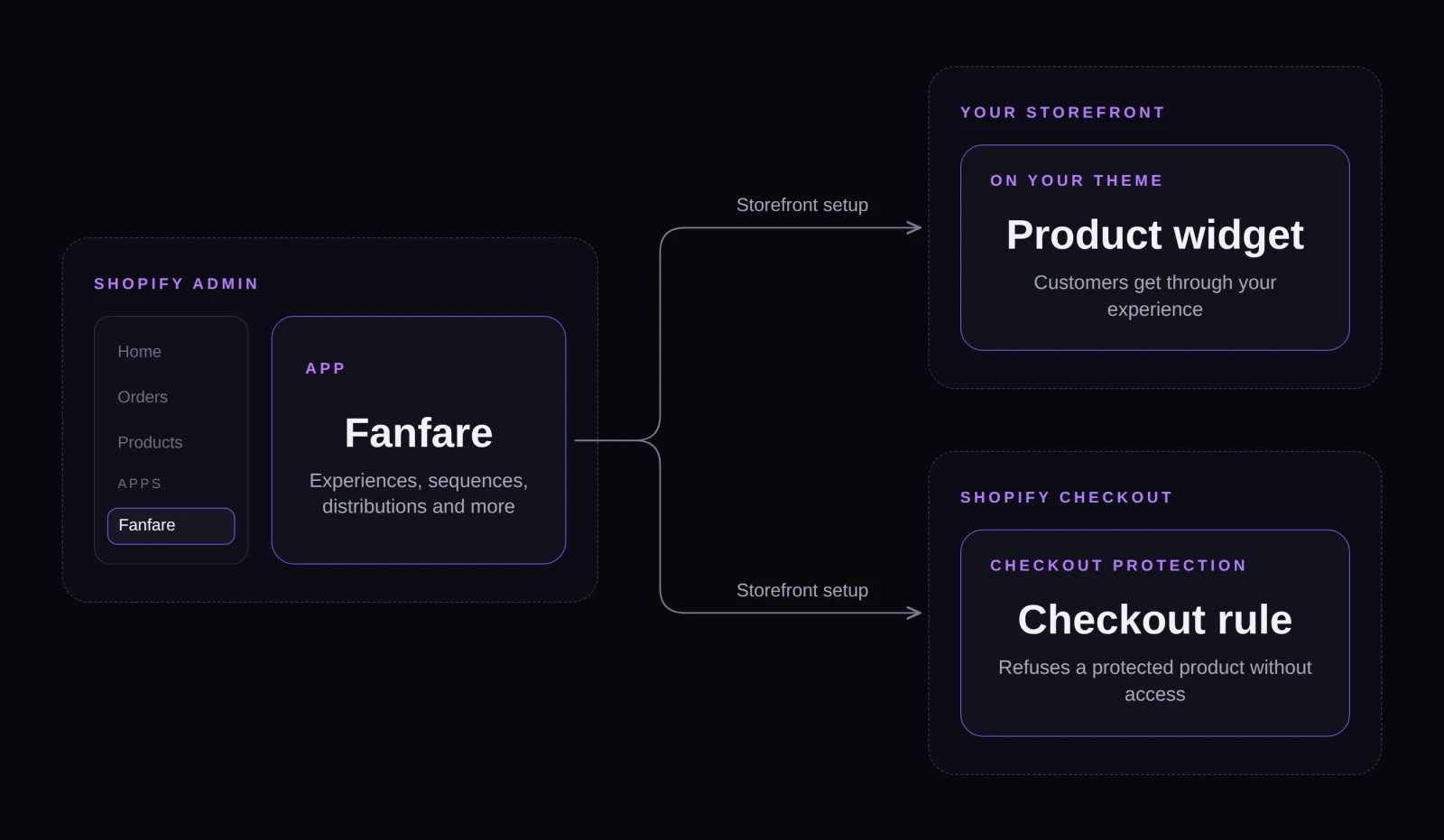
The Fanfare app runs inside Shopify admin and connects to your storefront through the product widget and checkout protection rule configured in Storefront setup.
What works the same
These areas work the same in the Shopify app as in the standalone admin (apart from any Shopify-specific notes on their individual pages):- Experiences, sequences, access gates, and waitlists
- Audiences (note: Shopify customer lists can’t be imported as audiences)
- Customers and loyalty
- Design Studio
- Performance analytics and live monitoring screens
- Locations
Built specifically for Shopify
How the Shopify app compares
Only in the standalone admin
These features aren’t part of the Shopify app:- Fanfare sign-up, sign-in, and sign-out
- Team invitations, members, and roles
- Account and Profile settings
- Tours & Tips settings and Send feedback
- In-app billing overview, plan-change dialog, and Stripe customer portal
- Creating products directly in Fanfare
- Appointments
- Connecting Stripe for Fanfare checkout
Who can use the app
Opening Fanfare inside Shopify doesn’t require a Fanfare account—Shopify’s staff permissions control who can open the app. There are no separate admin or member roles inside the Shopify app. Every staff member who can open Fanfare has full organization admin permissions, including:- Rotating your API secret key
- Editing organization settings, including your checkout processor
- Changing email sender settings and Embedding rules
- Connecting and disconnecting marketing integrations
- Disconnecting an existing Stripe account (which can’t be reconnected from the Shopify app)
- Creating, editing, publishing, and archiving hosted pages
Key things to know before launching
- Finish storefront setup before testing or launching: Fanfare usually enables checkout protection on install, but customers can only enter your drop once the product widget is placed on your theme. Without the widget, protected products can’t be purchased at all. See Storefront setup.
- Protection stays on after a drop ends: A product remains protected for as long as any experience includes it—even after the drop closes or is deactivated. Remove the product or delete the experience when you’re ready to sell normally again. See Checkout protection.
- Billing opens Shopify’s plan page: Selecting Billing leaves the Fanfare app for Shopify’s plan page (unless your store is comped). See Install and choose a plan.
- Unsupported currencies block app access: If your store uses a currency Fanfare doesn’t support yet, the app displays a notice until you change your store currency. See Install and choose a plan.
Example: setting up a queue from Shopify
When a merchant at Northbound Supply Co. follows Set up a queue inside Shopify admin for the Phantom Stitch Anorak, almost every step works the same—with three Shopify-specific differences:- Product selection: Shopify’s product picker opens so they can pull the anorak straight from their store catalog.
- Payment step: The Payment step notes
"Customers pay in your own checkout, so Fanfare collects no payment for this queue."There’s no Pre-authorise on joining option. - Storefront readiness: Customers can join the queue once checkout protection is On and the product widget is placed on the theme—both tracked by the Finish setting up Fanfare checklist on Home.
Related
Your first drop on Shopify
Install the app, set up your storefront, and launch your first drop.
Install and choose a plan
Install Fanfare, approve a plan in Shopify, and understand usage billing.
Storefront setup
Enable checkout protection and place the product widget on your theme.
Products from Shopify
Import products from Shopify and keep details and inventory synced.
Checkout protection
See what the checkout rule blocks and how long protection stays active.
Orders with Shopify checkout
Understand how drop orders sync, how refunds work, and how to import missing orders.
Fanfare inside Shopify admin
Use the Fanfare experiences block and quick actions on Shopify product and order pages.