

Where to find orders
- Orders in the sidebar shows every order across your organization.
- Orders inside an experience’s navigation filters the same view to that experience.
- Customer profiles include an Orders for this experience link on any drop where a customer purchased—it opens all orders for that experience, not just that customer’s. See Customer profiles.
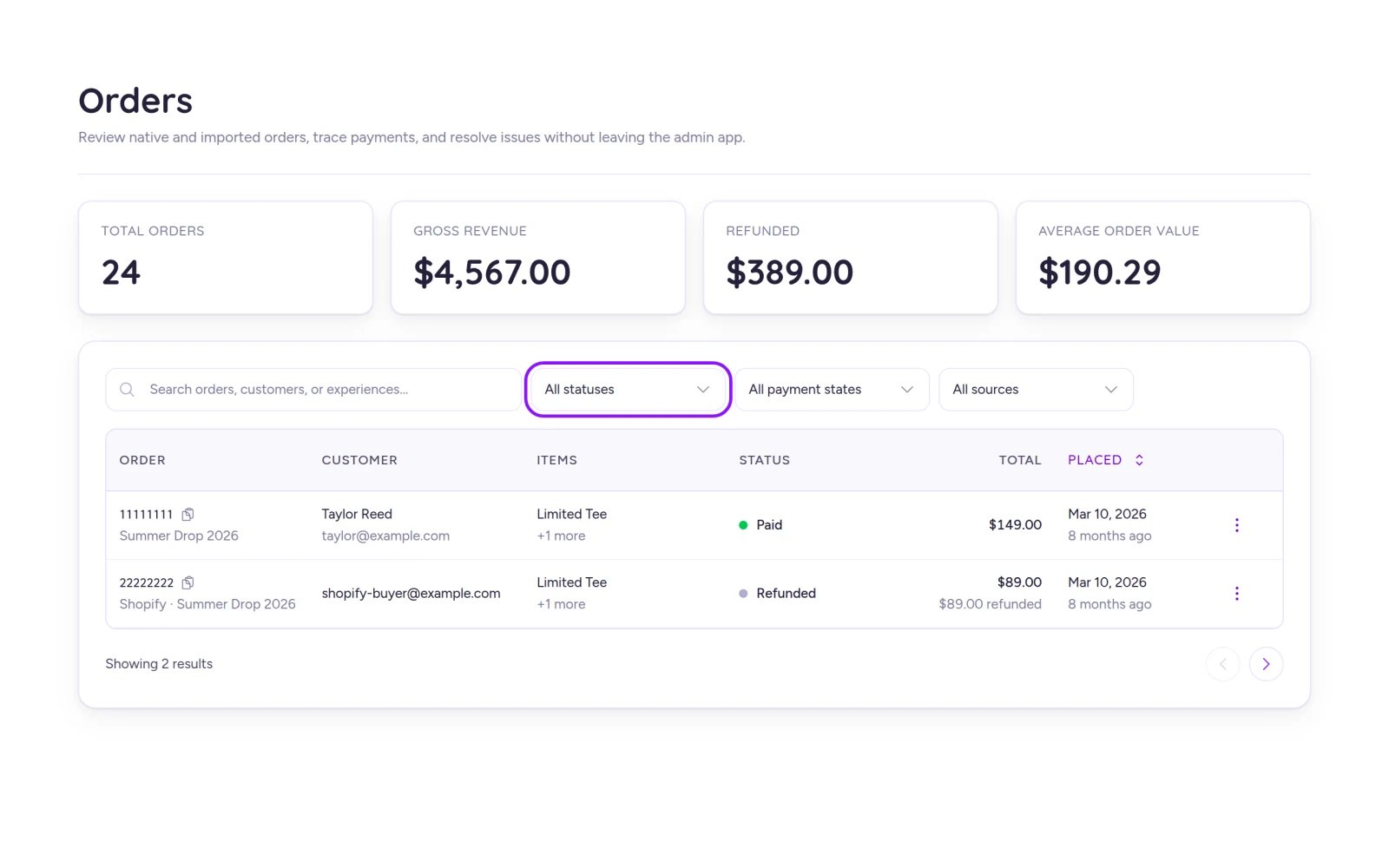
The Orders list with summary cards calculated across every order matching your current search and filters.
Summary cards
Four cards sit above the table: Total orders, Gross revenue, Refunded, and Average order value. They calculate totals across all orders matching your current search and filters—not just the current page—and automatically exclude test orders. If your filtered results span multiple currencies, Fanfare displays a separate row of cards per currency without combining them.Find an order
Open Orders
Search by customer, experience, or ID
Filter and sort
Reading the list and order statuses
Each row shows the Order reference (with Copy order ID and a Test badge on test orders), Customer, Items, Status (plus payment status details or sync issues like"Shopify sync: Failed"), Total (with any refunded amount underneath), Placed date (hover for the exact timestamp), and a row action menu for Refund, Cancel, or View source.
The order page
Opening an order shows the 8-character reference, status, experience name, and an Actions menu in the header (test orders also display a banner confirming they’re excluded from revenue, purchase limits, and customer metrics).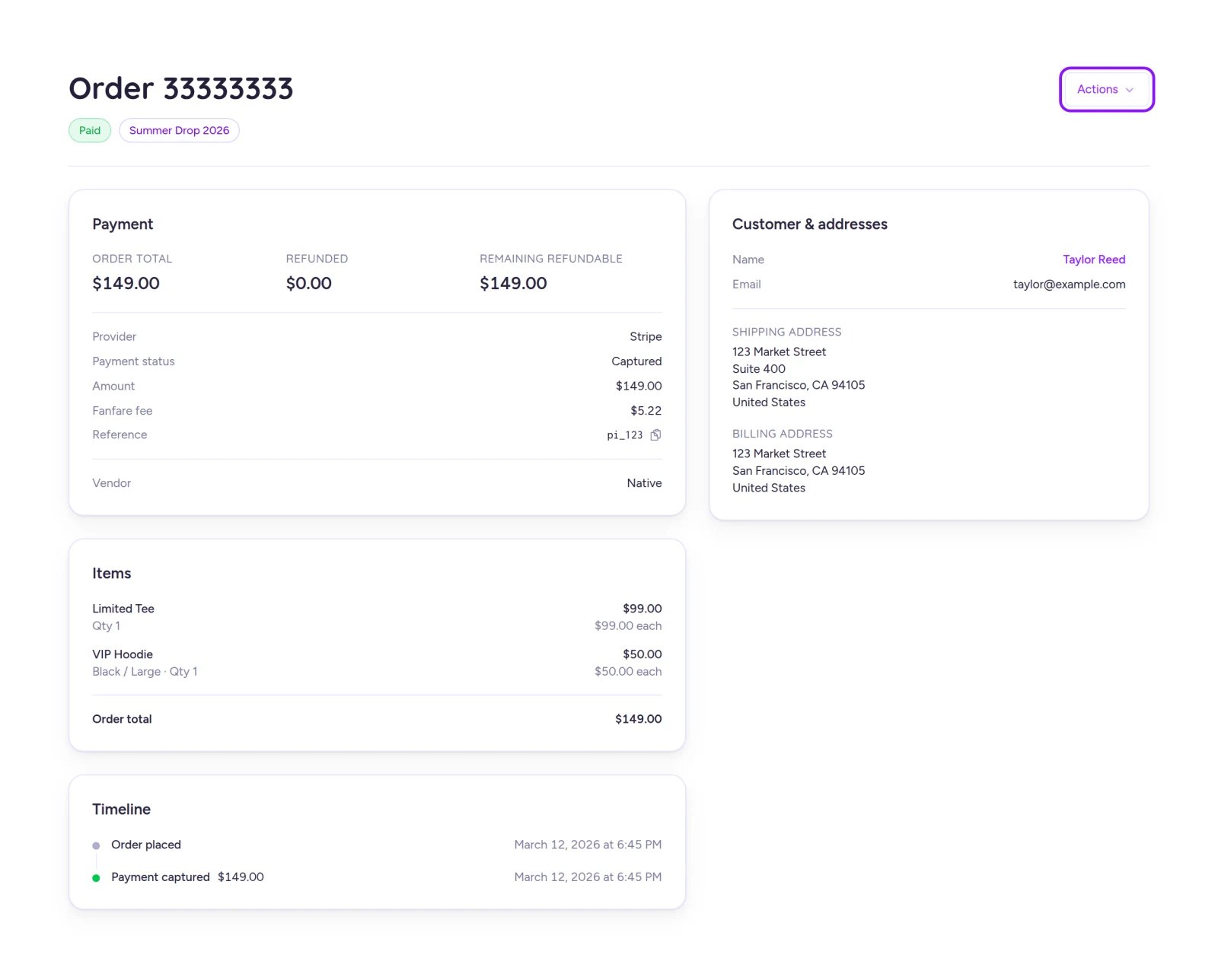
Inspect payment details, items, timeline events, and issue refunds from the Actions menu on the order page.
- Payment — Order total, Refunded, Remaining refundable, Provider (Stripe or Shopify), Payment status, Amount, Fanfare fee, and provider Reference. At the bottom, you’ll see Vendor (
Nativefor Fanfare checkout, or your external store name), External order ID, Sync status, Last synced, and View source. - Items — Products, variants, quantities, line totals, unit prices, and post-refund stock status, plus Tax, Shipping, Discount, and Duties when nonzero. For external store orders, rely on the order total if synced line items don’t add up to it.
- Timeline — Chronological log of order placement, payment capture or failure, cancellations, and every Full or Partial refund with its reason.
- Customer & addresses — Name (links to their customer profile), Email, Phone, Shipping address, and Billing address.
Available actions by status
- Cancel appears on native Fanfare orders whose payment hasn’t been captured yet (such as Pending payment). Confirming the Cancel order dialog voids the payment before capture and marks the order Cancelled. Once payment is captured, refund the order instead. See Checkout options and Admission and the payment window.
- Refund applies only to native Fanfare checkout orders. If a refund fails after a full refund was previously attempted, Refund may not reappear for the remaining balance—issue it from your Stripe Dashboard instead.
- View source opens the order in your external store when the store provides a link.
Refund an order
Open the refund dialog
Verify the refund amount
Choose which items return to stock
Add a reason and submit
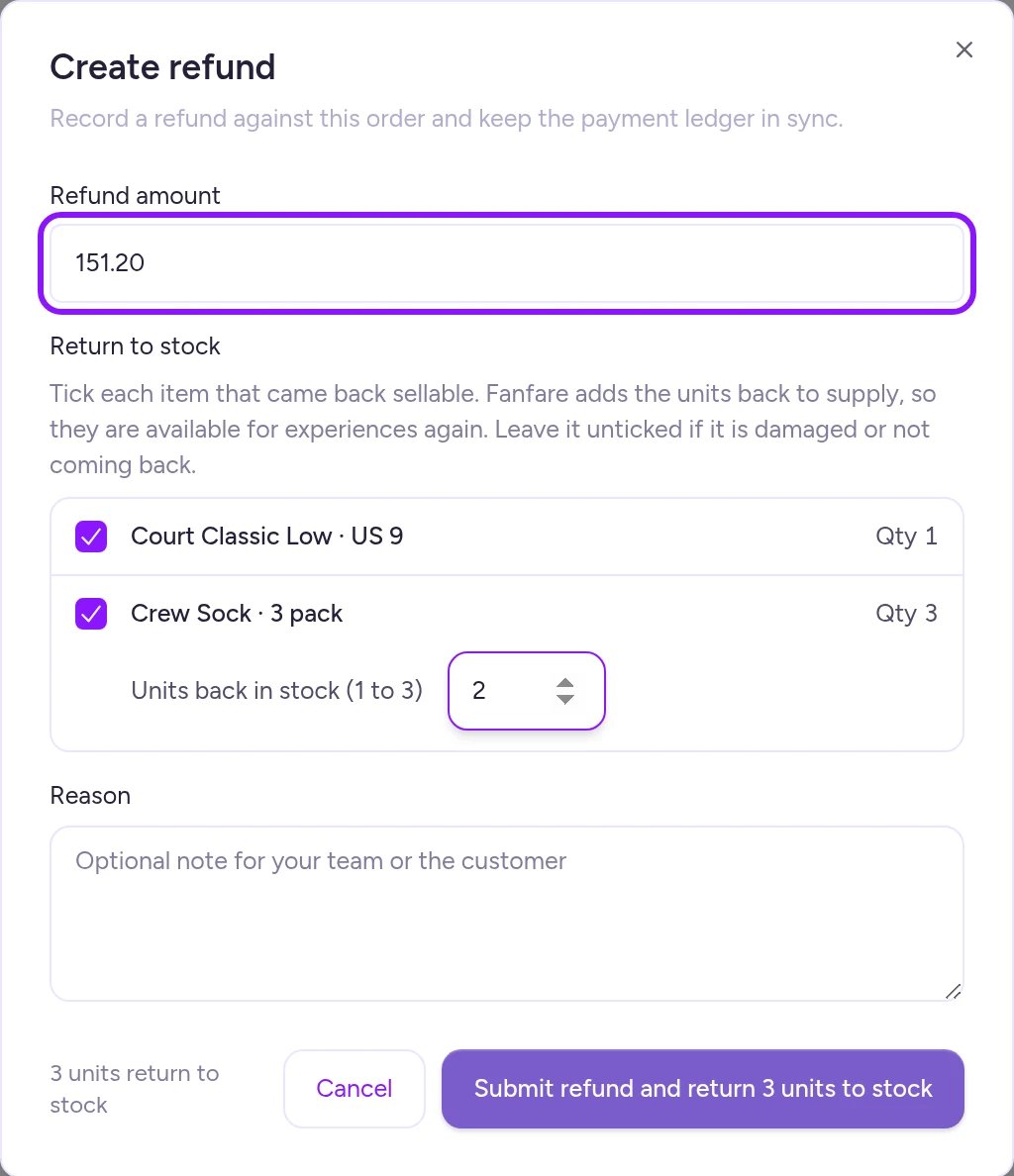
Refund amount pre-fills with the full remaining balance; check items under Return to stock to restore inventory at the same time.
What happens after you submit
- Completed immediately: Your refund and stock choices are recorded right away.
- Pending in Stripe: Pending refunds immediately count toward Refunded and Remaining refundable (if one later fails, the balance is restored). However, the stock choices you made in the dialog are discarded—make them again on the order page once the refund completes.
- Failed: No items are returned to stock.
Decide stock after a refund
When a refunded order has Fanfare-managed items awaiting a stock decision, a banner on the order page links directly to them via Go to item.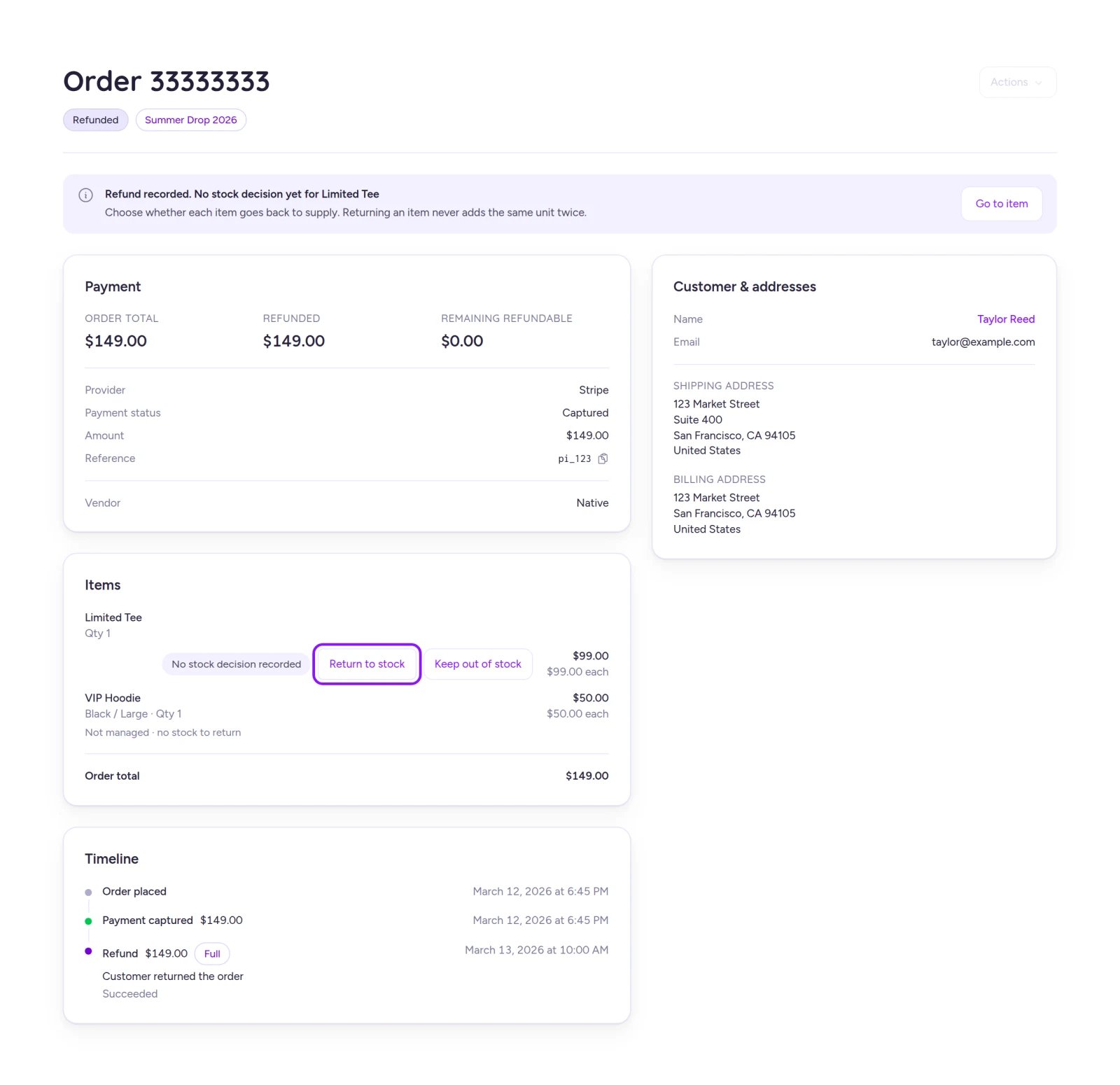
Refunded items without a stock decision display Return to stock and Keep out of stock actions directly on the order page.
- Return to stock — Adds the units back to your product’s Supply. It doesn’t lower Sold or automatically add units back into a drop’s allocation—to sell them again, allocate them to a drop (see Allocate stock to a drop). Single units return immediately; multi-unit lines ask how many came back sellable. Fanfare prevents returning the same unit twice.
- Keep out of stock — Records that the item isn’t returning to sellable inventory. You can still return it later if needed.
External store orders
Orders synced from an external store show the store’s name under Vendor, along with its External order ID and Sync status. Select View source to open the order in your store’s admin.Refunds, fees, and loyalty points
- Fees: Fanfare’s per-order fee isn’t returned when you refund an order. Check Stripe’s documentation for how refunds affect Stripe processing fees, and see Payments and fees and Billing and usage for rate and billing details.
- Stripe Dashboard refunds: Any refund issued directly in your Stripe Dashboard syncs back to the Fanfare order automatically—don’t submit it a second time in Fanfare.
- Loyalty points: Refunding an order doesn’t automatically deduct the Purchase points the customer earned. To claw them back, deduct them manually on the customer’s profile using the Refund adjustment reason (see Run a loyalty program).
Test orders
Orders placed with a test payment method appear alongside live orders with a Test badge, hatched row background, and a “Test order” banner. They’re excluded from revenue, purchase limits, and customer metrics, and their items can’t be returned to stock. See Add and gate sequences for test orders and purchase limits.On Shopify
The Orders list and order detail page work the same inside the Fanfare Shopify app. Because Fanfare checkout isn’t used in the Shopify app, orders completed through Shopify checkout show Vendor as Shopify, offer at most View source, and must be refunded in Shopify. Refunds issued in Shopify don’t sync back to Fanfare, so the order continues showing Paid in Fanfare. In the Shopify app, the order page also includes a panel to push a Fanfare order to Shopify or link it to an existing Shopify order. See Orders with Shopify checkout.Troubleshooting
Refund isn't available under Actions
Refund isn't available under Actions
- The order was synced from an external store (refund it in that store instead).
- Payment hasn’t been captured yet—use Cancel if available.
- The order is already fully refunded or has a full refund in progress.
- The order is still in Draft while the buyer is in their payment window.
My refund amount isn't accepted
My refund amount isn't accepted
Search doesn't find an order by its short reference
Search doesn't find an order by its short reference
Return to stock isn't available on a refunded item
Return to stock isn't available on a refunded item