

Before you start
- Two-level pools for Fanfare-managed products: Your experience reserves units from the product’s Available stock, and each sequence draws its share from the experience. Any experience units not given to a sequence stay Unassigned. See Stock.
- Other stock modes: Not managed products have no experience-level inventory pool—each sequence’s number is the only cap. Shopify-managed products work differently (see On Shopify). Compare all modes in Manage stock.
- No mixing managed modes: An experience can’t combine Fanfare-managed and Shopify-managed products, though Not managed products can sit alongside either.
- Add a distribution first: A sequence has no stock rows until you add its first distribution.
- External checkout: Because an external checkout doesn’t report sales back to Fanfare, the wizard displays Sales aren’t counted and your numbers cap concurrent passes held at once rather than actual units sold.
Set units when you create the experience
The Stock step appears in Experiences → Create Experience whenever you select at least one product for a non-appointment drop.- Enter the units for each size. Fanfare-managed sizes show Supply, Allocated, Available, and Available after alongside the input.
- For multi-size products, select Split a total across sizes to distribute inventory automatically: enter Total to split, select Preview, and select Apply. Fanfare-managed sizes never exceed available stock—if there’s a shortfall, Fanfare lets you redistribute it across sizes with room left.
- For non-Fanfare-managed products, you can select No limit instead of a number (Fanfare-managed sizes always require a number).
- Review the Total at the bottom and select Next.
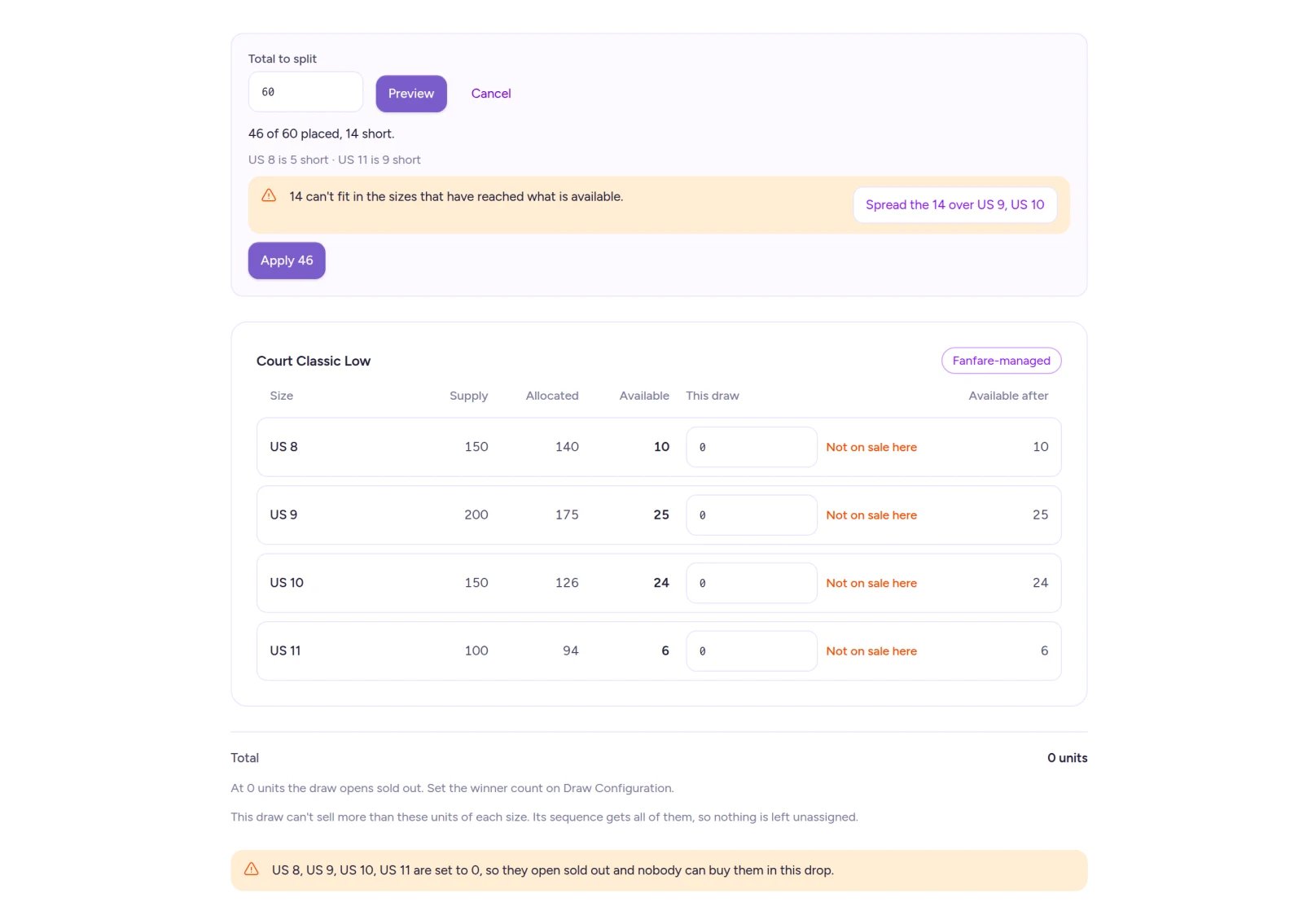
Fanfare-managed sizes show available stock inline, and the split helper never allocates more than you have.
0 marks it Not on sale here—it opens sold out and customers won’t be able to buy it.
How unit numbers behave depends on your drop format:
If you haven’t picked Dutch or English yet, the column appears as Units (if Dutch). See Set up an auction to compare auction types.
Finishing the wizard assigns every unit you entered directly to the experience’s first sequence, leaving
0 Unassigned.
Change the experience’s units later
- Open your experience’s Overview. For Fanfare-managed products, the Stock card shows each size’s Allocated count, each sequence’s share, Unassigned, Sold, and either Available (before launch) or In checkout (while live). Other products show each size’s Limit.
- Select Edit allocations to open the Stock section in Experience Settings.
- Enter updated totals for each size. Fanfare-managed fields show your Up to ceiling (what the experience currently holds plus the product’s Available stock).
- Select Save.
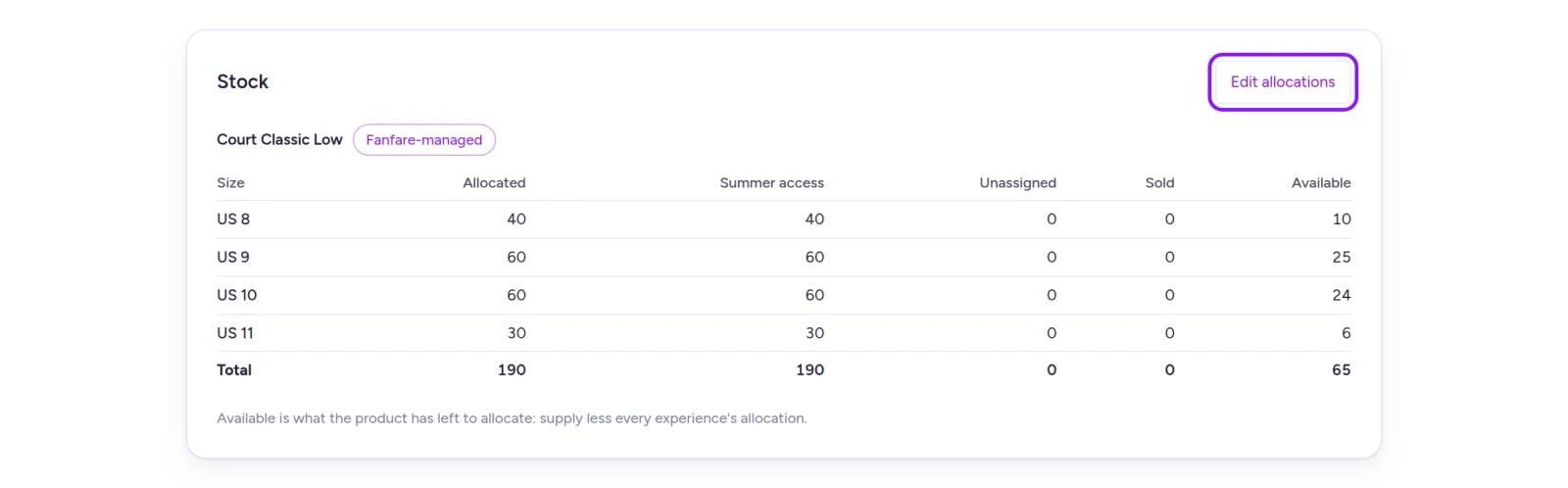
You can adjust experience-level allocations until the drop goes live.
0, and save—then remove the product under Products.
Split units across sequences
Each sequence has its own Stock card on its Overview tab:- Open the sequence from the experience’s Overview.
- On the Stock card, select Edit allocations (or select Edit → Stock).
- Enter a Quantity (
0to1,000,000) for each size—or select No limit on non-Fanfare-managed sizes (not available on Fanfare-managed sizes or Dutch auctions). - Select Save.
- Quantity: Units this sequence can sell.
- Unassigned: For Fanfare-managed sizes, units held by the experience that no sequence has claimed yet, along with the Up to ceiling you can raise this sequence to.
- Sold: Units this sequence has already sold.
- Manual planning inventory: Shown for Not managed products. Warns when your combined sequence limits exceed the reference quantity on the product, without blocking saves.
If a teammate updates stock while you’re editing, Fanfare reloads the grid, preserves your non-conflicting changes, and lets you review and save again.
Default starting values: Fanfare-managed sizes (and most other sizes) default to
0 and open sold out. Shopify-managed sizes start at Shopify’s count, and non-managed sizes in timed releases or under external checkout start at No limit.
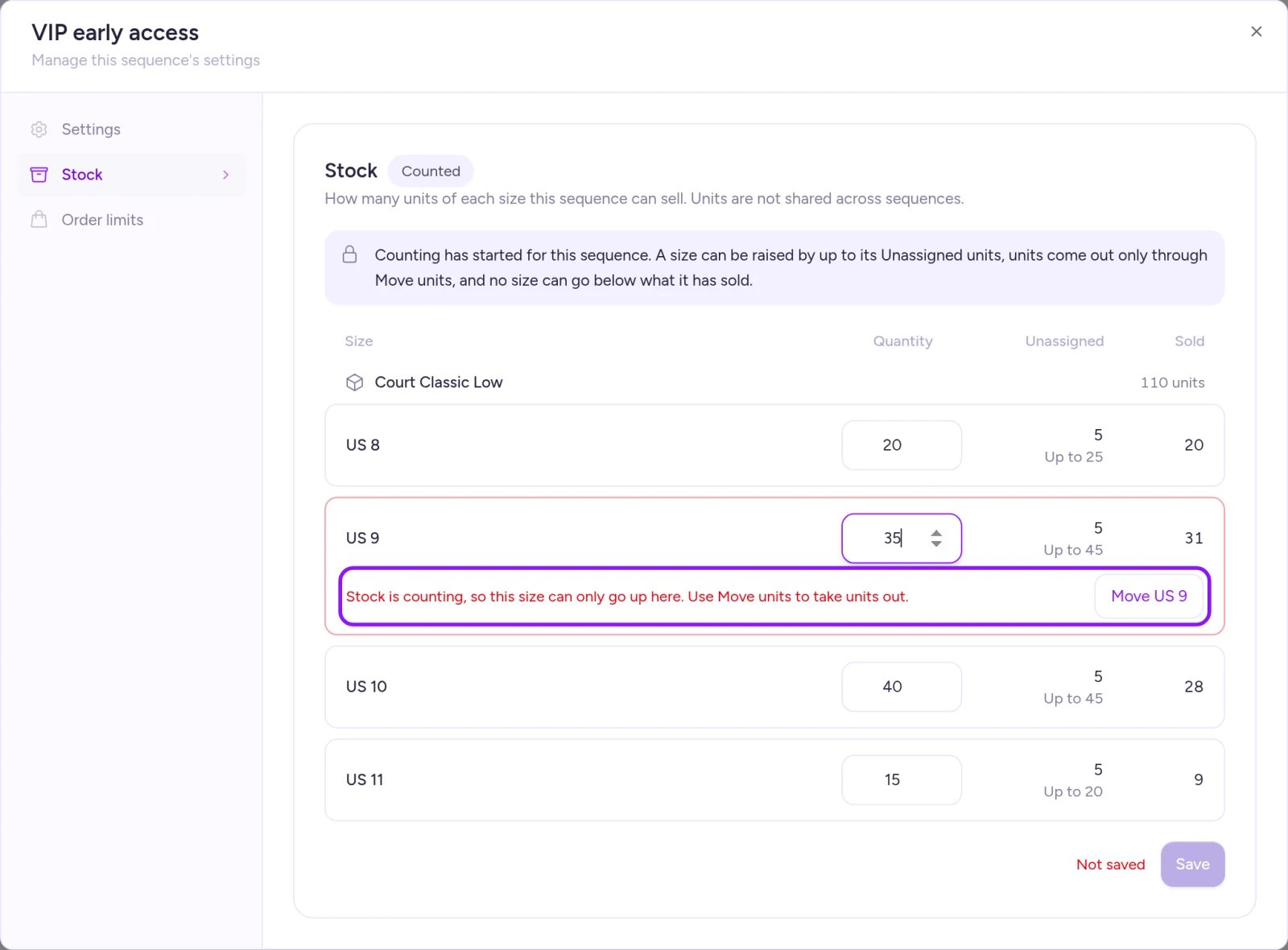
Once stock counting starts, lowering a quantity is blocked and you'll use Move units instead.
Once counting starts
The sequence’s Stock card tracks live status for every size: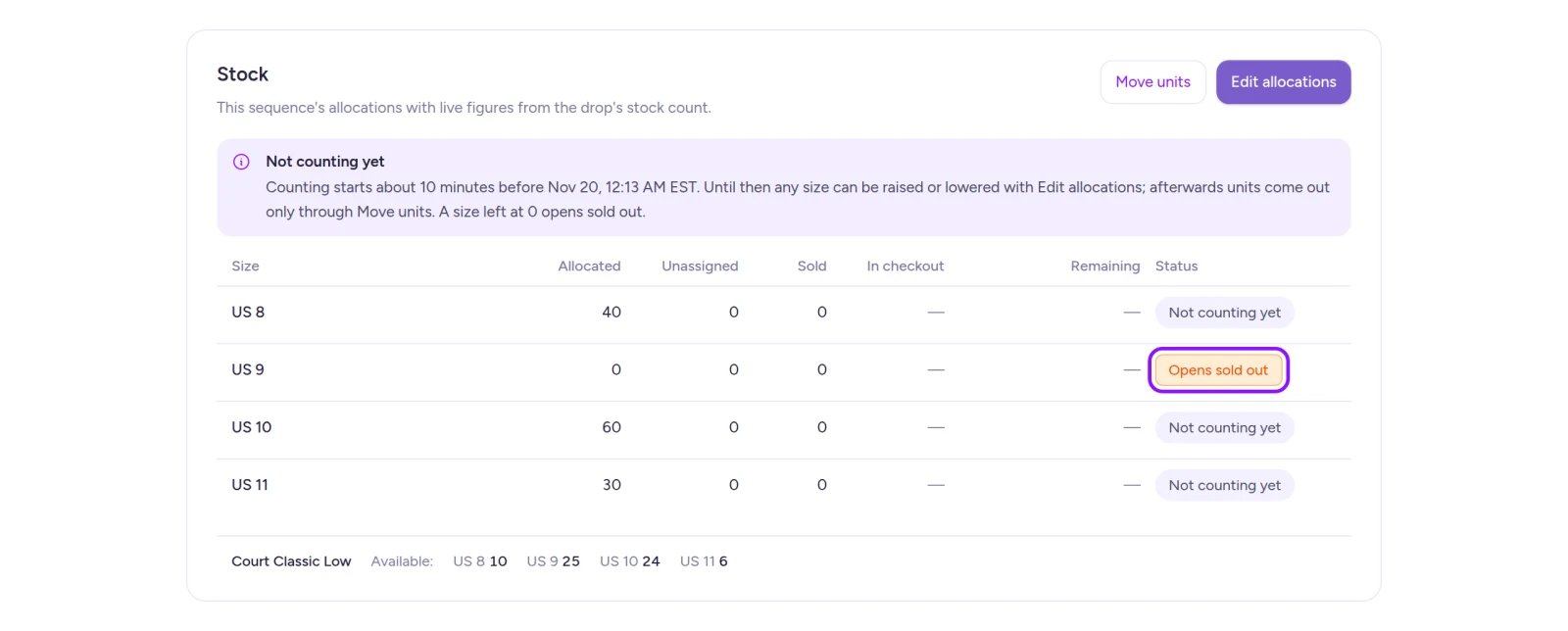
Any size left at 0 shows Opens sold out until you allocate units to it.
Over-allocated and held sizes
If a Fanfare-managed size’s total allocations exceed its product Supply before doors open, the experience’s Stock card alerts you that the drop won’t start selling until you resolve it, with direct Resolve and Record a receipt of at least … actions. See Manage stock for how both options work.After the drop
For Fanfare-managed products, once every distribution in a sequence finishes, its allocation drops to what it sold and leftover units return to the experience as Unassigned. Once at least one sequence has released and no other sequence still holds active Fanfare-managed units, the experience releases its leftover units back to product Available stock. Release is final—see Stock. Sequences without Fanfare-managed units don’t release; their stock grid stays open after the drop, keeping the same upward-only rule.Field reference
Things to know before you go live
- No limit locks once counting starts: A size set to No limit never sells out in Fanfare, and you can’t switch it back to a fixed count once counting begins.
- 256 size-combination limit: A sequence offering more than 256 size combinations refuses new shoppers once counting starts. Trim products or variants down to 256 or fewer before launch. (For Mystery Box sequences, see Add and gate sequences.)
- Separate Save button: The sequence’s Stock section saves independently from Settings and Order limits.
On Shopify
- Products imported from Shopify while your checkout processor is External are Shopify-managed. Experience-level Available/Unassigned pools, held sizes, and post-drop release don’t apply—each sequence’s Quantity is its cap. (Products imported after switching to Fanfare checkout are Fanfare-managed; see Manage stock.)
- For a Shopify-managed size in a queue or draw, the wizard’s Stock step shows a Shopify count column and pre-fills each size with Shopify’s live count (Shopify’s count at creation). It stays synced to Shopify’s count until counting starts or you type a custom number. For draws, winner count follows that total at creation.
- If Shopify reports a size sold out, that size stops selling in the sequence. Raise its Quantity to reopen it—unless an earlier distribution in the same sequence is still running, in which case wait for that earlier drop to finish first. You can’t move units into or out of a size while Shopify marks it sold out.
- During a live drop, the sequence’s Stock card warns you if Shopify’s inventory drops below what the drop has left or what’s currently in checkout.
Troubleshooting
I can't lower a size's quantity
I can't lower a size's quantity
Stock counting has already started for that sequence. Use Move units to transfer stock out instead—see Change things mid-drop.
Save is blocked because there are no more unassigned units
Save is blocked because there are no more unassigned units
The experience has no Unassigned units left for that size. Before the drop goes live, select Edit allocations on the experience’s Stock card to add units (recording a receipt on the product first if needed; see Manage stock). Once live, experience totals lock—transfer units from another sequence with Move units.
A size shows Opens sold out
A size shows Opens sold out
The size has
0 units left to sell (either set to 0 or already sold through its allocation). Raise its Quantity in the sequence grid or transfer stock in with Move units.Related
Stock
How inventory flows from supply to experiences, sequences, and sales.
Manage stock
Stock modes, Adjust stock, and resolving over-allocated sizes.
Change things mid-drop
Move units between sequences while a drop is running.
Add and gate sequences
Create sequences and choose Customer Picks or Mystery Box.