

- Deactivate stops a distribution, sequence, or entire experience immediately and permanently. It’s not a pause—if you just want to slow down a queue or adjust timing, use Change things mid-drop or Pause queue (Set up a queue). Only organization admins can deactivate.
- Delete removes an already-ended distribution, sequence, or experience from your admin while keeping orders, entries, and customer records intact. Any team member can delete once an item is eligible.
Deactivate
Before deactivating, choose the smallest scope that solves your issue: deactivating a distribution stops only that distribution, deactivating a sequence stops every distribution inside it, and deactivating an experience stops every sequence and distribution inside it.Where to find Deactivate
On an appointment panel, Deactivate distribution is disabled before the appointment opens—use Deactivate from its card menu to cancel a scheduled appointment.
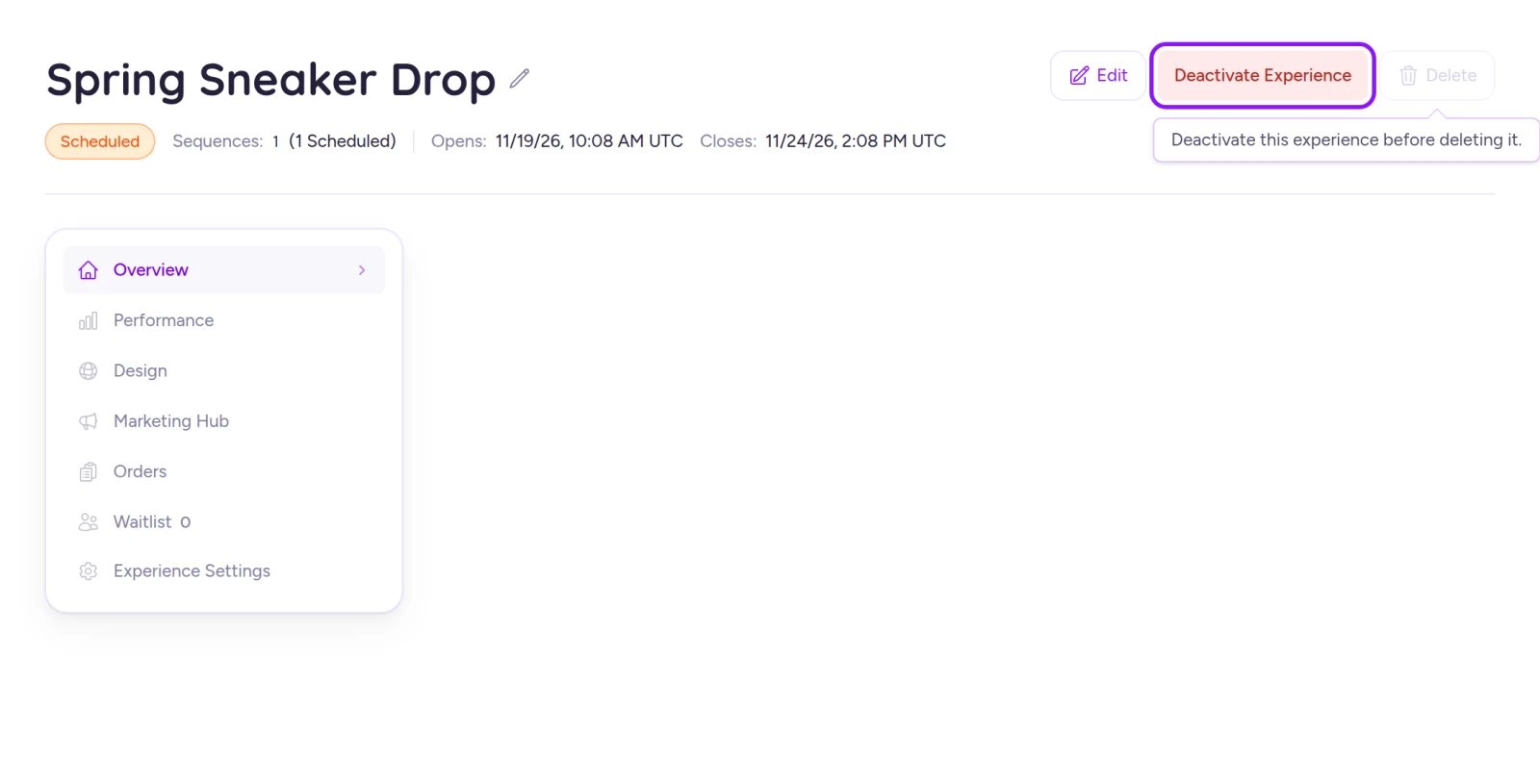
Delete stays unavailable until everything in the experience has been deactivated.
How to deactivate
1
Open the Deactivate dialog
Select Deactivate at the distribution, sequence, or experience level from the table above.
2
Review the customer impact
Check Who this affects right now to see how many waiting customers, unpaid winners, bidders, or bookings will be removed immediately.
3
Type deactivate to confirm
Enter
deactivate in the confirmation box and select Deactivate (the button stays disabled until the impact counts finish loading and you type the confirmation word). If counts fail to load, Fanfare shows a notice and you can still deactivate.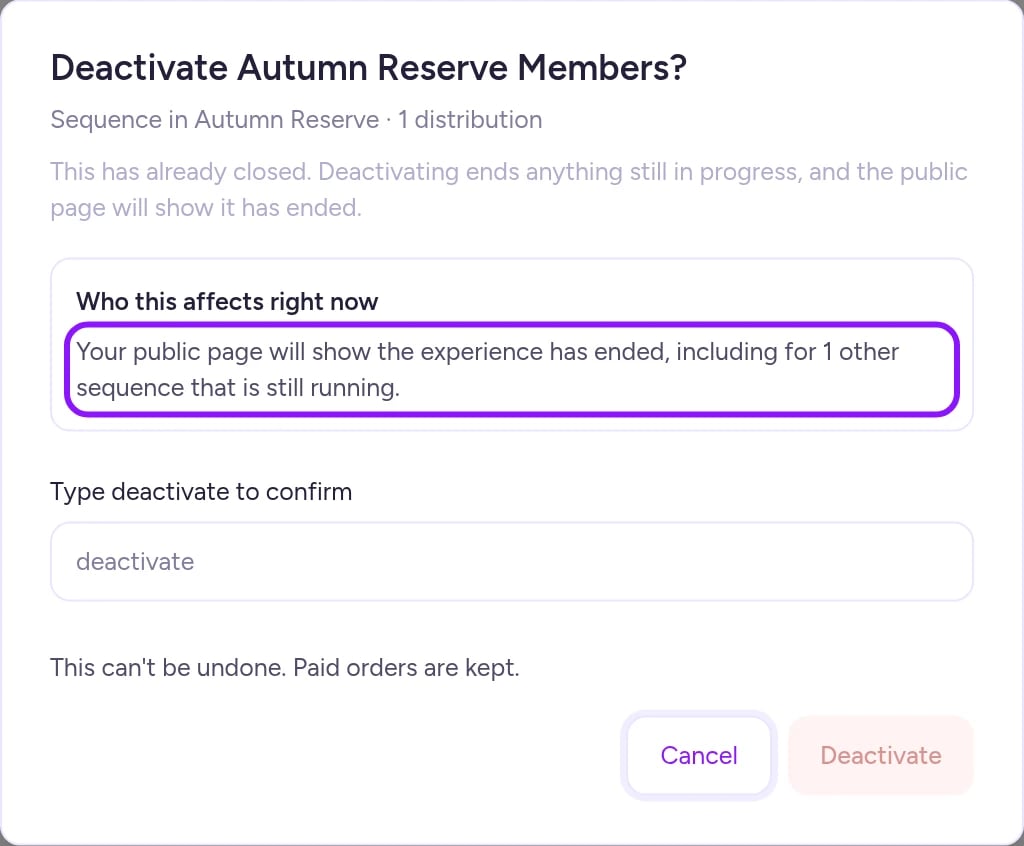
When your hosted page is live and other sequences are still running, the dialog warns that the entire public page will show as ended.
What happens to customers
Deactivation takes effect within seconds. Customers already inside checkout can still finish paying within their active payment window, and any unused card pre-authorization holds are released instead of charged. Everyone else loses access immediately:
Anyone who visits the drop page afterward sees that it has ended. See What your customers see.
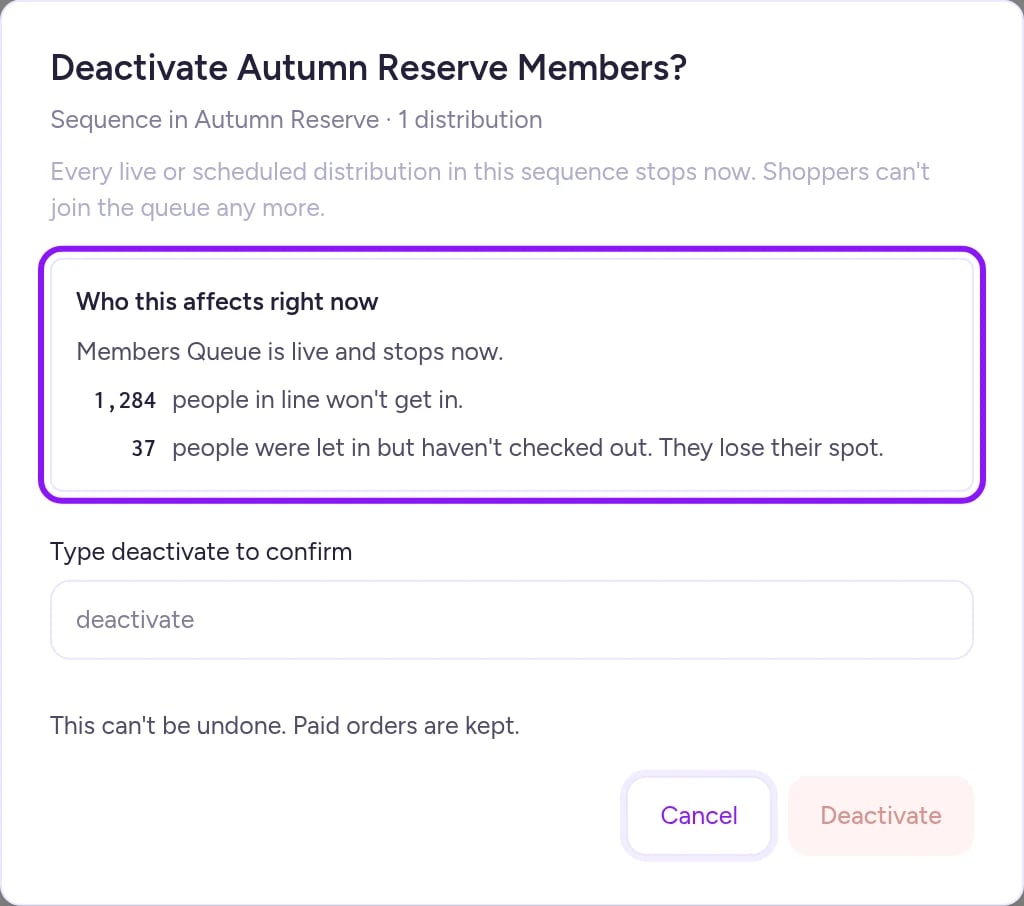
Review who is affected right now, then type deactivate to confirm.
Special rules for English auctions
Unlike Dutch auctions, an English auction can block deactivation most commonly in two situations:- A winner is actively checking out: Wait until they complete payment or their payment window expires, then deactivate again.
- The auction closed without settling: If you’re trying to deactivate its parent sequence or experience, deactivate that English auction individually first (from its card menu or Deactivate auction), then deactivate the sequence or experience. Deactivating an unsettled English auction withdraws it so no further winner is chosen, while letting any winner already in checkout keep their unit.
After you deactivate
- Status updates: Deactivated distributions switch to Ended early (or Ended if already past their close time) and become read-only (View instead of Edit). Sequences and experiences update once nothing inside them is live or scheduled. See Experiences and Read your results.
- Closed distributions included: Deactivating a sequence or experience also deactivates distributions inside it that already closed on their own, ending anything still settling and relabeling the page as ended.
- Appointment cancellations: On the appointment panel, Fanfare displays a live progress counter as it cancels upcoming bookings.
- Partial propagation: If Fanfare warns that the change hasn’t reached every live page yet, run Deactivate a second time to finish propagating it.
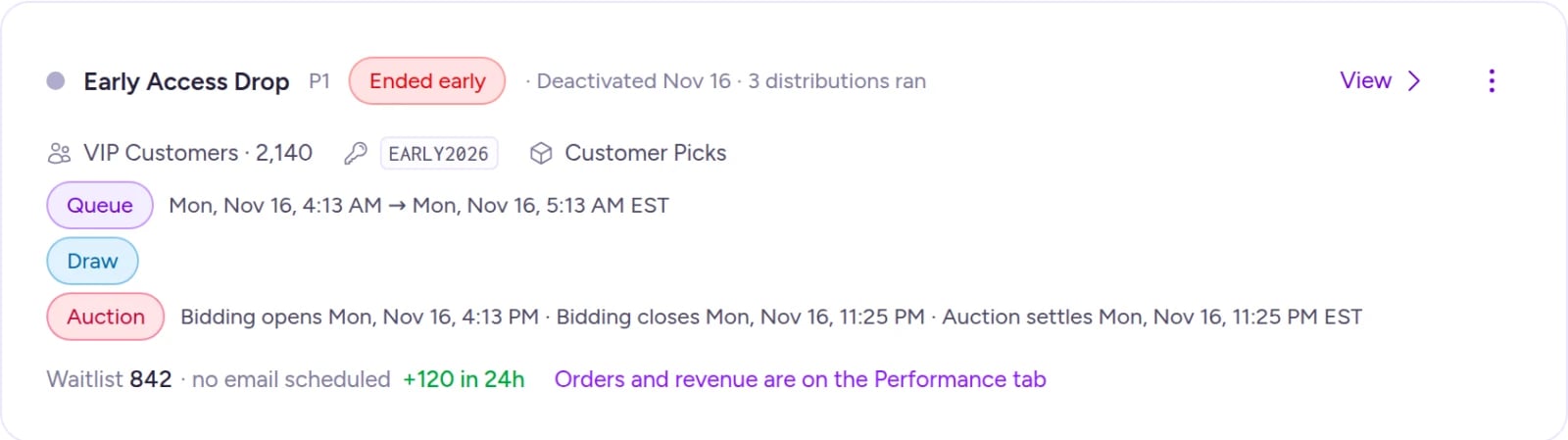
Deactivated sequences display the Ended early chip along with the deactivation date.
Delete
Delete permanently removes a finished distribution, sequence, or experience from your admin. It never deletes orders, entries, or customer records—your historical orders remain in Orders (Orders and refunds).When Delete is available
You can’t delete anything while it’s live, scheduled, or still releasing active payment windows:- Live or scheduled items: Deactivate first. Delete stays disabled in experience and sequence headers until everything inside is deactivated—except while an auction is running, when header Delete on the experience, the sequence, or the auction itself looks enabled (selecting it opens the Delete confirmation first, and confirming opens the Deactivate dialog). Selecting Delete on any other live or upcoming distribution opens the Deactivate dialog directly.
- Wind-down wait period: Even after a drop ends or is deactivated, Delete waits until all payment windows have finished winding down (about payment window + 1 hour) and is refused during this period even though the button looks available:
- After Deactivate: About 90 minutes with the default payment window, or about 2 hours for a draw.
- After natural close (queue and timed release): Payment window + ~1 hour from close (about 90 minutes for a timed release).
- After natural close (draw): Payment window + ~2 hours (about an hour longer than a queue or timed release), measured from the final selection if it keeps drawing until every unit is claimed.
- After natural close (auction): About 90 minutes from close or settlement, whichever is later. An English auction that closed without settling stays on hold for about 30 days unless you deactivate it, which drops the wait to about 90 minutes.
- Appointments: No wind-down wait, but you can’t delete an appointment while any upcoming or in-progress booking stands. After deactivating, wait for all booking cancellations to complete, then delete. Past bookings don’t block deletion.
How to delete
1
Select Delete
Choose Delete from the experience or sequence header, the Experiences row menu, or a distribution’s card menu.
2
Review what's removed
Confirm the scope. Deleting an experience or sequence also removes any remaining waitlist sign-ups and stops pending “opens soon” emails, while keeping all orders, entries, and customer records.
3
Confirm deletion
Select Delete. There’s no undo or restore. Old links show that the experience was deleted and when; its orders stay in Orders.
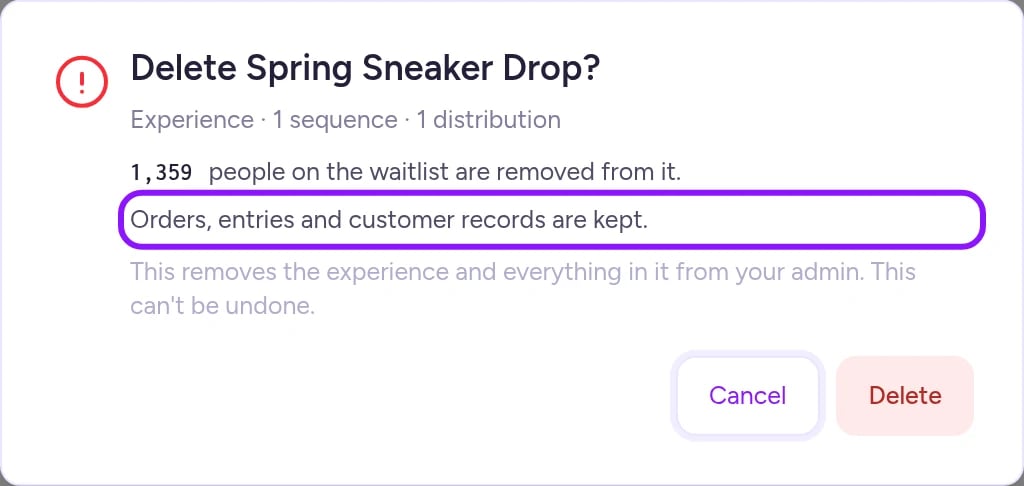
Deleting removes the experience from your admin while keeping orders, entries, and customer records.
On Shopify
- Checkout protection stays active after Deactivate: Deactivating an experience does not release Shopify checkout protection on its products, so shoppers still won’t be able to buy them normally. Delete the experience (or remove the products from it) to release protection. If removing protection fails for any product during deletion, the delete still completes and lists the affected products—see Checkout protection to clean them up.
- Admin permissions: Every Shopify staff member who can open the Fanfare app counts as an organization admin and can deactivate drops.
- No appointments: Appointments aren’t offered in the Shopify app.
Troubleshooting
Delete is refused after I deactivated
Delete is refused after I deactivated
Active admissions are still winding down. Wait about 90 minutes with the default payment window (or about 2 hours for a draw) and try again. See When Delete is available.
I can't add a sequence or distribution anymore
I can't add a sequence or distribution anymore
Every distribution in the experience or sequence has been deactivated, so it’s permanently closed to new additions. Add a new sequence (if the experience still has active sequences) or create a new experience.
Related
Experiences
Understand status chips and the full experience lifecycle.
What locks, and when
See what stays editable before, during, and after a drop.
Change things mid-drop
Pause a queue, pull close times earlier, or move units without deactivating.
What your customers see
Preview the screens customers see after a drop ends or is canceled.
Orders and refunds
View and manage paid orders—all orders survive Deactivate and Delete.