

Available on Pro and Enterprise plans. On Starter and Growth, Loyalty stays visible in the sidebar with an upgrade prompt. If you already turned the program on before downgrading, it keeps awarding points—and the turn-off toggle is the only control that remains active. See Plans and what they unlock.
Turn the program on
1
Open Loyalty Settings
Go to Loyalty → Settings in the sidebar.
2
Enable the program
On the Program Status card, turn the toggle on so the badge switches to Active, then select Save at the bottom of the page.
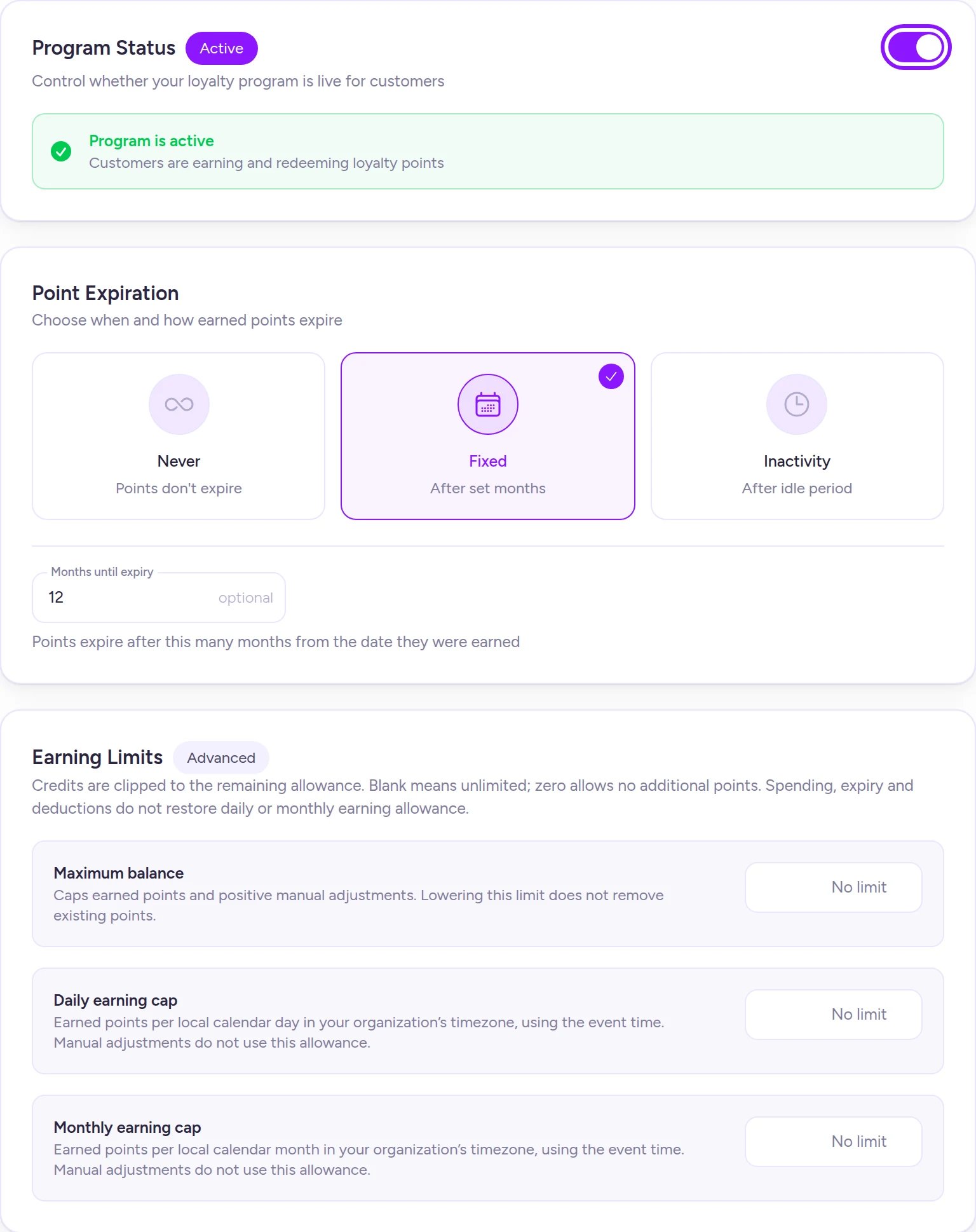
Control program status, point expiration, and earning limits from Loyalty → Settings.
- Signed-in customers begin earning points on eligible actions (guests never earn points—see Customers and identity).
- Customer profiles gain the Adjust points action and Points Ledger.
- You can turn on Bias toward loyal consumers on queues and draws (while the program is off, that switch shows “Needs a loyalty program”). See Set up a queue and Set up a draw.
Turn the program off
Toggle Program Status off on Loyalty → Settings and select Save.Choose when points expire
Under Point Expiration, select a policy and save:- Never — Points don’t expire.
- Fixed — Each day’s points expire after Months until expiry (1 to 120 months). Points keep the expiration date assigned when earned, even if you later change the window. Switching to Never stops future expiration (previously expired points don’t return), and switching back to Fixed expires any past-due points on the next hourly check.
- Inactivity — A customer’s entire balance expires after Months of inactivity (1 to 120 months) without earning points. Unlike Fixed, Inactivity applies retroactively to existing balances—switching to it or shortening the window expires inactive balances at the next hourly check.
Set earning limits
On the Earning Limits card, leave any field blank for no limit or enter0 to stop further earning:
- Maximum balance — The highest balance a customer can hold (applies to both earned points and manual adjustments; lowering it doesn’t remove existing points).
- Daily earning cap — Maximum points a customer can earn in a calendar day (manual adjustments don’t count).
- Monthly earning cap — Maximum points a customer can earn in a calendar month (manual adjustments don’t count).
Settings reference
Choose what earns points
Open Loyalty → Event Points to inspect point distribution and tune point values. At the top, the Loyalty Balance Distribution chart shows how balances are spread across your signed-in customers (it appears once you have signed-in customers and can take up to an hour to reflect recent changes). Below the chart, pick an event category on the left to adjust its sliders on the right (0 to 200 points in steps of 5). Changes auto-save about half a second after you stop dragging—there’s no Save button.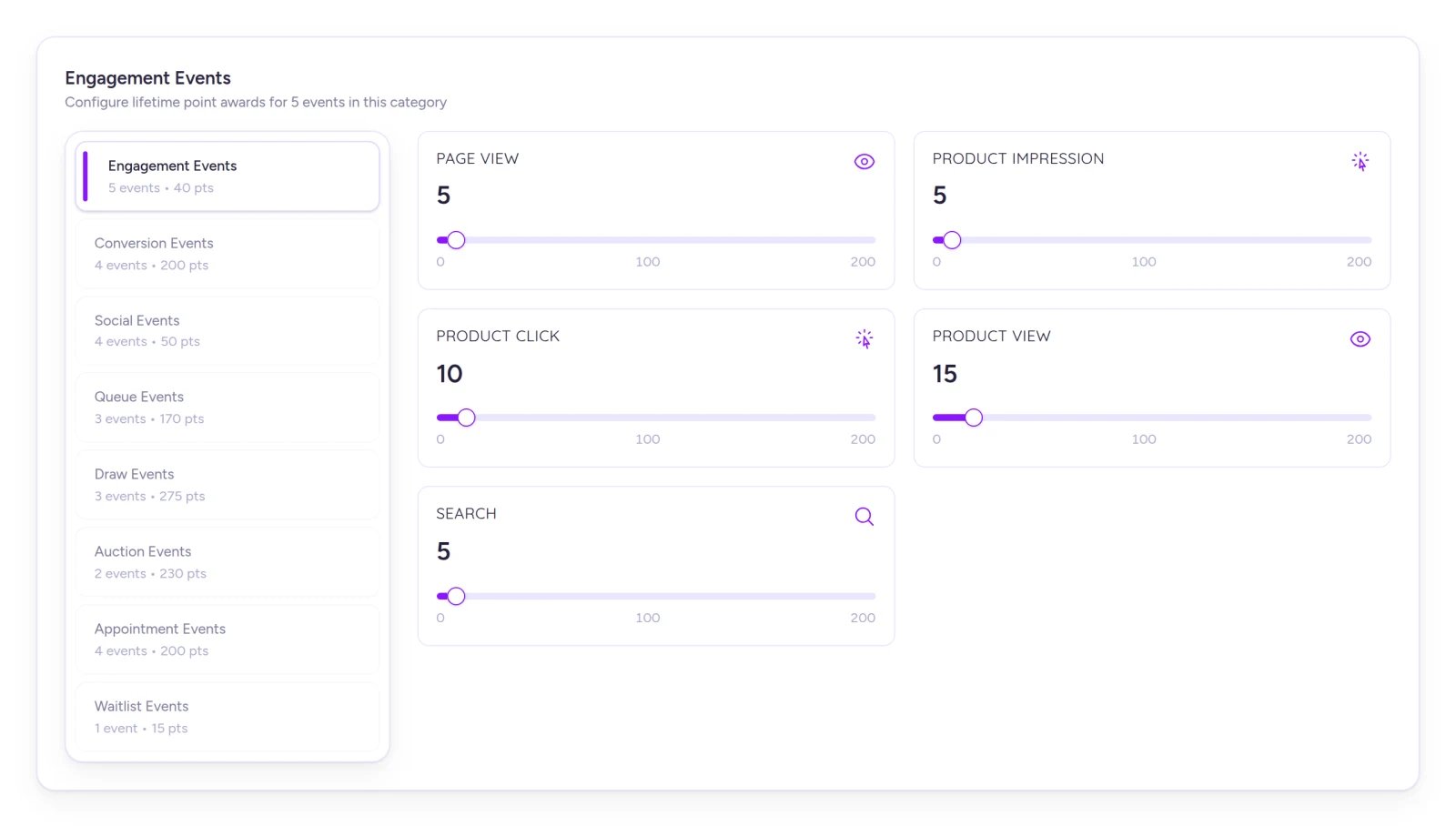
Adjust each action's point value on Event Points; sliders auto-save as soon as you release them.
Active events and default points
Queue Entered currently appears under Queue Events with an internal event key instead of its display label—it’s the first card in that category. Timed release entries and waitlist entries added manually by your team don’t earn points. For unlisted actions that still carry default awards, see Loyalty and Fanfair.
Adjust a customer’s points
Add bonus points or deduct points—for example, after a refund or support resolution—directly from a customer’s profile. (Requires Pro or above with the loyalty program turned on.)1
Open the adjustment dialog
Open the customer’s profile from Customers (see Customer profiles) and select Adjust points on the Value card.
2
Choose Add or Deduct and enter points
Select Add or Deduct and enter the Points amount. The top of the dialog previews Current balance alongside Requested balance (when adding) or New balance (when deducting).
3
Record a reason and submit
Under Reason, pick a chip (Correction, Promotional bonus, Goodwill gesture, Customer complaint, or Refund adjustment), type a free-text note, or both, then submit once with Add N points or Deduct N points.
- Maximum balance applies: Adding points stops at your Maximum balance cap (if capped, Fanfare credits up to the limit and confirms how many points were added). Daily and monthly earning caps don’t apply to adjustments.
- No negative balances: You can’t deduct more than the customer’s current balance.
- Lifetime points: Points you add also increase the customer’s lifetime points total.
- Queue and draw priority: Loyalty priority reads a customer’s balance at their last sign-in, so newly added points improve priority the next time they sign in.
- Separate submissions each apply: Submitting the dialog twice in separate attempts applies both adjustments.
Manual adjustments don’t count as earning activity for Inactivity expiration. If a customer’s last earned points are already older than your inactivity window, manually added points can expire at the next hourly check.
Read a customer’s Points Ledger
When Loyalty is turned on, each customer profile includes a Points Ledger listing every Earned, Expired, and Adjusted transaction with its point delta, source or reason, timestamp, and expiration date (when applicable). Credits reduced by a cap note which limit applied. Select Load more for older history. The “pts expiring soon” summary above the ledger lists every upcoming expiration date on the customer’s balance—not just imminent dates.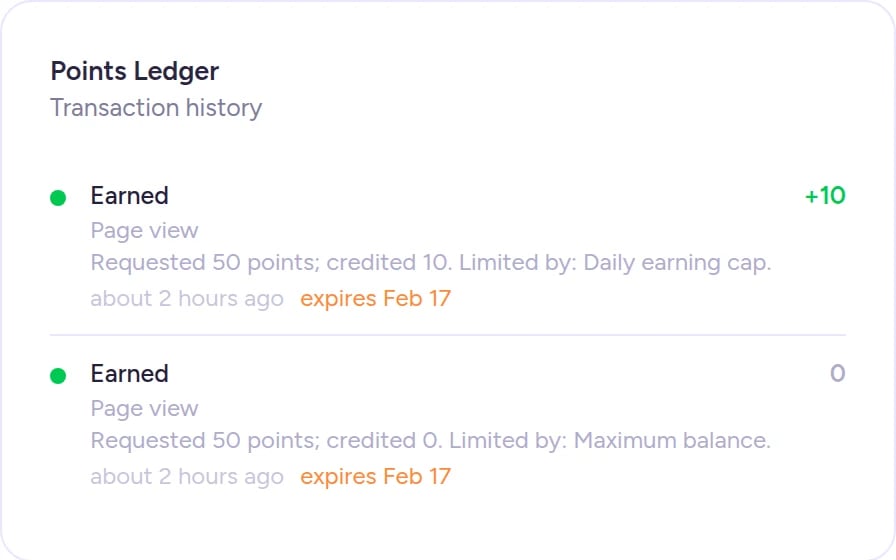
When a limit caps an award, the Points Ledger notes how many points were requested and which limit applied.
Tiers, priority, and wallet passes
- Loyalty tiers: Build tier audiences from Audiences → Create Audience → Create Loyalty Tiers. See Build audiences.
- Wallet passes: Design Apple Wallet and Google Wallet passes displaying a customer’s points in Design Studio (Pro and above). See Templates and widget designs.
- Next drop: See Set up the next drop from this one to pair tiers and loyalty priority with your next release.
On Shopify
Loyalty → Settings, Loyalty → Event Points, and the loyalty controls on customer profiles work identically in the Fanfare Shopify app.Troubleshooting
Adjust points isn't showing on a customer's profile
Adjust points isn't showing on a customer's profile
Make sure the loyalty program is turned on in Loyalty → Settings (requires Pro or above). If you downgraded below Pro while the program stayed on, Adjust points remains visible but displays an upgrade prompt. If the program is active and the controls are still missing, reload the page.
Fewer points were added than I entered
Fewer points were added than I entered
Your Maximum balance cap limited the credit. Increase Maximum balance in Loyalty → Settings if you want customers to hold more points.
The balance distribution chart isn't showing on Event Points
The balance distribution chart isn't showing on Event Points
The chart appears once your organization has at least one signed-in customer, and it can take up to an hour to populate.
The Points Ledger says No loyalty transactions yet even though the customer has points
The Points Ledger says No loyalty transactions yet even though the customer has points
Reload the page—this message can appear if the ledger failed to load.
Related
Loyalty and Fanfair
How earning, expiration, limits, and loyalty priority work under the hood.
Build audiences
Create loyalty tiers from customers’ points.
Customer profiles
View spend, invites, and drop history alongside a customer’s points.
Plans and what they unlock
See which plans include loyalty programs and wallet passes.